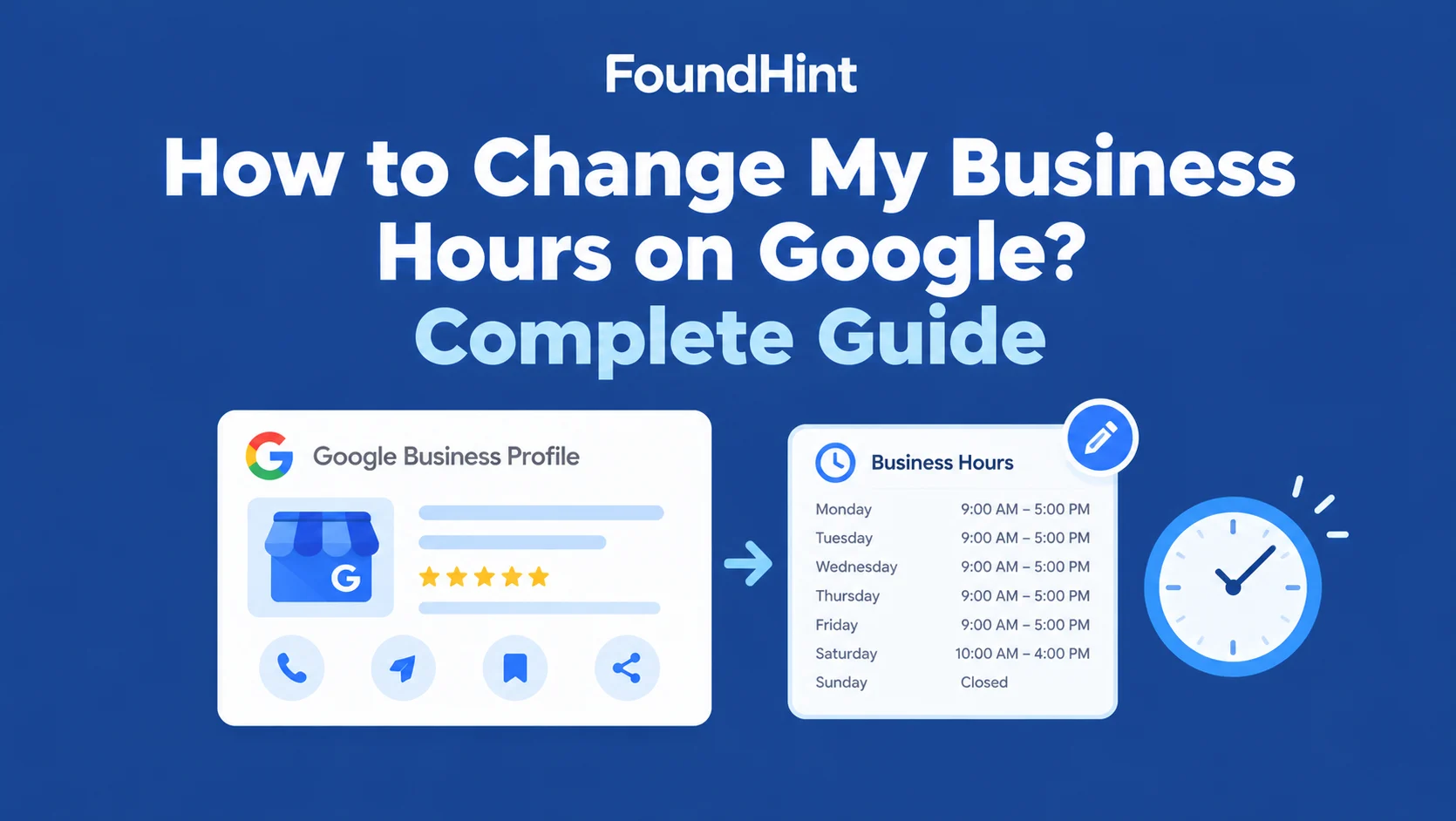
To change your business hours on Google, sign in to the Google account that manages your Google Business Profile, open your profile from Google Search or Google Maps, choose Edit profile, open the Hours section, update each day, and save. Your updated hours may take some time to appear across Google Search and Google Maps, so check your profile again after saving.
That is the quick version.
The rest of this guide covers how to change business hours on Google in every situation a real business runs into: holiday hours, special hours, temporary closures, split hours, multiple locations, service-area businesses, and how to keep your WordPress website hours in sync with your Google Business Profile hours.
Why accurate Google business hours matter?
- Customers need accurate opening times. “Open now” is one of the most common filters people use when searching for a local business. If your Google business hours are wrong, you either lose the customer or they show up to a locked door.
- Incorrect hours create a poor customer experience. A customer who drives across Austin to find your bakery closed is likely to leave a frustrated review, and that review stays.
- Holiday and special hours often differ from regular hours. Thanksgiving, Christmas Eve, July 4th, and a snow day in Chicago all need different hours than a normal Tuesday.
- Website and Google hours should remain consistent. If your contact page says you close at 8 PM and your Google Business Profile hours say 6 PM, customers don’t know which to trust, and neither do search engines.
What Are Google Business Hours?
Google business hours are the operating times shown on your Google Business Profile in Google Search and Google Maps. They tell customers when they can visit, call, or expect service from you. Your Google Business Profile hours include:
- Opening time: when you start serving customers each day
- Closing time: when you stop serving customers
- Days the business is open: your normal operating days
- Closed days: days you don’t open at all, such as Sunday
- Split hours: two or more time blocks in one day, for example a lunch break closure
- Special hours: temporary changes for specific dates
- Holiday hours: special hours set for public holidays
Regular hours vs special hours
| Type | What it means | Example | When to change it |
|---|---|---|---|
| Regular hours | Your normal weekly opening hours | Mon–Fri 9 AM–6 PM, Sat 10 AM–4 PM | Only when your normal schedule changes permanently |
| Special hours | Temporary changes to normal hours on specific dates | Closed Dec 25; 10 AM–2 PM on Dec 24 | Holidays, events, weather, one-off closures |
The most important rule in this guide: don’t edit your regular hours for a temporary change. Use Google Business Profile special hours instead, so your normal schedule comes back automatically when the date passes.
How to Change Business Hours on Google? (Step by Step)
Here is exactly how to change hours on Google Business Profile. Google occasionally moves buttons around, but the flow has stayed the same for years.
Step 1: Sign in to the Google account
Use the Google account that owns or manages the Business Profile. If you’re signed in with a personal Gmail that isn’t a manager on the profile, you won’t see the edit options. Not sure which account? Check with whoever originally verified the listing, or look for an ownership email from Google.
Step 2: Find your Business Profile
Search for your business name on Google while signed in, for example “Maple Street Dental Denver,” or search “my business.” Google shows your profile with management tools above the listing.
Step 3: Open the Business Profile management options
Select Edit profile (sometimes shown as Edit business information).
Step 4: Open Business Hours
Go to the Hours section. You’ll see your regular weekly hours, plus separate options for special hours and more hours (such as delivery, pickup, or senior hours, depending on your category).
Step 5: Edit your hours
Update each applicable day. For example, a Denver dental office might set:
| Day | Hours |
|---|---|
| Monday | 9:00 AM – 6:00 PM |
| Tuesday | 9:00 AM – 6:00 PM |
| Wednesday | 9:00 AM – 6:00 PM |
| Thursday | 9:00 AM – 6:00 PM |
| Friday | 9:00 AM – 6:00 PM |
| Saturday | 10:00 AM – 4:00 PM |
| Sunday | Closed |
Toggle a day to closed if you don’t open, and use Add hours to create split hours on the same day.
Step 6: Save the changes
Select Save. Some edits may go through a short review before they go live.
Step 7: Check the profile
Return to your Business Profile on Google Search and Google Maps and verify that the new hours are correct. If they still show the old times, see the troubleshooting section below.
How to Change Google Business Hours on Google Maps?
If you’re wondering how to change hours on Google Maps, the good news is you don’t need a separate process. Your Google Business Profile powers your listing in both Search and Maps, so when you change Google Maps business hours you’re editing the same profile.
On the Google Maps app or maps.google.com:
- Find the business. Sign in, then search for your business or open your profile from the account menu.
- Open the business management interface. Tap Edit profile or Manage.
- Edit business information. Go to the business information area.
- Update hours. Change regular hours, or add special hours for specific dates.
- Save.
- Verify the listing. Reopen the Maps listing and confirm the hours, including the “Open now / Closes soon” label.
How to Change Google Business Hours on Google Search?
To change business hours on Google Search, search your business name while signed in to the managing account. The same Business Profile appears with edit tools:
Google Search → Business Profile → Edit Business Information → Hours → Save
Whichever surface you use, one save updates the profile everywhere Google shows it.
How to Change Google My Business Hours?
Google My Business is now called Google Business Profile. If you are looking for how to change your Google My Business hours, you can update them through your Google Business Profile using the exact steps above. The old Google My Business app and dashboard were retired, but people still search for “Google My Business hours” and “GMB hours,” and it’s the same thing: your business hours on Google.
How to Change Google My Business Hours in WordPress?
Here’s a point most guides skip: WordPress doesn’t control your Google Business Profile just because your hours are on your website. Typing new hours into your footer widget or contact page changes your site and nothing else.
Your Google business hours stay exactly as they were until someone updates the profile itself.
That’s why so many businesses end up with two different sets of hours: one on the website, one on Google. They updated one and forgot the other.
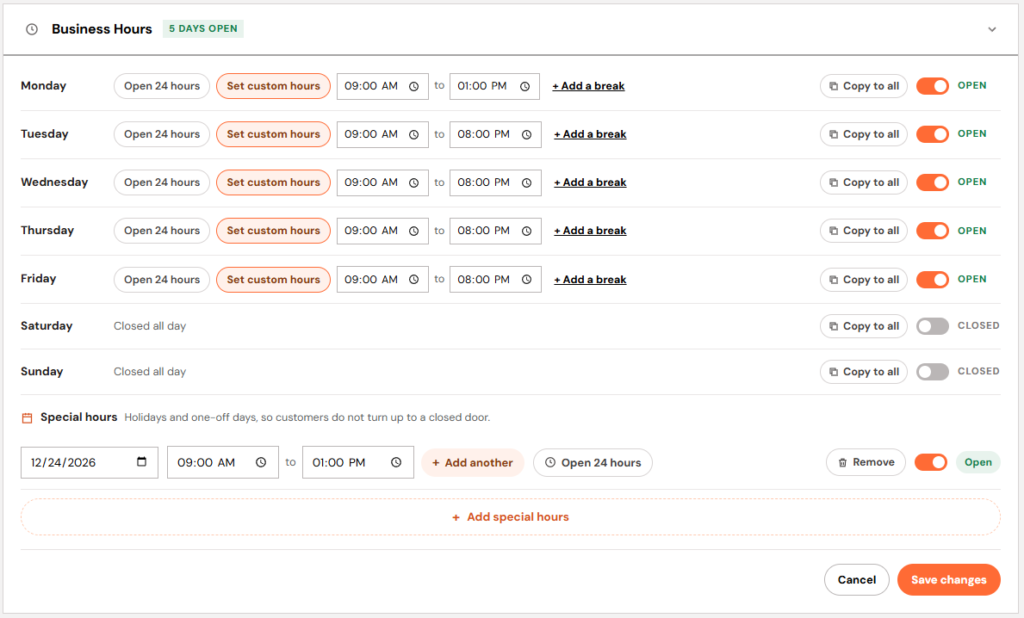
FoundHint, our Local SEO plugin for WordPress, fixes that by connecting your WordPress site to your Google Business Profile. You can change business hours in WordPress and push them to Google from the same dashboard:
WordPress → FoundHint → Business Profile → Business Hours → Google Business Profile
The workflow is simple: edit hours in FoundHint → update the connected Google Business Profile → use the same information on your WordPress website. One edit, one source of truth.
 FoundHint Local SEO WordPress
Optimize your Google Business Profile without leaving WordPress
Connect your profile, compare it with your website and fix the gaps FoundHint finds.
- Business Profile audit and optimization
- Google Post scheduling
- Review management and replies
- Local rank tracking on a map grid
Update regular hours
Set opening and closing times for Monday, Tuesday, Wednesday, Thursday, Friday, Saturday, and Sunday, mark closed days, and add split hours, all inside WordPress.
Update special hours
Add Google Business Profile special hours for:
- Holidays (Thanksgiving, Christmas, New Year’s Day, Memorial Day, July 4th)
- Temporary closures
- Seasonal changes (summer hours, winter hours)
- Special opening days (a Sunday sale, an extended Black Friday)
Manage multi-location GBP profiles
If you run several locations, FoundHint lets you connect multiple Google Business Profiles and manage each location’s regular hours and special hours separately, without logging in and out of each profile on Google.
Keep website hours synchronized
FoundHint uses the same business-hour data for:
- Website business information (header, footer, contact page)
- LocalBusiness schema (
openingHoursSpecification) - Location pages
- Google Business Profile
Change your hours once and every place they appear stays consistent.
How to Change Holiday Hours on Google?
Google Business Profile holiday hours are special hours tied to a specific date. They override your regular hours for that day only, then your normal schedule comes back automatically. That’s why they’re different from editing regular hours: you set them once and don’t have to remember to change anything back.
Example for a Seattle hardware store:
| Hours | |
|---|---|
| Regular hours | Monday – Friday: 9 AM – 6 PM |
| December 25 | Closed |
| December 26 | 10 AM – 4 PM |
Set holiday hours for:
- Christmas (and Christmas Eve, if you close early)
- New Year’s Day and New Year’s Eve
- Public holidays such as Memorial Day, July 4th, Labor Day, and Thanksgiving
- Seasonal closures, for example a beach shop in Myrtle Beach closing for January
- Company holidays, such as a staff training day
- One-day changes, like closing early for a local parade
Google often prompts you before major holidays to confirm your hours. Confirm or update them even if you’re staying open with normal hours, because a confirmed “open” is more reassuring to customers than an unknown.
How to Add Special Hours to Google Business Profile?
Use special hours whenever the change is temporary. Change regular hours only when your normal week changes for good.
Example: a Miami restaurant normally operates 11 AM – 10 PM. On Thanksgiving it opens 12 PM – 6 PM. Keep the regular schedule unchanged and add a special hours entry for that date.
To add special hours: open your profile → Edit profile → Hours → Special hours → pick the date → set the hours or mark closed → Save.
How to Change Business Hours for a Temporary Closure?
Temporary closures happen to every business:
- Renovation
- Staff shortage
- Emergency closure (burst pipe, power outage)
- Vacation
- Weather-related closure, such as a hurricane in Tampa or a blizzard in Minneapolis
- Temporary relocation
For a closure of a day or two, use special hours and mark the dates closed. For a longer closure, use Google Business Profile’s Mark as temporarily closed option. Don’t delete your regular hours, and never mark the business permanently closed for a temporary event; that’s much harder to undo and can confuse customers who think you’ve shut down.
How to Change Business Hours for Multiple Locations?
Every location has its own Google Business Profile, and every profile has its own hours. Take a coffee chain with three Texas locations:
| Location | Regular hours |
|---|---|
| Downtown Austin | 9 AM – 6 PM |
| Round Rock | 10 AM – 7 PM |
| San Marcos | 8 AM – 5 PM |
Rules for multi-location hours:
- Each location may have different hours. A mall location follows mall hours; a street-front store doesn’t.
- Don’t copy hours blindly. Bulk-applying one schedule to every profile is the fastest way to get several listings wrong at once.
- Verify every location after any change.
- Manage special hours separately. A Texas location may close for a local event that doesn’t affect other stores.
- Keep location pages consistent with each location’s profile.
- Keep GBP data consistent across all profiles you manage.
This is where managing hours one profile at a time on Google gets painful. With FoundHint you can manage multi-location GBP profiles from WordPress, switch between locations, and update each one’s hours and special hours without leaving your dashboard. For the full strategy, see Multi-Location Local SEO: The Complete Guide.
How to Change Business Hours for a Service-Area Business?
Service-area businesses don’t serve customers at a storefront, so their hours describe when they’re available, not when a door is open. This applies to:
- Appointment-based businesses
- Mobile businesses (mobile detailing, dog grooming vans)
- Contractors
- Plumbers
- HVAC companies
- Electricians
- Cleaning businesses
A Phoenix HVAC company might list Mon–Sat 7 AM–7 PM as service availability, or Open 24 hours if it genuinely answers emergency calls around the clock. Only list 24 hours if someone actually picks up. Don’t copy storefront-style hours just because a competitor did; list the hours customers can really reach you.
How to Add Split Business Hours?
Split hours let you show two or more time blocks in one day:
Monday: 9:00 AM – 1:00 PM and 3:00 PM – 7:00 PM
They’re useful for:
- Restaurants that close between lunch and dinner
- Medical practices
- Salons
- Professional services
- Any business that closes midday
Use Google’s Add hours option to create a second time block for the day. Don’t force split hours into a single range or write “closed 1–3” in your business description; Google can’t read that, and “Open now” will be wrong during your break.
How Long Does It Take for Google Business Hours to Update?
There’s no fixed time. Many hour changes show up within minutes, but some take longer, and different surfaces can update at different speeds:
- Google review/processing: some edits are reviewed before going live, especially on newly verified or recently edited profiles.
- Search: usually reflects the change first.
- Maps: can lag slightly behind Search, and the mobile app may cache old data.
- Business Profile: your edit screen may show “under review” or “pending” for a while.
- Website: only updates if you (or a plugin like FoundHint) change it too.
- Third-party systems: Apple Maps, Yelp, Bing Places, and directories don’t pull from Google automatically, so they need their own updates.
If your hours still aren’t showing after a couple of days, work through the checks below.
What to Do If Google Business Hours Are Wrong?
When customers say “Google says you’re closed” and you’re not, check these in order.
Check your Business Profile
Confirm the saved hours in your edit screen. Look for a “pending” status, a rejected edit, or a note that Google applied an update from another source.
Check special hours
A holiday or temporary schedule may override regular hours. Old special hours left over from last season are one of the most common causes of “wrong” Google business hours.
Check your website
Make sure your website doesn’t display different information. Google cross-checks business details against your site and can suggest edits to your profile from what it finds.
Check location pages
For multi-location businesses, verify the specific location. It’s easy to update Round Rock’s profile when you meant to update San Marcos.
Check structured data
Make sure your LocalBusiness schema uses accurate opening hours. Outdated openingHours in your schema is a conflicting signal.
Check third-party listings
Incorrect citations on Yelp, Yellow Pages, Facebook, or industry directories create inconsistent business information. FoundHint’s local citation check can help you spot where your details don’t match.
Why Accurate Business Hours Matter for Local SEO?
Let’s be clear: simply changing your business hours is not a direct Google ranking boost. What accurate hours do is help customers and search engines understand your business correctly, and that supports everything else in local SEO. Accurate hours affect:
- Customer experience: fewer wasted trips, fewer angry reviews
- Local business information: hours are a core part of your profile’s completeness
- Search visibility: when people search “open now,” your listing needs correct hours to appear as open
- Google Maps: “Open,” “Closes soon,” and “Closed” labels come straight from your hours (Google Maps Local SEO)
- Business Profile accuracy: a complete, trustworthy profile (Google Business Profile Optimization)
- Website consistency: your site and profile tell the same story
- LocalBusiness structured data: schema that matches what customers see
- NAP/business information consistency across the web
Business Hours and LocalBusiness Schema
Your hours should flow from one source to every place they appear:
Business Hours → WordPress → LocalBusiness Schema → Google Business Profile
Structured data should accurately reflect the visible business information on your page. Here’s a simple example for a Denver dental office:
"openingHoursSpecification": [
  {
    "@type": "OpeningHoursSpecification",
    "dayOfWeek": ["Monday","Tuesday","Wednesday","Thursday","Friday"],
    "opens": "09:00",
    "closes": "18:00"
  },
  {
    "@type": "OpeningHoursSpecification",
    "dayOfWeek": "Saturday",
    "opens": "10:00",
    "closes": "16:00"
  }
]
Don’t add schema hours that don’t match the actual business or your visible hours. For the full setup, read LocalBusiness Schema for WordPress: Complete Guide.
Business Hours and NAP Consistency
Hours aren’t part of the acronym NAP (name, address, phone number), but they’re still important business information. Your business name, address, phone number, website, and operating information should be accurate and consistent across important business profiles and location pages. If you’ve already cleaned up your NAP, add hours to the same audit. Learn more in NAP Consistency for Local SEO.
Common Google Business Hours Mistakes
Run through this list. Most businesses with “wrong” Google hours have made at least one of these:
- Incorrect opening time: typo, or AM/PM mixed up
- Incorrect closing time: especially after a schedule change
- Wrong day marked open: Sunday left open when you’re closed
- Missing Sunday hours: leaving Sunday blank instead of marking it closed
- Forgetting holiday hours: Google shows “open” on Thanksgiving when you’re not
- Leaving old holiday hours active: last year’s dates or a long-past special closure
- Using regular hours for temporary closures: then forgetting to change them back
- Website hours don’t match GBP: the classic two-sources-of-truth problem
- Location page has different hours from that location’s profile
- Incorrect schema hours: old
openingHoursstill in your LocalBusiness schema - Copying one location’s hours to every location
- Not checking seasonal changes: summer hours still live in November
- Not updating hours after relocation
- Not checking the profile after saving
FoundHint: Manage Business Hours, Special Hours, and Multiple GBP Locations in WordPress
If you’ve read this far, you’ve probably noticed the pattern: the steps on Google are easy, but keeping hours correct everywhere is not. You change Google, forget the website. You fix the website, forget the schema. You manage five locations and update four.
FoundHint is a Local SEO plugin for WordPress built to fix exactly that. Instead of jumping between Google, your WordPress editor, and five different Business Profiles, you manage your hours in one place:
FoundHint → Business Profile → Business Hours → Regular Hours → Special Hours → Location Hours → Website + Schema → Google Business Profile
What you can do with FoundHint
Change business hours from WordPress. Edit your weekly hours inside your WordPress dashboard and update your connected Google Business Profile. No more logging in to Google separately every time your schedule changes.
Manage special hours and holiday hours. Add special hours for Thanksgiving, Christmas, New Year’s Day, a temporary closure, or a seasonal schedule. Set them in advance and your regular hours stay untouched.
Manage multi-location GBP profiles. Connect multiple Google Business Profiles and manage each location’s regular and special hours from one dashboard. Perfect for franchises, agencies, and any business with more than one storefront or service area. Austin, Round Rock, and San Marcos each keep their own hours, and you never have to bulk-copy one schedule onto the wrong store.
Keep your website in sync. FoundHint uses the same hours for your website display, location pages, and LocalBusiness schema, so your site, your structured data, and Google all match.
FoundHint’s Business Hours toolkit
| Feature | What it does |
|---|---|
| Weekly hours | Set regular hours for every day, including split hours and closed days |
| Special hours | Override specific dates without touching regular hours |
| Holiday hours | Plan holiday schedules ahead of time |
| Temporary closure | Handle short closures cleanly |
| Multiple locations | Manage several GBP profiles from one WordPress site |
| Location-specific hours | Each location keeps its own schedule |
| Website display | Show accurate hours on your site |
| LocalBusiness schema | Output matching openingHoursSpecification |
| GBP synchronization | Send hour changes to your connected Google Business Profile |
Audit Pro: catch hour problems before customers do
FoundHint’s Audit Pro checks can flag:
- Missing business hours
- Incomplete weekly hours
- Website/GBP mismatch
- Schema/website mismatch
- Location hours mismatch
- Missing special hours before a holiday
- Potentially outdated hours
- Inconsistent hours across location pages
Stop managing hours in five places. Install FoundHint, connect your Google Business Profile, and change your business hours, special hours, and every location’s schedule from WordPress.
Google Business Hours Checklist
Google Business Profile
- Business hours are complete
- Each open day is correct
- Closed days are marked correctly
- Special hours are updated
- Holiday hours are checked
- Temporary closures are handled correctly
WordPress
- Website hours are accurate
- Location pages use correct hours
- Contact page has correct hours
- LocalBusiness schema is accurate
- Multiple locations have location-specific hours
FoundHint
- Business Profile connected
- Hours synchronized
- Special hours managed
- Location hours checked
- Audit completed
FAQs
How do I change my business hours on Google?
Sign in to the Google account that manages your Business Profile, search for your business on Google or Google Maps, select Edit profile → Hours, update each day, and save. Then check the profile to confirm the new hours.
How do I change Google Business Profile hours?
The same way: Edit profile → Hours. Change regular hours for permanent schedule changes and use special hours for temporary ones.
How do I change my Google My Business hours?
Google My Business is now Google Business Profile. Update your Google My Business hours through your Google Business Profile in Search or Maps.
How do I change business hours on Google Maps?
Open your profile in the Google Maps app or website while signed in, tap Edit profile, update the hours, and save. Maps and Search share the same profile.
Can I change my Google business hours from WordPress?
Not with WordPress alone; editing hours on your site doesn’t change Google. With a connected plugin like FoundHint, you can edit hours in WordPress and update your Google Business Profile from the same dashboard.
How do I change holiday hours on Google?
Go to Edit profile → Hours → Special hours, choose the holiday date, and set the hours or mark it closed. Your regular hours return automatically after the date.
How do I add special hours to Google Business Profile?
Use the Special hours option in the Hours section, pick the date, and enter the temporary hours. Don’t change your regular hours for a one-off event.
Why are my Google business hours not updating?
The edit may still be under review, an old special hours entry may be overriding your regular hours, or Google may be picking up different hours from your website or other listings. Check each of those.
Can I manage hours for multiple Google Business Profiles?
Yes. Each location has its own profile and hours. FoundHint lets you manage multi-location GBP profiles, including each location’s regular and special hours, from one WordPress dashboard.
Should my website hours match my Google Business Profile?
Yes. Your website, location pages, LocalBusiness schema, and Google Business Profile should all show the same hours.
How do Google business hours affect local SEO?
Accurate hours aren’t a direct ranking boost, but they help customers and search engines understand your business correctly, support “open now” searches, and reduce the bad experiences that lead to negative reviews.