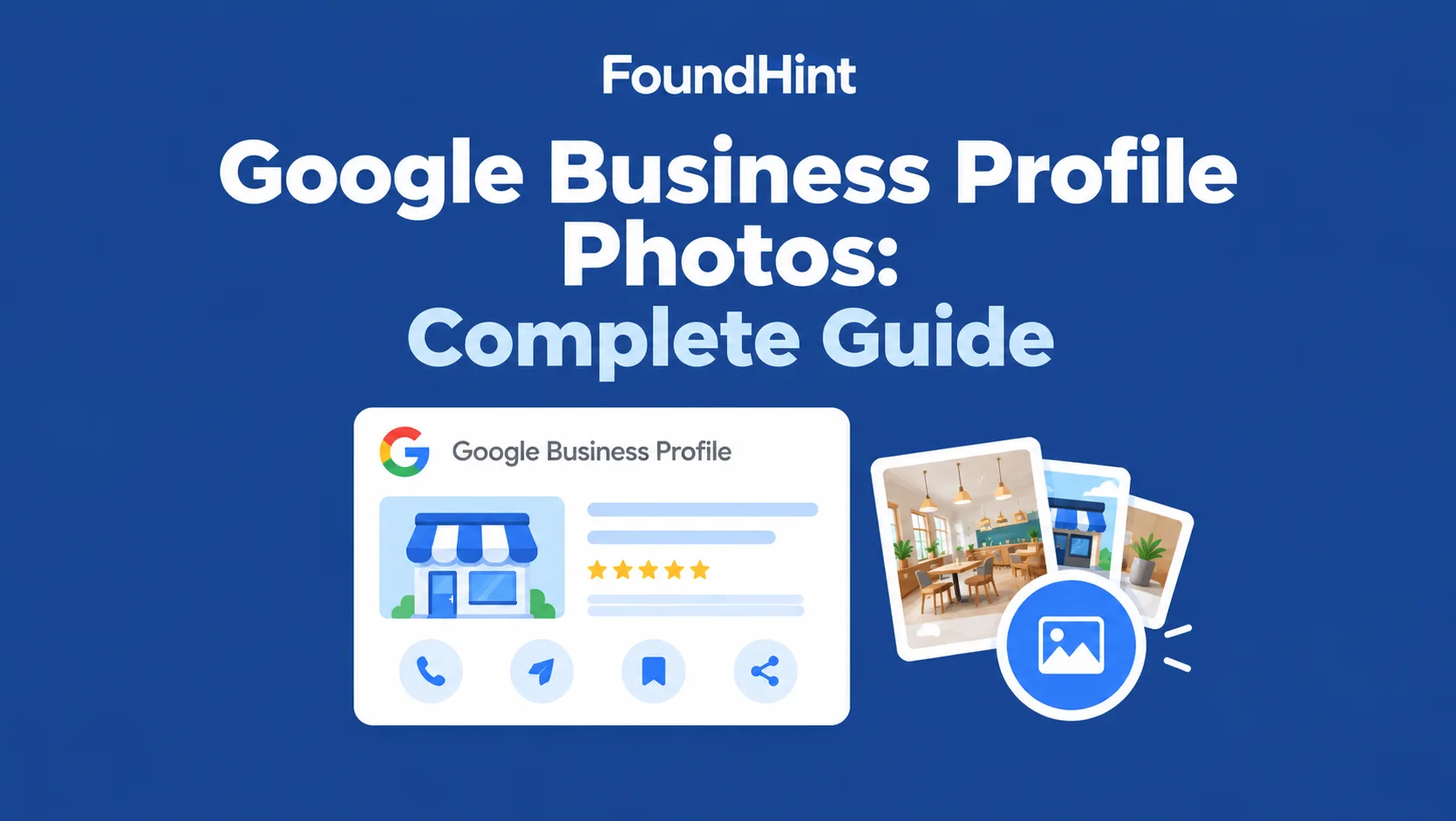
Google Business Profile photos are the images that appear on your business listing in Google Search and Google Maps. Before a customer calls you, visits your store, or books a service, your photos show them what your business looks like and what it offers.
They include:
- Business profile photo (Google labels this your logo)
- Cover photo
- Business photos in general
- Product photos
- Interior photos
- Exterior photos
- Team photos
- Service photos
If you’re still calling them Google My Business photos, that’s fine: Google My Business is now Google Business Profile, and the photos work the same way.
 FoundHint Local SEO WordPress
Optimize your Google Business Profile without leaving WordPress
Connect your profile, compare it with your website and fix the gaps FoundHint finds.
- Business Profile audit and optimization
- Google Post scheduling
- Review management and replies
- Local rank tracking on a map grid
Why Are Google Business Profile Photos Important?
Photos turn a plain listing into something a customer can picture walking into. They matter for:
- Visual business information: customers see your storefront, menu, or finished work at a glance
- Customer trust: real photos of a real place feel more trustworthy than a listing with none
- Business presentation: you choose how your business is first seen
- Google Search visibility: photos appear in your Business Profile panel in Search
- Google Maps presence: photos appear in Maps results and on your Maps listing
- Customer expectations: people know what to expect before they arrive
- Showing products and services: a Portland bakery’s cakes, a Dallas roofer’s finished jobs
- Demonstrating the physical location: the exterior photo helps people find your door
To be clear: uploading more photos doesn’t automatically improve your rankings. Good photos help customers choose you once they find you, and that’s the real value.
Google Business Profile Photo Types
| Photo type | Purpose |
|---|---|
| Profile photo (logo) | Represents the business |
| Cover photo | Main visual representation |
| Exterior photos | Show the location |
| Interior photos | Show the inside |
| Product photos | Show products |
| Service photos | Show services |
| Team photos | Show staff and people |
| Customer photos | User-generated business photos |
Google Business Profile Profile Photo
Your Google My Business profile photo is the small image that represents your business identity. In the Business Profile dashboard, Google calls it your logo.
It appears next to your business name on your profile and in places like reviews you reply to and posts you publish.
- What it represents: who you are as a brand
- How it appears: a small, usually square or circular image, so fine detail gets lost
- Why accuracy matters: customers should recognize it from your sign, website, or packaging
- When a logo is appropriate: almost always for a branded business. A solo professional, such as a Chicago real estate agent, might use a clear headshot instead if that’s how clients know them
- Replacing an outdated image: if you’ve rebranded, change the profile photo the same week you change your sign and website
Google Business Profile Photo Size
This is the question most people search: what is the Google My Business profile photo size? Per Google’s current photo guidelines:
| Requirement | Google Business Profile photo specification |
|---|---|
| File type | JPG or PNG |
| File size | Between 10 KB and 5 MB |
| Recommended resolution | 720 × 720 pixels |
| Minimum resolution | 250 × 250 pixels |
| Quality | In focus, well lit, realistic, no heavy filters or major edits |
Videos have separate limits: up to 30 seconds, up to 75 MB, and 720p or higher.
Practical tips for preparing images:
- Aspect ratio: square (1:1) works best for the profile photo/logo; 4:3 or 16:9 landscape works well for cover and business photos
- Avoid blurry images: start from the original camera file, not a screenshot
- Avoid excessive compression: keep files comfortably above the 10 KB minimum; an image squeezed down to 15 KB will look poor
- Go bigger than the minimum: 720 × 720 is recommended, but a sharp 1200-pixel-wide image gives Google more to work with on large screens
Google updates its specifications from time to time, so check the official guidelines before relying on exact limits.
Google Business Profile Photo Dimensions
People often mix up two separate ideas when looking up Google My Business profile photo dimensions:
- Image dimensions: the pixel width × height, such as 1200 × 900
- Aspect ratio: the relationship between width and height, so 1200 × 900 is a 4:3 aspect ratio
A 1200 × 900 photo and an 800 × 600 photo share the same 4:3 shape; one just has more detail. Prepare genuinely high-quality images rather than simply enlarging small, low-quality ones.
Upscaling a 300-pixel photo to 1200 pixels just makes a bigger blurry photo.
Google Business Profile Cover Photo
Your Google Business Profile cover photo is the image you pick as your preferred lead photo: the large visual that sets the first impression of your business. The profile photo says who you are; the cover photo shows what it’s like to visit.
- What it is: your preferred main image, set through Photos → Add a cover photo (or Change cover)
- Where it appears: at the top of your Business Profile in Search and Maps, though Google doesn’t always show it first (see troubleshooting below)
- How it differs from the profile photo: larger, more atmospheric, usually a real scene rather than a logo
- Choosing a suitable image: your storefront, a busy dining room, a finished project, or your team at work
- Keep important elements away from edges: Google crops differently on desktop, mobile, and Maps, so keep your sign or main subject near the center
- Check different devices: after uploading, look at your profile on a phone and a laptop
Google My Business cover photo size: Google doesn’t publish a separate cover photo size. The same rules apply (JPG or PNG, 10 KB–5 MB, at least 250 × 250, 720 × 720 recommended). In practice, a 16:9 landscape image at least 1080 pixels wide (for example 1080 × 608 or 1920 × 1080) displays well across devices.
Google Business Profile Profile Photo vs Cover Photo
| Profile photo (logo) | Cover photo |
|---|---|
| Represents the business | Represents the business visually |
| Often uses branding/logo | Usually uses a business/location image |
| Smaller presentation area | Larger visual area |
| Square works best | Landscape (16:9) works best |
| Business identity | Business atmosphere/location |
In short, for the Google My Business profile vs cover photo question: use your logo for the profile photo and your best real-world photo for the cover.
How to Add Photos to Google Business Profile?
How do I add photos to my Google Business Profile? Here’s the process:
- Sign in to the Google account that manages the profile.
- Find the Business Profile: search your business name and city on Google Search or Google Maps.
- Open the photo section: click Photos.
- Choose the photo type: Add photos for general business photos, or Add a cover photo / Add a logo for those specific slots.
- Upload the image: select one or more files from your computer or phone.
- Review the image: make sure it’s the right photo, the right way up, for the right location.
- Submit/save it.
- Check the profile after processing. New media can take 24–48 hours to appear, and your profile must be verified for photos to show publicly.
Google’s interface changes occasionally, so button names may shift slightly, but the Photos section is always the starting point.
How to Change Your Google Business Profile Photo?
To change your Google My Business profile photo (or your cover photo):
- Open your profile and click Photos.
- Select the current photo slot: choose Change logo or Change cover.
- Choose the new image.
- Upload it.
- Save.
- Wait for processing, then check the profile on Search and Maps.
That’s how to change a Google My Business profile photo after a rebrand, a move, or a renovation. Afterward, delete the old logo or cover from your photo gallery so it doesn’t linger.
How to Edit Photos on Google Business Profile?
How do I edit photos on my Google Business Profile? The honest answer: edit them before you upload. Google Business Profile isn’t a photo editor. Prepare each image first in your phone’s photo app, Canva, Photoshop, or similar:
- Crop before uploading: remove clutter and frame the subject
- Resize before uploading: stay at or above 720 × 720
- Compress appropriately: under 5 MB, without making it blotchy
- Correct orientation: sideways photos are a common upload mistake
- Improve clarity: light brightness and contrast fixes are fine
- Remove unwanted elements: a stray trash bin or a customer’s face
- Export in an appropriate format: JPG for photos, PNG for logos
Avoid heavy filters or edits that change what the place actually looks like; Google’s guidelines ask for realistic images.
How to Delete Photos From Google Business Profile?
To delete a photo from your Google Business Profile:
- Search for your business and click Photos.
- Select the photo.
- Click Delete (trash icon) and confirm.
Remove photos from your Google Business Profile when they are:
- Outdated: the old storefront before your remodel
- Incorrect: a photo from a different business or location
- Duplicate: the same shot uploaded twice
- No longer representative: discontinued products, former staff, an old menu
Business-uploaded vs customer-uploaded photos: you can delete photos your business uploaded. You can’t directly delete photos customers uploaded; instead, report a customer photo to Google if it breaks Google’s content policies (for example, it’s offensive, irrelevant, or shows the wrong business). Google reviews the report and decides whether to remove it.
Why Are My Google Business Profile Photos Rejected?
When Google Business Profile photos are rejected, Google marks them Not approved and they stay hidden from customers. Google doesn’t always say exactly why, so treat these as possible causes, not a diagnosis:
- Doesn’t meet Google’s content requirements: people as the main subject without consent, text-heavy graphics, ads, or offensive content
- Poor quality: blurry, dark, tiny, or heavily filtered
- Misleading content: stock photos, renders presented as real, or images of a different business
- Unsupported or problematic image: wrong format, outside the 10 KB–5 MB range, or below 250 × 250
- Duplicate content: the same image already on the profile
- Technical upload issue: a dropped connection or a corrupted file
- Processing issue: sometimes it’s simply a glitch, and a clean re-upload goes through
Fix the most likely cause, then re-upload a fresh, clearly real photo of your business.
Why Are My Google Business Profile Photos Pending?
Why are my photos pending on Google Business Profile? And why are they still pending days later? A Pending status means the photo is still uploading or processing, or your profile isn’t verified yet. Pending photos aren’t visible to customers.
- Processing can take time: Google says new media can take 24–48 hours to appear
- Review may occur: some uploads get a closer check
- Temporary technical issues can occur on Google’s side
- Check again later before re-uploading, so you don’t create duplicates
- Verify the image meets Google’s requirements (format, size, quality)
- Confirm your profile is verified: unverified profiles can’t show photos publicly
If a photo is still pending after several days and everything checks out, delete it and upload it again.
Why Is My Google Business Profile Cover Photo Not Showing?
Why is my Google Business Profile cover photo not showing? Setting a cover tells Google your preference, but Google may still pick a different lead image, including a customer photo, especially if your cover is low quality or doesn’t match what searchers are looking for. Work through this checklist:
- Check whether the upload completed: look for the photo in your Photos section
- Check image quality: sharp, well lit, at least 720 × 720
- Check image format: JPG or PNG, 10 KB–5 MB
- Verify you’re managing the correct profile: easy to mix up with multiple locations
- Wait for processing: allow 24–48 hours
- Check the profile on Search and Maps: they don’t always show the same lead image
- Re-upload if appropriate, using a stronger, more representative photo
What Makes a Good Google Business Profile Photo?
What’s a good profile photo for Google My Business? And what photos should you add overall? A good Google Business Profile photo is:
- Clear: in focus, well lit, no motion blur
- Relevant: shows your business, not a generic scene
- Authentic: your actual store, staff, and work, not stock photos
- High quality: at or above 720 × 720, minimal compression
- Well composed: the subject is obvious at small sizes
- Representative of the actual business: what customers will really see
- Properly cropped: no awkward cut-offs or wasted space
- Not misleading: no renders, borrowed photos, or heavy filters
A good starter set for a Nashville coffee shop: logo, a cover photo of the bright storefront, two interior shots, a few photos of signature drinks, and one of the baristas at work.
Google Business Profile Photos for Local SEO
How do Google Business Profile photos fit into local SEO? They support:
- Business relevance: photos reinforce what your business actually does
- Customer trust: a complete, real-looking profile earns more clicks and calls
- Visual information: customers decide faster with photos than with text
- Local discovery: photos make your listing stand out when people browse nearby options
- Google Maps: strong images make your pin worth tapping (Google Maps Local SEO)
- Business Profile optimization: photos are part of a complete profile (Google Business Profile Optimization)
- Website image consistency: the same real business shown on Google and your site
What photos don’t do: photo quantity isn’t a direct ranking factor, and more photos don’t guarantee higher rankings. Do Google Business Profile photos help local SEO? Indirectly, yes, through better engagement and trust, not through a photo count.
Google Business Profile Photos and Website Images
Your Google Business Profile and your WordPress website should show the same real business. If a customer sees a modern, remodeled storefront on Google and an old exterior on your website, it creates doubt.
Google Business Profile → Business Photos → WordPress Website → Location Page → Service Page
Keep the images consistent and accurate everywhere: your current storefront, your current team, your current products. When you update photos in one place, update them in the other. Review this alongside your WordPress Local SEO Checklist.
How to Manage Google Business Profile Photos in WordPress?
The usual way to manage Google Business Profile photos means leaving your website, opening Google, finding the right profile, and uploading or deleting images one at a time. Then you go back to WordPress and do it all again for your website. With several locations, that turns into an afternoon.
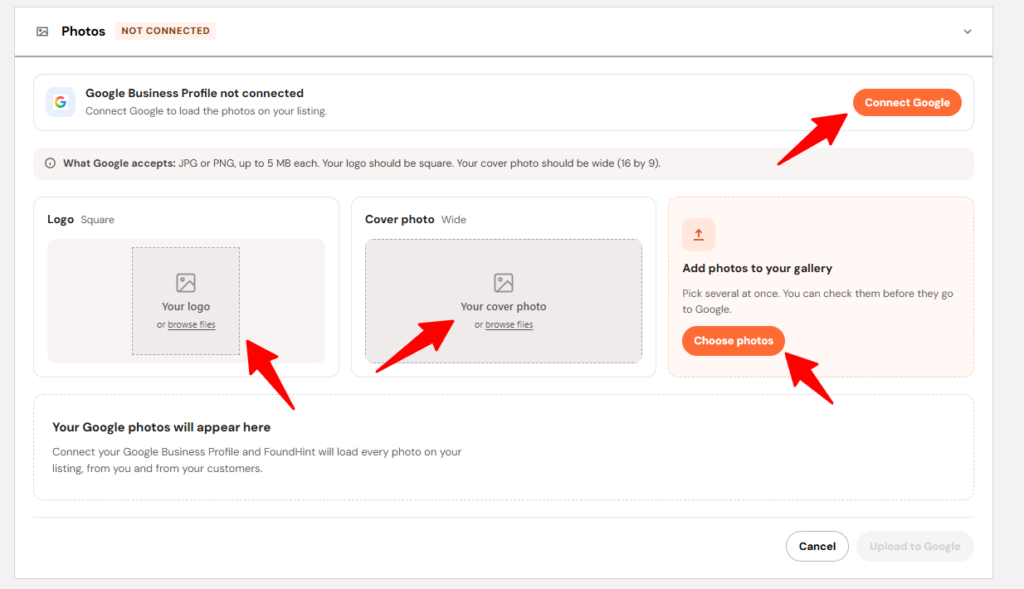
FoundHint, our Local SEO plugin for WordPress, puts your Google Business Profile photos inside your WordPress dashboard. You can add images to and remove images from your Google Business Profile right from your WordPress business website, without logging in to Google separately.
WordPress → FoundHint → Business Profile → Photos → Google Business Profile
Add photos to Google Business Profile from WordPress
Pick an image from your WordPress Media Library or upload a new one, choose the connected Business Profile, and send it to Google. That new patio photo for your Denver restaurant goes up on Google the same day you add it to your website.
Remove photos from Google Business Profile from WordPress
Outdated storefront? Discontinued menu item? Former staff member? Remove the photo from your Google Business Profile from the same FoundHint screen, without hunting through Google’s photo gallery.
What FoundHint photo management covers
| Feature | What it does |
|---|---|
| Upload photos | Add new images to your connected Google Business Profile from WordPress |
| Remove photos | Delete outdated, incorrect, or duplicate business-uploaded photos |
| Preview photos | See your images before they go live |
| Replace outdated photos | Swap old images for current ones in one workflow |
| Manage location photos | Keep each location’s photos with the right profile |
| Website integration | Use the same images across your WordPress site |
One set of photos, everywhere
Use the same approved, real business images for:
- Business pages
- Location pages
- Service pages
- LocalBusiness information
- Website media
- Your Google Business Profile
Your website and your Google listing finally show the same business, and you manage both from the place you already work every day: WordPress.
Ready to stop switching between WordPress and Google?
Install FoundHint, connect your Google Business Profile, and add or remove your business photos without leaving your dashboard.
Google Business Profile Photos for Multiple Locations
Each location has its own Google Business Profile, so each needs its own photos. Take a gym brand with three Florida locations:
| Location | Profile photo | Cover photo | Exterior | Interior |
|---|---|---|---|---|
| Orlando | Brand logo | Orlando front entrance | Orlando building | Orlando weight floor |
| Tampa | Brand logo | Tampa front entrance | Tampa building | Tampa studio room |
| Jacksonville | Brand logo | Jacksonville front entrance | Jacksonville building | Jacksonville pool |
The logo can be shared. Everything else should be location-specific. Using the wrong location’s photos is a real problem: a customer who sees the Orlando exterior on the Tampa listing may drive right past the Tampa building because it looks nothing like the photo.
With FoundHint, you choose which connected profile a photo goes to before you add it, so each location keeps its own images, and you can remove a misplaced photo from the wrong profile in seconds. For the bigger picture, see Multi-Location Local SEO: The Complete Guide.
Google Business Profile Photo Audit
Run this audit on every profile at least once a quarter.
Profile
- Profile photo exists
- Profile photo is appropriate
- Profile photo is current
Cover
- Cover photo exists
- Cover image is appropriate
- Cover image displays correctly
Business photos
- Photos are available
- Photos represent the actual business
- Photos are relevant
- Outdated photos are identified
Technical
- Image quality
- Dimensions
- Format
- Duplicate images
Multi-location
- Correct images assigned to correct location
- Location photos are not duplicated incorrectly
- Location-specific images are available
Find the problems here, then fix them in FoundHint: add the missing photos and remove the outdated or misplaced ones without leaving WordPress. Pair this with a full Local SEO Audit.
Common Google Business Profile Photo Mistakes
- Using blurry images: screenshots, zoomed-in phone shots, low light
- Uploading irrelevant images: memes, quotes, generic graphics
- Using misleading images: renders or photos of a nicer place than yours
- Using outdated business photos: the pre-renovation storefront
- Using the wrong location’s photos on a multi-location account
- Uploading duplicate images that clutter the gallery
- Using poor-quality logos: pixelated, cropped, or old branding
- Ignoring cover photo requirements: a tall portrait image that crops badly
- Leaving old photos indefinitely: never deleting anything
- Using stock photos instead of authentic business photos
- Uploading images that don’t represent the business
- Ignoring rejected or pending photos: they’re invisible to customers until fixed
Google Business Profile Photos Checklist
Profile photo
- Profile photo uploaded
- High quality
- Correct business
- Appropriate branding
Cover photo
- Cover photo uploaded
- Correct dimensions
- Good composition
- Represents the business
Business photos
- Exterior photo
- Interior photo
- Product photos where relevant
- Service photos where relevant
- Team photos where relevant
- Current photos
FoundHint
- GBP connected
- Photos added from WordPress
- Outdated photos removed
- Location photos checked
- Website images checked
- Photo audit completed
Frequently Asked Questions (FAQs)
What size should a Google Business Profile photo be?
JPG or PNG, between 10 KB and 5 MB, with a recommended resolution of 720 × 720 pixels and a minimum of 250 × 250. Square works best for the profile photo; 16:9 landscape works well for the cover.
How do I add photos to my Google Business Profile?
Search your business on Google or Maps while signed in, click Photos → Add photos, select your images, and upload. With FoundHint, you can also add photos to your Google Business Profile directly from WordPress.
How do I change my Google Business Profile photo?
Open Photos, choose Change logo or Change cover, select the new image, and save. Then delete the old one from your gallery.
How do I change my Google My Business profile photo?
The same way. Google My Business is now Google Business Profile, and the profile photo is labeled logo.
How do I delete a photo from my Google Business Profile?
Open Photos, select the photo, click Delete, and confirm. You can delete photos your business uploaded; customer photos can only be reported to Google. FoundHint also lets you remove photos from your Google Business Profile inside WordPress.
Why are my Google Business Profile photos rejected?
Possible causes include low quality, misleading or stock content, content policy issues, duplicates, or unsupported files. Google doesn’t always give a specific reason.
Why are my Google Business Profile photos pending?
The photo is still processing, being reviewed, or your profile isn’t verified. Allow 24–48 hours before re-uploading.
Why is my Google Business Profile cover photo not showing?
Google treats your cover as a preference and may show a different lead image, especially if the cover is low quality. Check that the upload finished, meets requirements, and is on the correct profile.
Can I manage Google Business Profile photos from WordPress?
Yes, with FoundHint. Connect your Google Business Profile and you can add images to or remove images from your profile from your WordPress business website.
How many photos should my Google Business Profile have?
There’s no magic number. Cover the basics first (logo, cover, exterior, interior, and your main products or services), then add fresh, real photos regularly.
Do Google Business Profile photos help local SEO?
Indirectly. They build trust and engagement, but photo count isn’t a direct ranking factor.
FoundHint Local SEO WordPress
Optimize your Google Business Profile without leaving WordPress
Connect your profile, compare it with your website and fix the gaps FoundHint finds.
- Business Profile audit and optimization
- Google Post scheduling
- Review management and replies
- Local rank tracking on a map grid