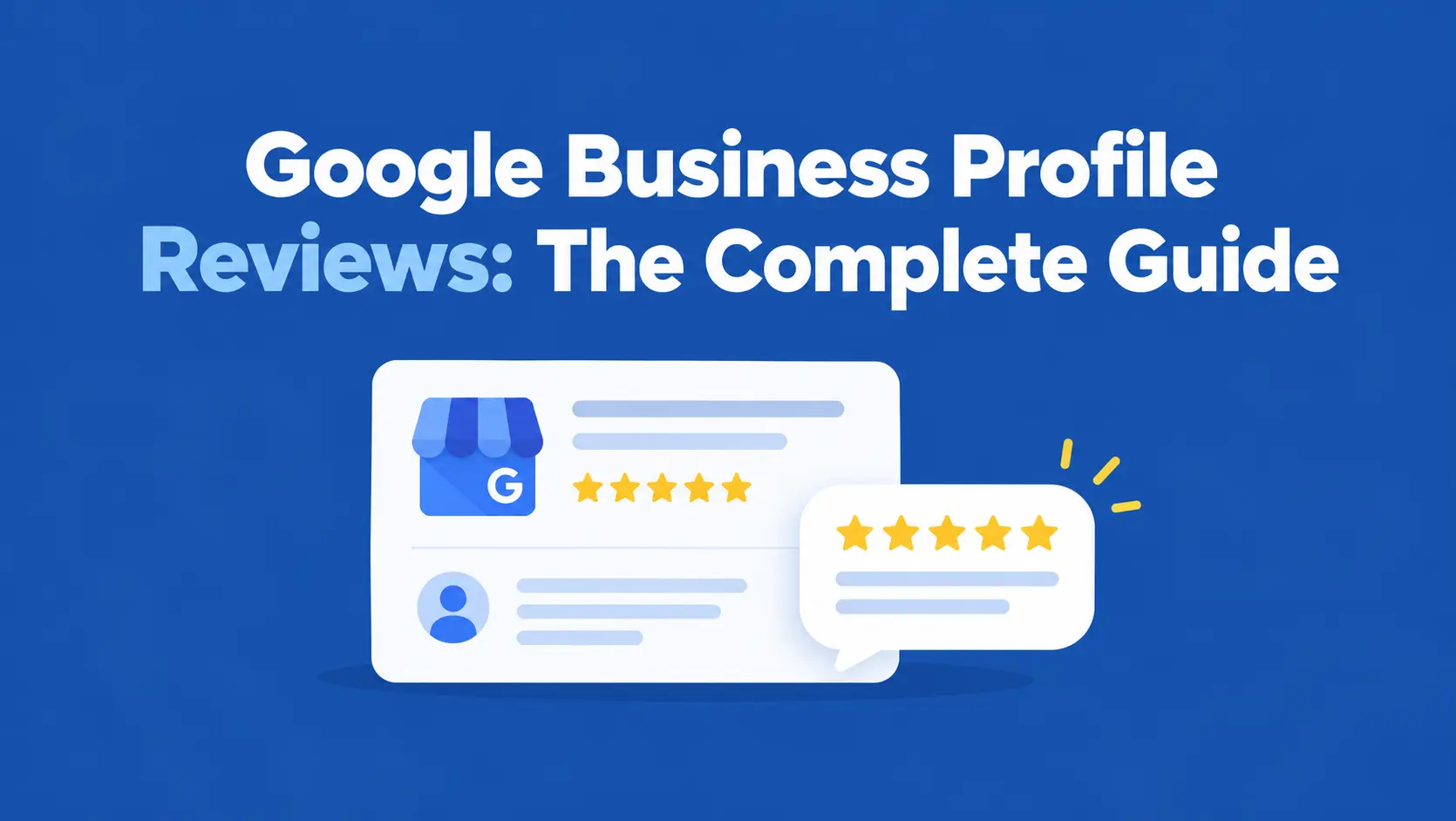
Google Business Profile reviews are the star ratings and written feedback customers leave on your business listing in Google Search and Google Maps. To get more Google reviews for your business, copy your review link from your Business Profile and send it to real customers by email, SMS, receipt, or QR code.
Respond to every review professionally, report reviews that break Google’s policies instead of trying to delete them, and never buy or fake reviews.
For most local businesses, Google reviews are the first thing a new customer reads. Before someone calls your Houston plumbing company or books a table at your Boston restaurant, they look at your star rating, skim a few recent Google My Business reviews, and check whether you replied.
Those few seconds often decide whether they choose you or the competitor one spot below.
This guide covers everything about Google Business Profile reviews: how they work, how to get Google reviews for your business, how to create a Google Business Profile review link and QR code, how to respond to Google reviews, how to remove bad reviews from Google (and when you can’t), why Google Business Profile reviews are not showing, Google review management for multiple locations, and how reviews fit into local SEO.
At the end, we’ll show how FoundHint, our Local SEO plugin for WordPress, lets you manage reviews, reply, and set up personalized auto-replies without leaving your dashboard.
What Are Google Business Profile Reviews?
Google Business Profile reviews (still widely called Google My Business reviews) are public feedback left by customers on your business listing.
A Google Business Profile review can include:
- Star ratings: 1 to 5 stars, averaged into your overall rating
- Written reviews: the customer’s description of their experience
- Review photos and other customer content: images, and sometimes details like price range or specific services used
Customers see your reviews in three main places:
- Google Search: in your Business Profile panel when someone searches your business name, and in the Local Pack for searches like “dentist near me”
- Google Maps: on your Maps listing and in Maps search results
- Business Profile: the full review list, sortable by newest, highest, lowest, and most relevant
Why Google Reviews Matter for Local Businesses?
Google reviews for your business affect:
- Customer trust: recent, detailed reviews from real people are social proof
- Business reputation: your rating becomes shorthand for your quality
- Local visibility: reviews are part of how Google evaluates local businesses
- Click-through decisions: a 4.8 with 300 reviews gets tapped more than a 3.9 with 12
- Customer conversions: reviews answer questions before a customer calls
- Google Business Profile activity: a steady flow of reviews and replies shows an active business
- Local search credibility: customers and Google both read reviews as signals of a real, operating business
There’s no magic number, though. Getting 50 or 100 reviews doesn’t guarantee higher rankings. Quality, recency, and genuine customer experiences matter more than a count.
How Google Business Profile Reviews Work?
- A customer leaves a review from Search, Maps, or your review link.
- The review appears on your Business Profile, usually quickly, though some go through automated checks first.
- Your business receives a notification by email or in the Business Profile dashboard.
- Your business can respond publicly, and your reply appears under the review.
- The customer may edit their review, for example raising their rating after you fix a problem.
- Google may remove content that violates its policies, such as spam, fake engagement, or offensive content.
How to Get Google Reviews for Your Business?
How do you get Google reviews for your business, or get reviews on Google My Business at all? The simplest method is a direct request with a direct link:
- Open your Business Profile in Google Search or Maps while signed in.
- Find the review request option: select Ask for reviews (sometimes Get more reviews).
- Copy your review link.
- Send it to customers after a completed purchase or service.
Then put the link where customers already are:
- Email: in your thank-you or follow-up email
- SMS: a short text after the appointment
- Invoices: a line at the bottom of every invoice
- Receipts: printed or digital
- Your website: a “Review us on Google” button on your contact or thank-you page
- QR code: at the counter, on packaging, or on a table tent
How to Create a Google Review Link?
How do I get my Google Business review link? Your Google Business Profile review link (also called your Google review link for my business) opens the review form directly, so customers skip searching for you.
Business Profile → Ask for reviews → Copy review link
The link usually looks like g.page/r/XXXXXXX/review. Once you’ve created your Google review link:
- Share the link by copying it into any message
- Add it to email templates and signatures
- Add it to SMS follow-ups
- Add it to your website as a button or banner
- Create a QR code from it (see the QR code section below)
Test the link on your phone before sending it to anyone. A wrong link (or one for a different location) wastes every request you send.
How to Get More Google Reviews?
How do you get more Google reviews for your business without breaking rules? Ethical methods that work:
- Ask customers after a completed service, when satisfaction is highest
- Make the request easy: one tap, no searching
- Send a direct review link, never “find us on Google”
- Use SMS: open rates are high and the link works on mobile
- Use email: good for longer customer relationships
- Use QR codes for walk-in businesses
- Add review requests to follow-up workflows so it happens automatically after every job
- Ask consistently: a steady stream beats a one-time push
- Use Google’s free marketing kit: Google offers Business Profile review cards, stickers, and posters with your review QR code
What not to do
You’ll see services offering to “buy Google reviews.” Don’t. Google prohibits:
- Fake reviews
- Purchased reviews
- Review manipulation, including review swaps with other businesses
- Incentivized positive reviews, like discounts or freebies in exchange for 5 stars
- Reviews from people who didn’t use the business, including employees and family
Google can remove the reviews, restrict new reviews on your profile, and show a public warning on your listing. In the US, the FTC also bans buying and selling fake reviews and can fine businesses that do it. It’s never worth it.
How to Respond to Google Reviews?
How do I respond to Google reviews for my business? Open your Business Profile, go to Read reviews (or Reviews), choose a review, select Reply, write your response, and post it. Your reply is public, so write it for every future customer reading, not just the reviewer.
Responding to positive reviews
- Thank the customer by name if they used one
- Mention the service naturally: “We’re glad the AC tune-up went smoothly”
- Keep the response genuine: short and specific beats long and generic
Example:
Thanks so much, Jessica! We’re glad our team could get your AC running again before the Phoenix heat hit. See you at your next tune-up.
Responding to negative reviews
- Stay professional, even if the review feels unfair
- Acknowledge the concern without being defensive
- Avoid arguing in public
- Move sensitive details offline: never share order numbers, health details, or private information
- Offer a way to resolve the issue: a phone number or email for the manager
Example:
Thank you for sharing your experience. We appreciate your feedback and would be happy to discuss your concerns directly. Please call our Brooklyn location at (718) 555-0142 and ask for Maria, our manager, so we can make this right.
Responding to reviews with no text
Star-only reviews deserve a reply too: “Thanks for the 5 stars, Kevin! We appreciate your support.”
Respond quickly, ideally within a day or two. A fast, calm reply to a 2-star review often matters more to future customers than the review itself.
How to Remove a Google Review?
How to remove bad reviews from Google My Business is one of the most searched review questions, and the honest answer matters: a business generally cannot delete a customer’s review just because it’s negative. There’s no “delete” button for reviews on your profile.
What you can do is ask Google to remove reviews that violate its policies, such as:
- Spam or fake reviews (from people who were never customers)
- Off-topic content (politics, rants unrelated to your business)
- Conflicts of interest (a competitor or a former employee)
- Offensive, hateful, or sexually explicit content
- Personal information, threats, or harassment
- Reviews about a different business
Google Business Profile review removal: step by step
- Identify whether the review violates Google’s policies. “I didn’t like the food” is a legitimate opinion; “This place is a front for crime,” from someone who never visited, may not be.
- Report the review: in your Business Profile, open Reviews, select the three-dot menu on the review, and choose Report review.
- Provide the relevant reason: pick the policy category that best fits.
- Wait for Google’s review process. Google evaluates the report; this can take several days.
- Follow up if appropriate: you can check the status and appeal through Google’s Reviews Management Tool.
While you wait, reply professionally. If the review stays up, your calm public response is the best damage control you have.
Can I delete Google reviews for my business myself?
Only reviews you wrote from your own Google account. For customer reviews, reporting is the only route. Be wary of anyone who promises to “delete any review” for a fee; that isn’t something they can legitimately do.
Can You Turn Off Google Reviews?
Can I turn off Google reviews for my business? No. Google doesn’t offer a setting to disable reviews or turn off reviews on a Google Business Profile. If you search for “Google My Business disable reviews” or “how to disable Google reviews,” you’ll find no official option, because reviews are part of how Google helps customers evaluate businesses.
Your options when dealing with problematic content:
- Report policy-violating reviews
- Respond to legitimate negative reviews
- Contact Google support if you’re facing a sudden wave of fake reviews (review bombing)
- Build a steady flow of genuine reviews so one bad review carries less weight
Deleting your whole profile doesn’t make reviews go away; Google can keep a listing for any real business that customers can find.
Why Are My Google Reviews Not Showing?
When Google My Business reviews are not showing, the usual causes are:
- Review still processing: new reviews can take time to appear
- Review removed by Google: for suspected spam or a policy issue
- Policy-related filtering: Google’s automated systems may hide reviews that look unusual, such as many reviews from the same Wi-Fi network or link at once
- Profile issues: an unverified, suspended, or recently edited profile
- Review visibility delays: temporary glitches on Google’s side
- Customer can’t see the review: sometimes it’s visible to the reviewer but not yet to the public
- Review disappeared: the customer edited or deleted it themselves
If several genuine reviews vanish at once, contact Google Business Profile support with details.
Google Reviews and Local SEO
Reviews are an important part of a local business’s online reputation and can contribute to how customers evaluate businesses in local search. In local SEO, reviews connect with:
- Google Business Profile: reviews are one of the most visible parts of your profile (Google Business Profile Optimization)
- Local Pack: star ratings show right in the three-pack results
- Google Maps: ratings appear on pins and in listings (Google Maps Local SEO)
- Reputation: your rating follows you everywhere customers search
- Customer trust: people choose businesses with recent, positive feedback
- Local search visibility: Google lists review count and rating among factors that reflect prominence
- Business prominence: how well known and well regarded your business is (Local SEO Ranking Factors)
What reviews are not: a guarantee. More reviews don’t automatically equal higher rankings. Relevance, distance, and the rest of your profile still matter.
Google Review Management
Google My Business review management is the ongoing process of keeping up with reviews instead of reacting once a month. A good review management routine includes:
- Monitoring new reviews as they arrive
- Responding to reviews, both positive and negative
- Identifying negative reviews fast, before they sit unanswered for weeks
- Reporting policy violations
- Tracking rating changes over time
- Managing multiple locations from one place
- Review response workflows: who replies, how fast, and in what tone
For one location, you can manage this from Google directly. Once you have several locations or hundreds of reviews a month, Google review management software (like FoundHint) saves hours.
Google Reviews for Multiple Locations
Every location has its own Google Business Profile and its own reviews. A dental group with offices in Charlotte, Raleigh, and Durham has three separate ratings, three review links, and three review inboxes. Managing them well means:
- Multiple GBP profiles connected in one place
- Location-specific reviews: the Raleigh review gets a Raleigh reply
- Centralized monitoring so nothing slips through
- Location-specific review links: never send Durham patients to the Charlotte review form
- Review response management across every location
- Rating tracking per location
- Multi-location reporting to spot which office needs attention
For the bigger strategy, see Multi-Location Local SEO.
Google Review QR Codes
A Google review QR code for your business is simply your review link turned into a scannable code. A customer points their phone camera at it and lands straight on your review form.
To create one: copy your Google Business Profile review link, paste it into any QR code generator (or use the QR code in Google’s free marketing kit), download the image, and test-scan it before printing.
Good placements:
- Counter: a small stand by the register
- Receipt: printed at the bottom
- Business card: on the back
- Packaging: inside the box or on a sticker
- Printed materials: menus, table tents, brochures, door hangers
- Follow-up email: for customers reading on a laptop who can scan with their phone
A Seattle coffee shop with a QR code on every cup sleeve, and a barista who says “we’d love a review,” will out-collect a shop that only hopes for reviews.
Can You Add Google Reviews to Your Website?
Yes. You can add Google My Business reviews to your website in a few ways:
- Review widgets: a block that shows your rating and recent reviews
- Embedded review displays: sliders, grids, or a dedicated testimonials page
- Linking to Google reviews: a “See all our reviews on Google” button
- Showing selected customer feedback: featuring a few standout reviews on service pages
- Keeping displayed review information accurate: your website should show real, current reviews with the correct rating, not edited or invented quotes
Showing reviews on your site gives visitors the same social proof they’d see on Google, right at the moment they’re deciding to call or book.
How to Manage Google Business Profile Reviews in WordPress With FoundHint?
Here’s the real problem with Google review management: it’s never one task. You have to check for new reviews, write a thoughtful reply, remember which ones you skipped, and repeat it for every location. Most business owners mean to do it and fall weeks behind. Unanswered reviews pile up, and future customers notice.
FoundHint, our Local SEO plugin for WordPress, brings your Google Business Profile reviews into your WordPress dashboard so you can manage reviews, reply to customers, and set up personalized auto-replies, all from the place you already run your website.
Google Business Profile → Reviews → FoundHint (WordPress) → Reply or Auto-Reply → Google Business Profile
Manage all your Google reviews in one place
See every Google Business Profile review inside WordPress: star rating, review text, reviewer name, date, and whether you’ve replied. Filter by rating, by replied/unanswered, or by location, so the 2-star review from yesterday never gets buried under a stack of 5-stars.
Reply to Google reviews from WordPress
Write and publish your reply directly from FoundHint. It posts to your Google Business Profile, just as if you’d replied on Google, without logging in to Google separately or switching accounts for each location.
Set up personalized auto-replies
This is where FoundHint saves the most time. Instead of one generic “Thanks for your review!” pasted under every review (which customers and Google can both spot), FoundHint auto-replies are personalized based on the review itself:
- By star rating: a warm thank-you for 5-star reviews, a “we’d love to hear more” reply for 3-star reviews, and an apology with contact details for 1–2 star reviews
- By reviewer name: “Thanks so much, Jessica!” instead of “Thanks, customer”
- By location: the reply mentions the right location for multi-location businesses
- By what the customer mentioned: reference the service or detail from the review so each reply reads like a person wrote it
For example, a Denver HVAC company can set rules like:
| Review | Personalized auto-reply |
|---|---|
| 5 stars, mentions “furnace repair” | “Thanks, {name}! We’re glad our team got your furnace running again. Stay warm this winter!” |
| 4 stars | “Thank you, {name}! We appreciate the feedback and hope to make your next visit a 5-star one.” |
| 1–2 stars | “We’re sorry, {name}. This isn’t the experience we want for anyone. Please call our Denver office at (303) 555-0198 so we can make it right.” |
Our recommendation: let auto-replies handle positive reviews instantly, and keep negative reviews for a personal touch, using the auto-reply as a starting draft you review before it goes live.
Manage reviews for multiple GBP locations
Connect multiple Google Business Profiles and handle every location’s reviews from one WordPress dashboard. Each location gets its own replies and its own auto-reply rules, so a franchise or multi-office practice can stay on top of hundreds of reviews without hiring someone just to answer them.
What FoundHint review management includes
| Feature | What it does |
|---|---|
| Review dashboard | See all Google reviews, ratings, and new reviews in WordPress |
| Unanswered review tracking | Spot every review still waiting for a reply |
| Reply from WordPress | Write and post replies to your Google Business Profile |
| Personalized auto-reply | Automatic replies based on rating, name, location, and review content |
| Multi-location reviews | Manage reviews across multiple GBP profiles |
Stop letting reviews go unanswered. Install FoundHint, connect your Google Business Profile, and start replying to every review, automatically and personally, from WordPress.
Common Google Review Mistakes
- Buying reviews: against Google policy and illegal under FTC rules
- Creating fake reviews, including ones from your own accounts
- Asking employees to review the business: a conflict of interest Google removes
- Review gating: only sending review links to customers you expect to be happy
- Ignoring negative reviews: silence reads as not caring
- Using the same response for every customer: copy-paste replies look robotic (personalized auto-replies fix this)
- Not monitoring reviews: finding a month-old complaint is too late
- Not responding to legitimate complaints or arguing with them in public
- Creating the wrong review link: pointing to the wrong location or a broken page
- Ignoring reviews across multiple locations: one neglected location drags down the whole brand
Google Business Profile Review Checklist
Review setup
- Business Profile is verified
- Review link is available
- Review link works
- Review request process exists
Review management
- New reviews are monitored
- Positive reviews receive responses
- Negative reviews receive professional responses
- Policy-violating reviews are reported
- Unanswered reviews are tracked
- Personalized auto-replies are set up in FoundHint
Review growth
- Customers are asked for genuine feedback
- Review link is easy to access
- QR code is available where useful
- Email/SMS requests are used appropriately
- No fake or purchased reviews
Multi-location
- Each location has the correct review link
- Reviews are tracked by location
- Ratings are monitored
- Unanswered reviews are identified
FAQs
What are Google Business Profile reviews?
Star ratings and written feedback customers leave on your business listing, shown in Google Search, Google Maps, and on your Business Profile.
How do I get Google reviews for my business?
Copy your review link from Ask for reviews in your Business Profile and send it to real customers by email, SMS, receipts, your website, or a QR code.
How do I create a Google review link?
Open your Business Profile, select Ask for reviews, and copy the link. Test it before sharing.
How do I get more Google reviews?
Ask every customer consistently, right after a good experience, with a one-tap link. Build the request into your follow-up emails or texts.
Can I remove a bad Google review?
Not just because it’s negative. You can report reviews that violate Google’s policies (spam, fake, offensive, off-topic, conflict of interest), and Google decides whether to remove them.
Can I delete a Google review for my business?
No, you can’t delete customer reviews yourself. Report policy-violating reviews and reply professionally to the rest.
Can I turn off Google reviews?
No. Google doesn’t let businesses disable reviews on a Business Profile.
Why are my Google reviews not showing?
The review may still be processing, may have been filtered or removed by Google, or the customer may have edited or deleted it. Profile issues can also hide reviews.
How do I respond to Google reviews?
Open Reviews in your Business Profile, select Reply, and post a short, genuine, professional response. With FoundHint, you can reply from WordPress or set up personalized auto-replies.
Can I buy Google reviews?
You shouldn’t. Buying reviews violates Google’s policies and US FTC rules, and can lead to removed reviews, profile restrictions, and fines.
How do I create a Google review QR code?
Copy your review link, paste it into a QR code generator (or use Google’s marketing kit), and print it where customers will see it.
Can I add Google reviews to my website?
Yes, with a review widget, an embedded display, or a link to your Google reviews. Keep what you show accurate and current.
How do Google reviews affect local SEO?
Reviews contribute to your prominence and to how customers choose between businesses in local search, but more reviews don’t guarantee higher rankings.
How do I manage Google reviews for multiple locations?
Use a tool that connects all your Business Profiles in one place. FoundHint lets you see, reply to, and auto-reply to reviews for every location from one WordPress dashboard.
Wrap-Up
Reviews aren’t a one-time project. The businesses with the strongest Google reviews simply ask every customer, reply to every review, and never let a complaint sit unanswered. The hard part is doing that consistently, especially across multiple locations.
That’s exactly what FoundHint is built for. Connect your Google Business Profile to WordPress, see every review in one dashboard, reply in seconds, and let personalized auto-replies thank your happy customers while you focus on the ones who need a personal response.
Get FoundHint and turn Google review management from a chore into a routine.