Your WordPress website already shows your business name, address, phone number, and opening hours to visitors. But search engines have to work out what those details mean.
Is “512-555-0147” your phone number or a reference code?
Is “Austin” where you are based or a city you mentioned in a blog post?
Structured data removes that guesswork.
And for local businesses, the most important type of structured data is LocalBusiness schema: a standard way to describe your business entity, location, contact details, hours, and service area in a format search engines can read.
In this complete guide to local business schema for WordPress, you’ll learn:
- What LocalBusiness schema is and what it does for local SEO
- Which business type and schema properties to use
- Copy-ready JSON-LD examples for a store, a service business, multiple locations, and a service-area business
- Four ways to add LocalBusiness schema to WordPress
- How to validate your markup and fix common errors
Whether you run a dental clinic in Austin, a plumbing company serving the Dallas area, or a chain of auto repair shops across Texas, this guide will help you add accurate local business schema markup to your WordPress site.
 FoundHint Local SEO WordPress
Optimize your Google Business Profile without leaving WordPress
Connect your profile, compare it with your website and fix the gaps FoundHint finds.
- Business Profile audit and optimization
- Google Post scheduling
- Review management and replies
- Local rank tracking on a map grid
What Is LocalBusiness Schema?
LocalBusiness schema is a type of structured data that describes a business with a physical location or a defined service area. It tells search engines, in a standard format, who the business is, where it operates, how to contact it, and when it is open.
What is Schema.org?
Schema.org is a shared vocabulary for structured data, created and supported by Google, Microsoft, Yahoo, and Yandex. It defines “types” (such as LocalBusiness, Organization, or Restaurant) and “properties” (such as name, address, and telephone) that websites use to describe their content.
What is LocalBusiness structured data?
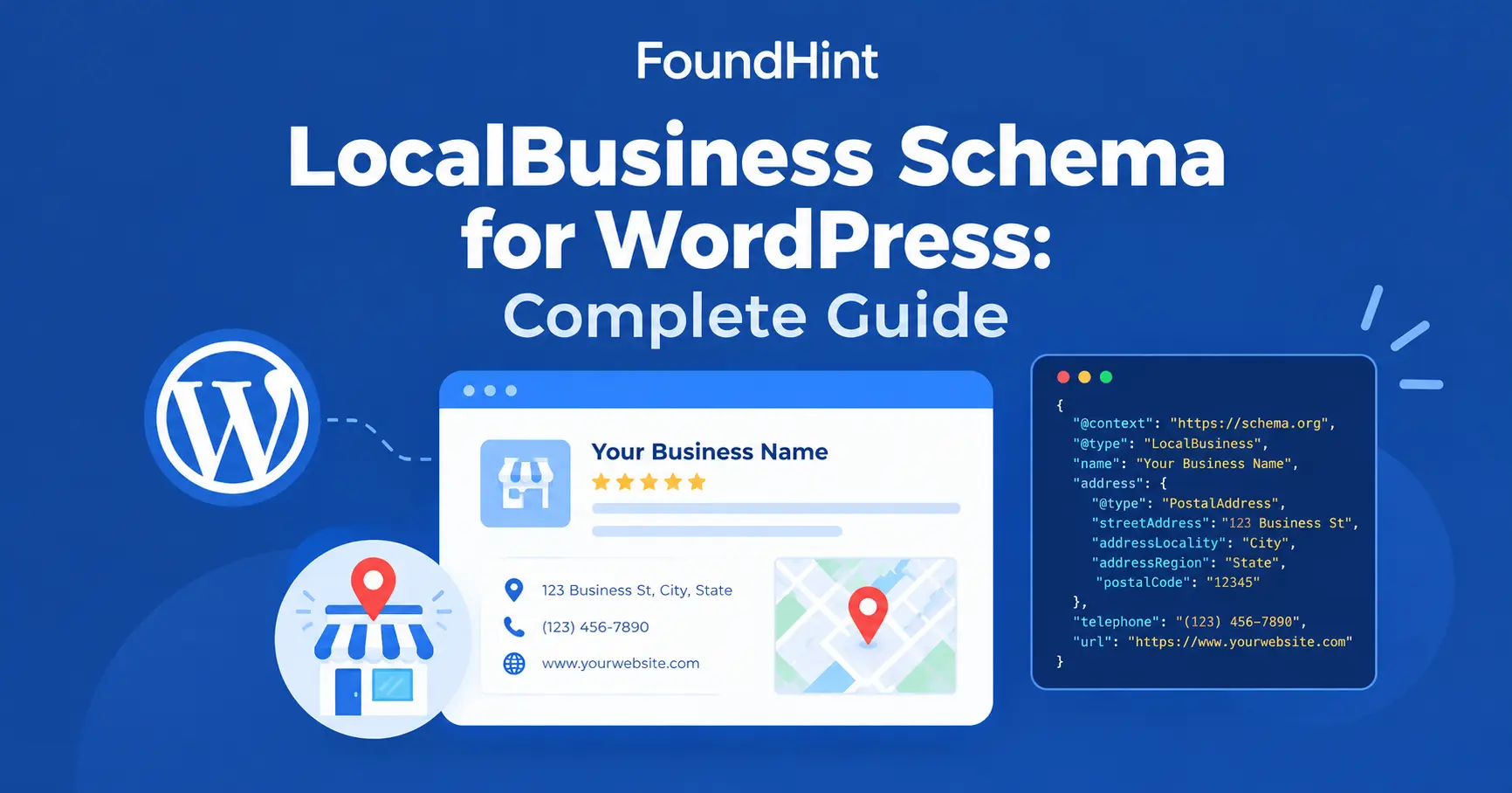
Local business structured data is code added to your page, usually in JSON-LD format, that labels your business information using the Schema.org LocalBusiness type. A simple version looks like this:
{
  "@context": "https://schema.org",
  "@type": "LocalBusiness",
  "name": "Lone Star Plumbing",
  "telephone": "+1-512-555-0147",
  "address": {
    "@type": "PostalAddress",
    "streetAddress": "1200 Congress Ave",
    "addressLocality": "Austin",
    "addressRegion": "TX",
    "postalCode": "78701",
    "addressCountry": "US"
  }
}
Visitors never see this code. It sits in the page source and is read by search engines.
What does LocalBusiness schema do?
LocalBusiness schema helps search engines:
- Identify your business entity and separate it from similarly named businesses
- Understand your business information: name, address, phone, website, and hours
- Connect your website to your location and the areas you serve
- Link your website to your other profiles through properties like sameAs
- Read your details reliably, rather than guessing from page text
Google’s documentation on LocalBusiness structured data (in Google Search Central) explains that this markup can help Google show business details, such as hours and contact information, when people search for your business.
Does LocalBusiness schema improve local SEO?
Indirectly, yes, but it is not a magic ranking switch. Schema markup for local SEO helps search engines understand your business more accurately.
It does not replace relevance, reviews, proximity, a strong Google Business Profile, or helpful content. Think of local schema SEO as removing doubt, not as a ranking boost on its own.
Why LocalBusiness Schema Matters for WordPress Websites
WordPress doesn’t add LocalBusiness schema by default.
Most WordPress themes output basic page markup, and many SEO plugins add WebSite or Organization schema, but few create complete, accurate local business schema markup without extra setup.
Adding it to your WordPress website helps in six ways:
| Benefit | What it means for your business |
|---|---|
| Business entity understanding | Search engines can tell your business apart from others with similar names |
| Clear business information | Your name, address, phone number, and hours are labeled, not guessed |
| Local search relevance | Your location and service area are stated directly |
| Better search engine interpretation | Structured data is easier to process than free text in a footer or theme widget |
| Structured business information across pages | One consistent source of truth for your business details |
| Stronger local SEO foundation | Supports your Google Business Profile, citations, and on-page local signals |
For a local business website, schema is part of the technical foundation, alongside a clear site structure, local content, and NAP consistency.
See the WordPress Local SEO Checklist and WordPress Site Structure for Service Businesses for the rest of that foundation.
LocalBusiness Schema vs Other Schema Types
LocalBusiness is one of many schema markup types. Knowing how it relates to the others helps you avoid conflicting or duplicate schema.
LocalBusiness vs Organization
In Schema.org, LocalBusiness is a more specific kind of Organization.
Organization describes any company or brand, even one with no physical location, such as an online software company. LocalBusiness adds location-based properties like opening hours, geo coordinates, and price range.
If customers visit you or you serve a defined local area, use LocalBusiness (or a subtype). A national brand may use Organization on the homepage and LocalBusiness on each store’s location page.
LocalBusiness vs Service
Service schema describes a specific service you offer, such as “water heater repair.” LocalBusiness describes the business that provides it.
They work well together: LocalBusiness on your homepage or location page, and Service schema on individual service pages, with the Service’s provider pointing back to your LocalBusiness.
LocalBusiness vs WebSite
WebSite schema describes the website itself (its name and URL, and sometimes its search function). Many WordPress SEO plugins add it automatically.
It doesn’t describe your business, so it doesn’t replace LocalBusiness.
Choosing the right business type
Always use the most specific business type schema that fits. Schema.org has many LocalBusiness subtypes, for example:
| Your business | Recommended @type |
|---|---|
| Dental clinic | Dentist |
| Restaurant or cafe | Restaurant / CafeOrCoffeeShop |
| Plumber | Plumber |
| Electrician | Electrician |
| Roofer or general contractor | RoofingContractor / GeneralContractor |
| Auto repair shop | AutoRepair |
| Law firm | LegalService |
| Hair salon | HairSalon |
| Clothing store | ClothingStore |
| Real estate agency | RealEstateAgent |
If no subtype fits, use LocalBusiness.
If your business fits two types, you can use an array, such as "@type": ["Plumber", "HVACBusiness"]. This is how to add additional type schema to a local business.
LocalBusiness Schema Properties
Schema.org LocalBusiness properties are the individual fields that describe your business. You don’t need all of them, but the more accurate, relevant properties you include, the clearer your business information becomes.
Required and recommended information
Google’s local business structured data guidelines list name and address as required, and recommend properties such as telephone, url, geo, openingHoursSpecification, and priceRange.
Other properties, such as sameAs and areaServed, come from Schema.org and add useful context.
| Property | What it describes | Priority |
|---|---|---|
| @context | Always “https://schema.org” | Required (format) |
| @type | Business type, e.g. Dentist or Plumber | Required (format) |
| @id | A unique ID for the business, usually your URL + #localbusiness | Strongly recommended |
| name | Your business name | Required by Google |
| address (PostalAddress) | Street, city, region, postal code, country | Required by Google |
| telephone | Main phone number | Recommended |
| url | Your website or location page URL | Recommended |
| openingHoursSpecification | Days and hours you’re open | Recommended |
| geo | Latitude and longitude | Recommended |
| priceRange | Relative price level, e.g. “$$” | Recommended |
| image | Photo of the business | Recommended |
| logo | Business logo | Optional |
| sameAs | Links to your official profiles | Optional |
| areaServed | Cities, regions, or areas you serve | Optional (important for service-area businesses) |
Business name
Use your real business name exactly as it appears on your signage, website, and Google Business Profile. Don’t add keywords like “Best Plumber Austin” unless they are part of your legal or trading name.
Address
The LocalBusiness address uses the PostalAddress schema type, broken into parts:
"address": {
  "@type": "PostalAddress",
  "streetAddress": "1200 Congress Ave, Suite 300",
  "addressLocality": "Austin",
  "addressRegion": "TX",
  "postalCode": "78701",
  "addressCountry": "US"
}
This business address schema should match the address shown on your page character for character where possible.
Phone
Use your main local number, ideally in international format: "telephone": "+1-512-555-0147".
Website
The url property should be the page that best represents this business or location: your homepage for a single-location business, or the specific location page for a multi-location business.
Opening hours
Opening hours schema uses openingHoursSpecification:
"openingHoursSpecification": [
  {
    "@type": "OpeningHoursSpecification",
    "dayOfWeek": ["Monday", "Tuesday", "Wednesday", "Thursday", "Friday"],
    "opens": "08:00",
    "closes": "18:00"
  },
  {
    "@type": "OpeningHoursSpecification",
    "dayOfWeek": "Saturday",
    "opens": "09:00",
    "closes": "14:00"
  }
]
For a business open 24 hours, set opens to “00:00” and closes to “23:59”.
Image and logo
The image property should be a real photo of your business, such as the storefront, office, or team. The logo property should be your brand logo. Both should be crawlable URLs on your site.
Geo coordinates
The LocalBusiness geo property pins your exact location:
"geo": {
  "@type": "GeoCoordinates",
  "latitude": 30.2747,
  "longitude": -97.7404
}
You can find your latitude and longitude by right-clicking your location in Google Maps.
sameAs
The LocalBusiness sameAs property lists URLs of your official profiles, such as Facebook, Instagram, LinkedIn, Yelp, or your Google Business Profile link. It helps connect your website to your wider online presence.
areaServed
The Schema.org areaServed property describes the geographic areas you serve. It can be a simple city name or a structured place:
"areaServed": [
  { "@type": "City", "name": "Austin" },
  { "@type": "City", "name": "Round Rock" },
  { "@type": "City", "name": "Cedar Park" }
]
serviceArea
You may see the Schema.org serviceArea property in older tutorials. It has been superseded by areaServed, so use areaServed in new markup. That is the main difference between areaServed and serviceArea: one is current and one is legacy.
LocalBusiness Schema Example
Below are four copy-ready LocalBusiness JSON-LD examples. Replace every value with your real business information. Each one is a complete local business schema markup example you can adapt as a LocalBusiness schema template.
Basic LocalBusiness example
A single-location retail store in Austin, Texas:
<script type="application/ld+json">
{
  "@context": "https://schema.org",
  "@type": "ClothingStore",
  "@id": "https://www.congressavenueoutfitters.com/#localbusiness",
  "name": "Congress Avenue Outfitters",
  "url": "https://www.congressavenueoutfitters.com/",
  "telephone": "+1-512-555-0123",
  "priceRange": "$$",
  "image": "https://www.congressavenueoutfitters.com/images/storefront.jpg",
  "logo": "https://www.congressavenueoutfitters.com/images/logo.png",
  "address": {
    "@type": "PostalAddress",
    "streetAddress": "1450 S Congress Ave",
    "addressLocality": "Austin",
    "addressRegion": "TX",
    "postalCode": "78704",
    "addressCountry": "US"
  },
  "geo": {
    "@type": "GeoCoordinates",
    "latitude": 30.2489,
    "longitude": -97.7497
  },
  "openingHoursSpecification": [
    {
      "@type": "OpeningHoursSpecification",
      "dayOfWeek": ["Monday", "Tuesday", "Wednesday", "Thursday", "Friday", "Saturday"],
      "opens": "10:00",
      "closes": "19:00"
    }
  ],
  "sameAs": [
    "https://www.facebook.com/congressavenueoutfitters",
    "https://www.instagram.com/congressavenueoutfitters"
  ]
}
</script>
Service business example
A dental clinic in Denver, Colorado, with its main services listed:
<script type="application/ld+json">
{
  "@context": "https://schema.org",
  "@type": "Dentist",
  "@id": "https://www.milehighsmiles.com/#localbusiness",
  "name": "Mile High Family Dental",
  "url": "https://www.milehighsmiles.com/",
  "telephone": "+1-303-555-0182",
  "priceRange": "$$",
  "image": "https://www.milehighsmiles.com/images/clinic.jpg",
  "address": {
    "@type": "PostalAddress",
    "streetAddress": "850 Grant St",
    "addressLocality": "Denver",
    "addressRegion": "CO",
    "postalCode": "80203",
    "addressCountry": "US"
  },
  "openingHoursSpecification": [
    {
      "@type": "OpeningHoursSpecification",
      "dayOfWeek": ["Monday", "Tuesday", "Wednesday", "Thursday"],
      "opens": "08:00",
      "closes": "17:00"
    }
  ],
  "hasOfferCatalog": {
    "@type": "OfferCatalog",
    "name": "Dental Services",
    "itemListElement": [
      { "@type": "Offer", "itemOffered": { "@type": "Service", "name": "Teeth Cleaning" } },
      { "@type": "Offer", "itemOffered": { "@type": "Service", "name": "Dental Implants" } },
      { "@type": "Offer", "itemOffered": { "@type": "Service", "name": "Teeth Whitening" } }
    ]
  }
}
</script>
Multi-location example
A company with two branches. Each location gets its own LocalBusiness node on its own location page, linked to the parent brand with parentOrganization. This is the Round Rock location page:
<script type="application/ld+json">
{
  "@context": "https://schema.org",
  "@type": "AutoRepair",
  "@id": "https://www.texasautopros.com/locations/round-rock/#localbusiness",
  "name": "Texas Auto Pros - Round Rock",
  "url": "https://www.texasautopros.com/locations/round-rock/",
  "telephone": "+1-512-555-0199",
  "address": {
    "@type": "PostalAddress",
    "streetAddress": "2100 N Mays St",
    "addressLocality": "Round Rock",
    "addressRegion": "TX",
    "postalCode": "78664",
    "addressCountry": "US"
  },
  "parentOrganization": {
    "@type": "Organization",
    "@id": "https://www.texasautopros.com/#organization",
    "name": "Texas Auto Pros"
  }
}
</script>
Service-area business example
A plumber who travels to customers and doesn’t serve customers at a public address:
<script type="application/ld+json">
{
  "@context": "https://schema.org",
  "@type": "Plumber",
  "@id": "https://www.lonestarplumbing.com/#localbusiness",
  "name": "Lone Star Plumbing",
  "url": "https://www.lonestarplumbing.com/",
  "telephone": "+1-512-555-0147",
  "address": {
    "@type": "PostalAddress",
    "addressLocality": "Austin",
    "addressRegion": "TX",
    "addressCountry": "US"
  },
  "areaServed": [
    { "@type": "City", "name": "Austin" },
    { "@type": "City", "name": "Round Rock" },
    { "@type": "City", "name": "Pflugerville" },
    { "@type": "City", "name": "Cedar Park" }
  ],
  "openingHoursSpecification": {
    "@type": "OpeningHoursSpecification",
    "dayOfWeek": ["Monday", "Tuesday", "Wednesday", "Thursday", "Friday", "Saturday", "Sunday"],
    "opens": "00:00",
    "closes": "23:59"
  }
}
</script>
Notice the address only includes the city, region, and country. That’s a common approach for a service area business JSON-LD when the street address is private.
How to Add LocalBusiness Schema to WordPress?
There are four main ways to add LocalBusiness schema to WordPress. Choose one method and stick to it. Using two at once is the most common cause of duplicate schema.
| Method | Best for | Skill level |
|---|---|---|
| SEO plugin | Sites already using an SEO plugin with local features | Beginner |
| Schema plugin | Sites that need custom or advanced schema types | Beginner–intermediate |
| Manual JSON-LD | Developers who want full control | Intermediate–advanced |
| FoundHint | WordPress local businesses that want schema, business information, and local SEO audits in one place | Beginner |
Method 1: Using an SEO plugin
Many WordPress SEO plugins can output structured data. Some include local business options directly; others offer them through a local SEO add-on (for example, Yoast local business schema comes from the Yoast Local SEO add-on, which extends Yoast structured data).
- Open your SEO plugin’s settings and find the schema, knowledge graph, or local SEO section.
- Choose “Organization” or “Local business” and select the most specific business type.
- Enter your business name, address, phone, hours, and logo.
- Save, then validate your homepage (see the validation section below).
Pros: easy, managed in one place. Cons: local options may be limited or paid, and multi-location setups can be harder.
Method 2: Using a schema plugin
A dedicated WordPress schema plugin or local business schema plugin lets you create custom schema types and attach them to specific pages.
- Install the plugin and create a new schema entry.
- Choose LocalBusiness or a subtype.
- Map fields to your business details.
- Assign it to your homepage or location pages only.
- Check that your SEO plugin isn’t also outputting LocalBusiness schema.
Pros: flexible. Cons: another plugin to maintain, and a higher risk of conflicting schema.
Method 3: Adding JSON-LD manually
If you want full control, you can add JSON-LD to WordPress yourself:
- Using a header/footer code plugin: paste your
<script type="application/ld+json">block into the header for the homepage only. - Using your theme: add the code with a function in a child theme’s functions.php file:
add_action( 'wp_head', function () {
    if ( ! is_front_page() ) {
        return;
    }
    ?>
    <script type="application/ld+json">
    {
      "@context": "https://schema.org",
      "@type": "Plumber",
      "name": "Lone Star Plumbing",
      "telephone": "+1-512-555-0147",
      "url": "https://www.lonestarplumbing.com/"
    }
    </script>
    <?php
} );- Using a Custom HTML block: paste the script into a Custom HTML block on a specific page, such as a location page.
Pros: precise, no extra plugin. Cons: easy to break, and you must update it manually whenever your business information changes.
Method 4: Using FoundHint
The FoundHint Local SEO Plugin is built for WordPress local businesses. Instead of writing code, you save your business information once and FoundHint uses it to generate LocalBusiness schema, keeping your structured data consistent with what visitors see.
It also fits into your wider local SEO audit, so schema issues are checked alongside NAP consistency, location pages, and other local SEO elements.
See How FoundHint Can Help With LocalBusiness Schema below.
FoundHint Local SEO WordPress
Optimize your Google Business Profile without leaving WordPress
Connect your profile, compare it with your website and fix the gaps FoundHint finds.
- Business Profile audit and optimization
- Google Post scheduling
- Review management and replies
- Local rank tracking on a map grid
Does WordPress automatically add LocalBusiness schema?
No. WordPress core doesn’t create LocalBusiness schema. Some themes and SEO plugins add basic Organization or WebSite schema, but you usually need to set up local business schema deliberately using one of the methods above.
LocalBusiness Schema for Different Business Types
Industry-specific schema gives search engines more precise context. Here’s how to approach local business schema for common business types.
| Business type | Suggested @type | Extra properties worth adding |
|---|---|---|
| Local retail business | Store or a subtype (ClothingStore, HardwareStore) | openingHoursSpecification, priceRange, image |
| Restaurant | Restaurant | servesCuisine, menu, acceptsReservations, priceRange |
| Dentist | Dentist | openingHoursSpecification, hasOfferCatalog (services) |
| Auto repair business | AutoRepair | openingHoursSpecification, priceRange, geo |
| Professional service business | LegalService, AccountingService, FinancialService | areaServed, hasOfferCatalog |
| Home service business | Plumber, Electrician, HVACBusiness, RoofingContractor | areaServed, openingHoursSpecification |
| Service-area business | Most relevant subtype | areaServed; partial address if the address is private |
Local retail business
A shop such as “Congress Avenue Outfitters” in Austin should focus on accurate address, geo, hours, and images, since customers visit in person.
Restaurant
A restaurant like “Bayou Grill” in New Orleans should add servesCuisine (“Cajun”), a menu URL, and acceptsReservations.
Dentist
A dental practice like “Mile High Family Dental” in Denver benefits from listing its key services and accurate opening hours.
Auto repair business
An auto shop like “Texas Auto Pros” should use AutoRepair and make each branch’s address, phone, and hours precise.
Professional service business
Law firms, accountants, and agencies often serve clients across a metro area. Use the specific type (e.g. LegalService) and areaServed for the regions covered.
Home service business
Plumbers, electricians, roofers, and HVAC companies usually work at customers’ homes. Use the specific type and list the cities you serve with areaServed.
Service-area business
If you don’t serve customers at your own address, follow the service-area guidance in the next section.
LocalBusiness Schema for Service-Area Businesses
What is a service-area business?
A service-area business serves customers at their location rather than at a storefront. Plumbers, cleaners, mobile mechanics, landscapers, and many contractors are service-area businesses. On Google Business Profile, these businesses can hide their address and list the areas they serve instead.
Should a service-area business use LocalBusiness schema? Yes. You are still a local business. The difference is how you describe your location.
Using areaServed
The areaServed schema property is the main way to describe where you work. You can list cities, counties, states, or postal codes:
"areaServed": [
  { "@type": "City", "name": "Dallas" },
  { "@type": "City", "name": "Plano" },
  { "@type": "City", "name": "Frisco" },
  { "@type": "AdministrativeArea", "name": "Collin County" }
]
How to add area served schema: add the areaServed array inside your LocalBusiness JSON-LD, using the same cities you list on your website and Google Business Profile.
Using service-area information
If your address is private, you can include a partial PostalAddress (city, region, and country) instead of the full street address. Your service-area information on the page should match your schema: if the page says you serve Dallas, Plano, and Frisco, the schema should say the same.
Example for a plumber, contractor, or cleaner
Here is a service area business structured data example for a cleaning company in Dallas. Schema.org has no specific “house cleaning” subtype, so it uses LocalBusiness:
<script type="application/ld+json">
{
  "@context": "https://schema.org",
  "@type": "LocalBusiness",
  "name": "Sparkle Home Cleaning",
  "url": "https://www.sparklehomecleaning.com/",
  "telephone": "+1-214-555-0166",
  "address": {
    "@type": "PostalAddress",
    "addressLocality": "Dallas",
    "addressRegion": "TX",
    "addressCountry": "US"
  },
  "areaServed": [
    { "@type": "City", "name": "Dallas" },
    { "@type": "City", "name": "Plano" },
    { "@type": "City", "name": "Frisco" },
    { "@type": "City", "name": "Richardson" }
  ]
}
</script>
Common service-area schema mistakes
- Listing dozens of cities you don’t really serve
- Adding a fake street address to look local
- Using the deprecated serviceArea property instead of areaServed
- Listing different service areas in schema, on the website, and on Google Business Profile
- Creating a separate fake “location” for every city in the service area
LocalBusiness Schema for Multiple Locations
How do you add local business schema for multiple locations? The key principle: each real location gets its own LocalBusiness schema on its own location page.
One business with multiple locations
Imagine “Texas Auto Pros” with shops in Austin, Round Rock, and San Antonio. Each shop has its own address, phone number, hours, and Google Business Profile, so each one is a separate business location in schema.
Location pages
Create a dedicated page for each location, such as:
- /locations/austin/
- /locations/round-rock/
- /locations/san-antonio/
Put that location’s LocalBusiness schema on its own page, not all three on the homepage.
Separate location information
Every location’s schema should use that location’s own details:
| Property | Austin page | Round Rock page |
|---|---|---|
| name | Texas Auto Pros – Austin | Texas Auto Pros – Round Rock |
| @id | /locations/austin/#localbusiness | /locations/round-rock/#localbusiness |
| address | 4500 S Lamar Blvd, Austin, TX 78745 | 2100 N Mays St, Round Rock, TX 78664 |
| telephone | +1-512-555-0110 | +1-512-555-0199 |
| url | /locations/austin/ | /locations/round-rock/ |
Connecting locations to the main business
On the homepage, describe the brand with Organization schema and a stable @id, such as https://www.test.com/#organization. On each location page, link back with parentOrganization pointing to that @id (see the multi-location example earlier). This tells search engines the locations belong to one business.
Avoiding duplicate or fake location pages
- Only create location pages and schema for places where you have a real, staffed location.
- Don’t copy the same LocalBusiness schema to every page.
- Don’t create “locations” for cities you only serve, since those belong in areaServed.
- Make each location page genuinely useful, with directions, local team, photos, and reviews, not just a swapped city name.
LocalBusiness Schema and Google Business Profile
People often search for Google local business schema expecting it to control their Google Business Profile. It doesn’t, but the two are closely related.
Website business information
Your LocalBusiness schema describes your business as stated on your WordPress website: the name, address, phone number, hours, and service area shown on your pages.
Google Business Profile information
Your Google Business Profile is managed separately in Google’s own dashboard. It powers your listing in Google Maps and the Local Pack.
Keeping information consistent
Should LocalBusiness schema match Google Business Profile? Yes. Your schema, your visible website content, and your Google Business Profile should all show the same:
- Business name
- Address (or service areas)
- Phone number
- Website URL
- Opening hours
- Primary business category (matched to your schema @type as closely as possible)
When these match, search engines see one consistent business entity. When they conflict, you create doubt.
Does schema connect directly to GBP?
No. Adding schema does not update or sync your Google Business Profile, and changing your profile does not change your schema. They are separate systems that should tell the same story. You can include your Google Business Profile or Maps URL in sameAs to reference it. See Google Business Profile Optimization.
LocalBusiness Schema and Local SEO
How can schema markup help local SEO? It strengthens the chain between your real-world business and how search engines understand it:
Business Information
        ↓
WordPress Website
        ↓
LocalBusiness Schema
        ↓
Search Engine Understanding
        ↓
Local Search Visibility
Schema markup for local SEO works by making your business information explicit, consistent, and machine-readable. That supports the signals that do influence local rankings: relevance (what you do), distance (where you are), and prominence (how well known you are).
What schema won’t do:
- It won’t guarantee higher local rankings or a place in the Local Pack.
- It won’t fix a weak Google Business Profile, few reviews, or thin content.
- It won’t override inaccurate information elsewhere on the web.
The right expectation: local business structured data is a foundation that makes every other local SEO effort easier for search engines to interpret. It also matters for AI search systems, which rely on clear, consistent entity information.
See Local SEO Ranking Factors and AI Search for Local Businesses.
How to Validate LocalBusiness Schema?
After adding schema to WordPress, always validate it. A single missing comma can make the whole block invalid.
Google Rich Results Test
Enter your page URL or paste your code into Google’s Rich Results Test. It shows whether Google can read your LocalBusiness structured data and lists any errors or warnings against Google’s structured data LocalBusiness guidelines.
Schema.org Validator
The Schema Markup Validator (validator.schema.org) checks your markup against the full Schema.org vocabulary, including properties Google doesn’t use for rich results, such as areaServed. It’s the best LocalBusiness schema validator for confirming your JSON-LD is technically correct.
Google Search Console
Once your pages are indexed, Google Search Console can report structured data issues across your site in its enhancement and URL Inspection reports. Use URL Inspection to see how Google rendered a specific page, including whether it detected your schema.
What errors should you fix?
Fix errors first. These usually mean the markup is invalid or missing something required, such as:
- Missing
nameoraddress - Invalid JSON (missing commas, brackets, or quotes)
- Wrong value formats, such as hours written as “9am” instead of “09:00”
- Unknown @type or misspelled property names
Warnings vs errors
Errors can stop your markup from being used. Warnings usually mean a recommended property is missing, such as priceRange or geo. Add recommended properties when you have accurate information for them, but don’t invent data just to clear a warning.
Why is my LocalBusiness schema not detected?
Common causes: the page isn’t indexed yet, a caching or optimization plugin is stripping or delaying scripts, the schema is only added on a different page, the JSON-LD is invalid, or another plugin is outputting conflicting markup.
Test the live URL, clear caches, and check the page source for application/ld+json.
Common LocalBusiness Schema Mistakes
These LocalBusiness schema errors are the ones we see most often on WordPress sites.
| Mistake | Why it’s a problem | How to fix it |
|---|---|---|
| Wrong business name | Conflicts with signage and Google Business Profile | Use your exact real business name |
| Wrong address | Points search engines to the wrong place | Copy the address from your GBP and website |
| Wrong phone number | Breaks NAP consistency | Use one main number everywhere |
| Incorrect business type | Gives search engines the wrong context | Choose the most specific accurate @type |
| Fake locations | Misleading and against guidelines | Only mark up real, staffed locations |
| Duplicate schema | Two plugins output the same business twice | Use one schema source and disable the others |
| Conflicting schema | Different details in different blocks | Audit page source and remove old markup |
| Schema doesn’t match visible content | Search engines expect markup to reflect the page | Show the same details on the page |
| Incorrect opening hours | Frustrates customers and conflicts with GBP | Update schema whenever hours change |
| Incorrect areaServed | Claims areas you don’t serve | List only real service areas |
| Unsupported or irrelevant properties | Adds noise or errors | Stick to valid Schema.org properties |
| Invalid JSON-LD | Whole block may be ignored | Validate after every change |
| Identical LocalBusiness schema on every page without reason | Bloats pages and blurs which page represents the business | Place it on the homepage or relevant location pages |
| Using fake reviews | Violates Google’s review snippet guidelines | Never mark up reviews you wrote or collected from your own site to boost ratings |
| Outdated business information | Old address or phone stays in markup | Review schema whenever your business details change |
How do I find duplicate schema on WordPress?
Open your page, view the source, and search for application/ld+json and LocalBusiness. If you find more than one LocalBusiness block describing the same business, check your SEO plugin, schema plugin, theme, and any manually added code, then disable all but one.
LocalBusiness Schema Checklist
Use this checklist before and after adding local business schema to WordPress.
Business details
- Business name
- Business type (most specific @type)
- Website URL
- Address (PostalAddress)
- Phone
- Opening hours
- Image
- Logo
- Geo coordinates
- sameAs profiles
- areaServed
- Service information
Accuracy and placement
- Correct location for this page
- Correct URL and @id
- Visible information matches schema
- Google Business Profile information is consistent
Technical
- Valid JSON-LD
- No duplicate markup
- Schema has been validated
- Search Console is monitored
How FoundHint Can Help With LocalBusiness Schema?
Writing, updating, and validating JSON-LD by hand works for one location, but it quickly becomes hard to manage as your business grows, your hours change, or you add new locations. That’s where the FoundHint Local SEO Plugin comes in.
FoundHint turns LocalBusiness schema into part of a simple local SEO workflow inside WordPress:
Business Information
        ↓
FoundHint
        ↓
LocalBusiness Schema
        ↓
WordPress
        ↓
Validation
        ↓
Local SEO Audit| Problem | How FoundHint helps |
|---|---|
| Business details scattered across theme, footer, and plugins | Business information management: save your details once |
| Writing JSON-LD by hand | LocalBusiness schema generation from your saved business information |
| Missing or invalid properties | Schema property validation before problems reach Google |
| Different name, address, or phone across pages | NAP consistency checking |
| Several branches to keep accurate | Multiple-location management with schema for each location |
| Service-area businesses without a storefront | Service-area information for areaServed |
| Website and GBP drifting apart | Google Business Profile data synchronization to keep details aligned |
| Not knowing what to fix next | Local SEO audit and schema issue detection |
The result: accurate local business schema markup that stays consistent with your website and business listings, without writing or maintaining code yourself.
FoundHint Local SEO WordPress
Optimize your Google Business Profile without leaving WordPress
Connect your profile, compare it with your website and fix the gaps FoundHint finds.
- Business Profile audit and optimization
- Google Post scheduling
- Review management and replies
- Local rank tracking on a map grid
Frequently Asked Questions
What is LocalBusiness schema?
LocalBusiness schema is Schema.org structured data that describes a business with a physical location or service area, including its name, address, phone, website, hours, and areas served, in a format search engines can read.
How do I add LocalBusiness schema to WordPress?
Use one of four methods: your SEO plugin’s local business settings, a dedicated schema plugin, manual JSON-LD added to your theme or a code plugin, or a local SEO plugin such as FoundHint. Then validate the result with the Rich Results Test.
Does LocalBusiness schema improve local SEO?
It helps search engines understand your business information more accurately, which supports local SEO. It doesn’t guarantee higher rankings on its own.
Does WordPress automatically create LocalBusiness schema?
No. WordPress core doesn’t add it. Some SEO plugins add basic Organization or WebSite schema, but local business schema usually needs to be set up separately.
What properties should LocalBusiness schema include?
At minimum: @context, @type, name, and address. Strongly recommended: @id, telephone, url, openingHoursSpecification, geo, image, and priceRange. Add sameAs and areaServed where relevant.
Should LocalBusiness schema be on every page?
Usually not. Place it on your homepage (single-location business) or on each location page (multi-location business). Other pages can reference the business through its @id instead of repeating the full markup.
Should LocalBusiness schema match Google Business Profile?
Yes. Your schema, website content, and Google Business Profile should show the same name, address, phone, hours, and service areas.
How do I add LocalBusiness schema for multiple locations?
Create a page for each real location and add that location’s own LocalBusiness schema to its page, with a unique @id, address, and phone, linked to the main brand using parentOrganization.
Should service-area businesses use LocalBusiness schema?
Yes. Use the most specific business type, a partial address if your street address is private, and areaServed to list the cities or regions you serve.
How do I validate LocalBusiness schema?
Test your page with Google’s Rich Results Test and the Schema Markup Validator, fix any errors, then monitor structured data reports and URL Inspection in Google Search Console.
Final Thoughts
LocalBusiness schema for WordPress is one of the clearest ways to describe your business to search engines. Choose the right business type, include accurate properties, keep everything consistent with your website and Google Business Profile, and validate after every change.
If you’d rather not manage JSON-LD by hand, the FoundHint Local SEO Plugin can generate, check, and maintain your LocalBusiness schema as part of your wider local SEO workflow.
To keep learning, read What Is Local SEO? The Complete Guide, the WordPress Local SEO Checklist, WordPress Site Structure for Service Businesses, and Local SEO Audit.