Many WooCommerce stores aren’t online-only. A running shoe shop in Dallas sells online and fits shoes in store. A furniture retailer in Chicago ships nationally but also runs a showroom. A bike shop in New York sells parts online and offers repairs in person.
For these businesses, WooCommerce SEO alone isn’t enough. Product pages can rank nationally, but when someone searches “running shoes near me” or “furniture store in Chicago,” what matters is whether your physical store shows up in Google Search, Google Maps, and the Local Pack.
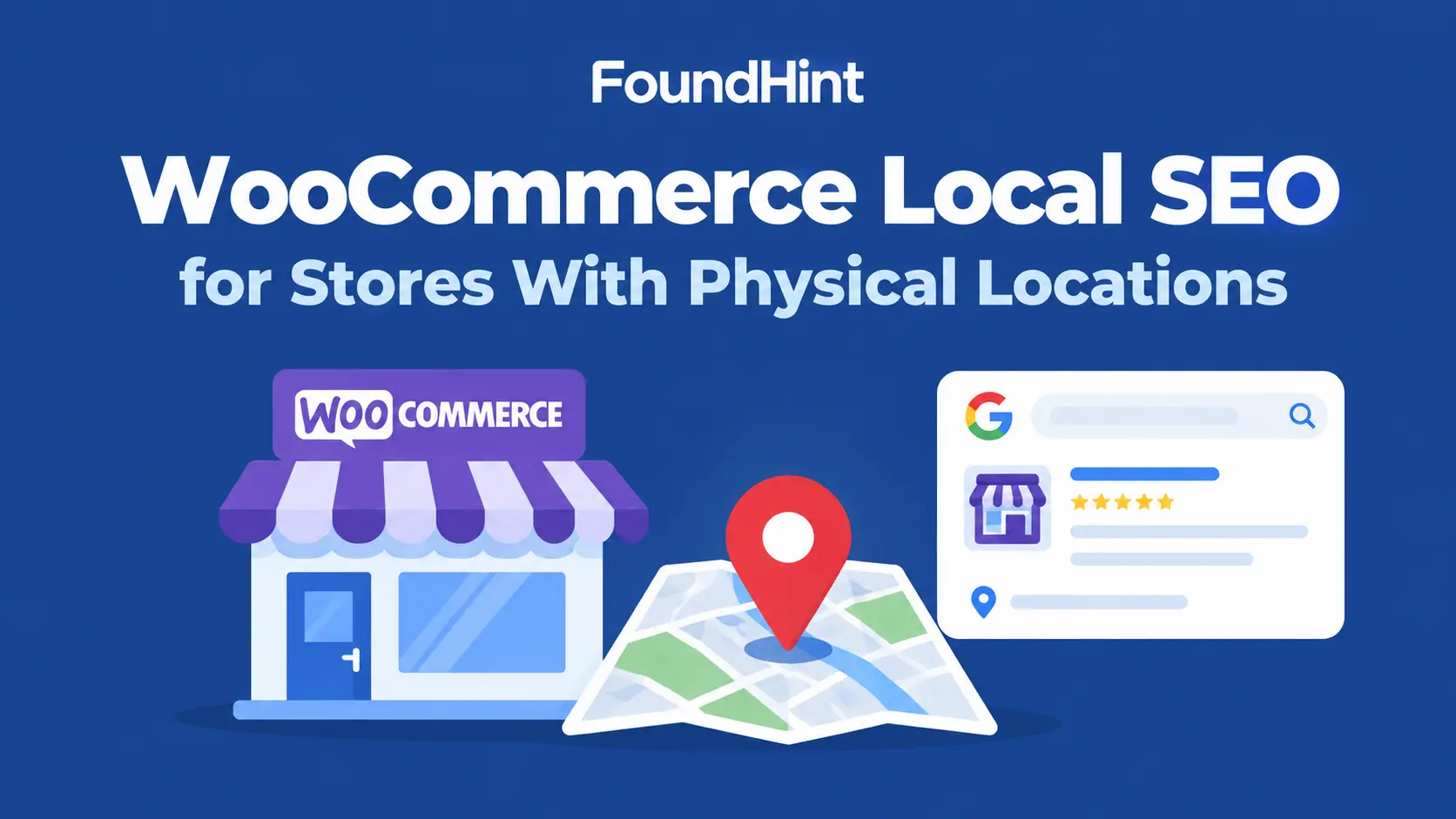
This guide explains how to combine WooCommerce product SEO with local SEO: location pages, Google Business Profile, local keywords, LocalBusiness and Product schema, store locator SEO, citations, reviews, and multi-store management. You’ll also see how the FoundHint Local SEO Plugin for WordPress helps WooCommerce stores manage local SEO from the same dashboard as their shop.
What Is WooCommerce Local SEO?
WooCommerce local SEO is the process of optimizing a WooCommerce website so its physical store locations appear in local search results, alongside its products in regular search.
It applies to WooCommerce businesses that have:
- An online store built on WooCommerce
- Physical store locations customers can visit
- Local customers within driving or walking distance
- Products available in store as well as online
- Local pickup or delivery options
In short, WooCommerce SEO for local businesses connects your online catalog with your real-world stores.
Why Local SEO Matters for WooCommerce Stores?
Local SEO for eCommerce stores with physical locations brings benefits that product SEO can’t:
| Benefit | What it means for a WooCommerce store |
|---|---|
| Google Search visibility | Your store pages rank for “[category] store in [city]” |
| Google Maps visibility | Shoppers find your store when browsing Maps nearby |
| Local Pack visibility | Your store appears in the map results at the top of Google |
| Nearby product searches | You’re visible for “buy running shoes near me” |
| Store discovery | New customers learn your physical store exists |
| Local customers | Reach shoppers who prefer to see, try, or collect in person |
| In-store visits | More directions requests and walk-ins |
| Online-to-offline conversions | Shoppers research online and buy in store, or order online and pick up locally |
WooCommerce SEO vs Local SEO
| WooCommerce SEO | Local SEO |
|---|---|
| Product rankings | Location rankings |
| Product pages | Location pages |
| Category pages | City / location pages |
| Product keywords | Local keywords |
| Product schema | LocalBusiness schema |
| Online customers | Nearby customers |
A physical WooCommerce business often needs both. Product SEO wins online sales nationwide; local SEO brings nearby customers to your stores. See Local SEO vs SEO for the broader comparison.
Create SEO-Friendly WooCommerce Location Pages
WooCommerce’s default pages (shop, product categories, products) don’t include store location pages. You need to add them. A recommended structure:
/
├── shop/
├── product-category/
├── product/
│
├── locations/
│   ├── new-york/
│   ├── chicago/
│   └── dallas/
│
├── about/
├── contact/
└── blog/
Create location pages as regular WordPress pages under a parent “Locations” page. Each page should contain genuinely useful information about that store. Here’s an example for a running store, “Trailhead Running Co.”:
| Element | Example: Trailhead Running Co. – Dallas |
|---|---|
| Store name | Trailhead Running Co. – Dallas |
| Address | 3100 Knox St, Dallas, TX 75205 |
| Phone | (214) 555-0158 |
| Opening hours | Mon–Sat 10 AM–8 PM, Sun 12–6 PM |
| Products available | Running shoes, apparel, GPS watches, nutrition |
| Services | Gait analysis, shoe fitting, group runs |
| Directions | Two blocks from the Katy Trail entrance |
| Parking information | Free parking behind the store |
| Local photos | Real photos of the store, staff, and fitting area |
| Store amenities | Treadmill for test runs, wheelchair accessible |
| Local FAQs | “Can I return online orders at the Dallas store?” |
| Embedded map | Google Map of the store location |
| Google Business Profile link | Link to the Dallas profile |
These WooCommerce location pages become the landing pages for each store’s Google Business Profile and the main target for location searches.
Optimize Google Business Profile for WooCommerce Locations
Every eligible physical location (a store customers can visit during stated hours) should have its own Google Business Profile:
| Profile field | Best practice |
|---|---|
| Business name | Your real store name, e.g. “Trailhead Running Co.” |
| Primary category | Specific category such as “Running store” or “Furniture store” |
| Address | The store’s real address |
| Phone | The store’s local number |
| Website | That store’s location page, not the shop homepage |
| Hours | Accurate store hours, including holidays |
| Photos | Storefront, interior, products, staff |
| Products / services | Key product categories and in-store services |
| Attributes | In-store pickup, curbside pickup, accessibility |
| Reviews | Responded to promptly |
| Location-specific landing page | Linked both ways |
This connects the chain: WooCommerce store → physical location → location page → Google Business Profile. There’s no built-in WooCommerce Google Business Profile connection, so the link happens through accurate, matching information and the website URL on each profile. See Google Business Profile Optimization.
Local Keyword Research for WooCommerce
Local keywords for WooCommerce stores combine what you sell with where you sell it:
| Keyword pattern | Example | Best page to target |
|---|---|---|
| Product + location | running shoes in Dallas | Dallas location page |
| Category + location | furniture store in Chicago | Chicago location page |
| Service + location | bike repair shop in New York | New York location page |
| Intent-based | stores near me | Location pages + Google Business Profiles |
| Intent-based | buy trail running shoes near me | Location pages, with product links |
| Intent-based | [product] available locally | Product pages showing store availability |
Don’t create pages for every keyword variation. Build pages around real locations, products, categories, and search intent. See Local Keyword Research.
Optimize WooCommerce Product Pages for Local Search
WooCommerce product SEO is mostly national, but product pages can support local search too:
- Product name – clear and descriptive, without city names
- Product description – helpful details about the product
- Availability – stock status online
- Store availability – which stores carry this product, if you track it
- Pickup options – “Free pickup at our Dallas, Chicago, and New York stores”
- Relevant location – a short note linking to stores that offer fittings or demos
- Local internal links – links to the location pages that stock the product
- Product structured data – accurate Product schema with price and availability
Avoid stuffing city names into product titles or descriptions when they aren’t genuinely relevant. “Nike Pegasus 41 Running Shoe Dallas” helps no one.
Product Category + Location Strategy
For businesses where local demand justifies it, you can create category + location pages:
/shop/
/shop/shoes/
/locations/dallas/
/locations/dallas/shoes/
Only create the final combination (/locations/dallas/shoes/) when it provides unique value, such as the Dallas store’s specific shoe range, in-store fitting service, local staff picks, and Dallas-specific events. Otherwise, link the location page to the main category page.
This is especially important for WooCommerce sites with many categories and stores: ten categories across ten stores could create 100 thin, near-duplicate pages.
LocalBusiness Schema + Product Schema
A WooCommerce store with physical locations uses two kinds of structured data that work together:
Business
   ↓
Physical Location
   ↓
LocalBusiness
   ↓
Products
   ↓
Product Schema| Schema | Where it goes | What it describes |
|---|---|---|
| Organization | Homepage | The brand as a whole |
| LocalBusiness (e.g. Store, SportingGoodsStore, FurnitureStore) | Each location page | One physical store: address, phone, hours, geo |
| Product | Each product page | The product: name, price, availability, reviews |
WooCommerce core outputs basic Product structured data on product pages, and many SEO plugins extend it. It doesn’t add WooCommerce local business schema for your stores, so that needs to be added separately to each location page.
Here’s a short LocalBusiness example for the Dallas store:
<script type="application/ld+json">
{
  "@context": "https://schema.org",
  "@type": "SportingGoodsStore",
  "@id": "https://www.trailheadrunning.com/locations/dallas/#localbusiness",
  "name": "Trailhead Running Co. - Dallas",
  "url": "https://www.trailheadrunning.com/locations/dallas/",
  "telephone": "+1-214-555-0158",
  "address": {
    "@type": "PostalAddress",
    "streetAddress": "3100 Knox St",
    "addressLocality": "Dallas",
    "addressRegion": "TX",
    "postalCode": "75205",
    "addressCountry": "US"
  },
  "parentOrganization": {
    "@type": "Organization",
    "@id": "https://www.trailheadrunning.com/#organization",
    "name": "Trailhead Running Co."
  }
}
</script>
Make sure structured data accurately represents information visible on the page, and check for duplicate schema from multiple plugins. See LocalBusiness Schema for WordPress.
Store Locator SEO
WooCommerce sites with many stores often use a store locator. Store locator SEO makes sure search engines can still find every location:
- Store locator architecture – a crawlable /locations/ hub page, not only an interactive map widget.
- Individual location URLs – every store gets its own page, such as /locations/chicago/.
- Internal linking – plain HTML links from the hub to each store page.
- Search-friendly location pages – each with unique content, NAP, and schema.
- Location navigation – “Find a store” in the main menu and footer.
- City/state organization – for large networks, group stores by state, then city: /locations/texas/dallas/.
Don’t rely only on a JavaScript store locator that hides all locations from normal crawlable pages. If search engines can’t follow plain links to each store page, those pages may never be indexed.
NAP Consistency
Keep each store’s name, address, and phone consistent across:
- Your website (location pages, footer, contact page)
- WooCommerce store information (WooCommerce → Settings → General store address, used for tax and shipping)
- Google Business Profile
- Citations and directories
- Social profiles
If your WooCommerce store address is your warehouse or head office, make sure it isn’t confused with your customer-facing store addresses on location pages and listings. See NAP Consistency for Local SEO.
Local Citations for WooCommerce Stores
Each physical store needs accurate citations:
- Local directories – chamber of commerce, city business directories
- Industry directories – niche retail and trade directories for your product category
- Shopping and local directories – Yelp, Apple Business Connect, Bing Places, Foursquare
- Business listings – Facebook, Nextdoor, BBB
- Citation consistency – the same NAP everywhere for each store
- Duplicate listings – one listing per store per platform
- Citation cleanup – fix old addresses, phone numbers, and closed stores
See Local Citations for Local SEO: The Complete Guide.
Reviews and Local Reputation
WooCommerce stores collect two different kinds of reviews, and they’re not the same thing:
| Product reviews | Business / location reviews | |
|---|---|---|
| Where they live | On your WooCommerce product pages | On Google Business Profile, Yelp, and similar platforms |
| What they describe | A specific product | The store experience: staff, service, location |
| Who sees them | Online shoppers | Local searchers in Search and Maps |
| Local SEO impact | Mainly product conversions | Store reputation and local visibility |
To build local reputation:
- Google reviews – ask in-store customers for a review of that specific store.
- Customer feedback – use receipts, pickup emails, or QR codes at checkout.
- Store reputation – monitor each store separately.
- Review generation – make it easy with a short review link per location.
- Responding to reviews – reply to every review, positive or negative.
Local SEO for Multiple WooCommerce Stores
For WooCommerce multiple locations SEO, each store follows the same path:
WooCommerce Website
        ↓
Multiple Locations
        ↓
Individual Location Pages
        ↓
Individual GBP Profiles
        ↓
Local Citations
        ↓
Reviews
        ↓
Local SEO Tracking
Keep a master record for each store, avoid copying one store’s details onto another, and track each store’s local visibility separately. See Multi-Location Local SEO: The Complete Guide.
Local SEO for Products Available In Store
If customers can buy or collect products in store, show it clearly:
- Product availability – show which stores stock a product, where you can do so accurately.
- Local inventory – connect store inventory through Google Merchant Center’s local inventory features, if you sell in Google Shopping.
- Store pickup – offer and label local pickup (WooCommerce includes a Local Pickup shipping method).
- Click and collect – explain how it works on product, cart, and location pages.
- Nearby store discovery – link from product pages to stores that stock the product.
- Product + location searches – support them with useful location pages, not keyword stuffing.
Having inventory in a store doesn’t mean Google will automatically rank that product locally. Local inventory features, accurate store data, and strong location pages make you eligible to appear; they don’t guarantee it.
Common WooCommerce Local SEO Mistakes
| Mistake | Fix |
|---|---|
| One generic location page for many stores | Give each store its own page |
| No individual location URLs | Use /locations/[city]/ for every store |
| Duplicate location content | Write unique content, photos, and FAQs per store |
| Incorrect store information | Verify hours, address, and phone for each store |
| Inconsistent NAP | Use one master record per store everywhere |
| Missing GBP profiles | Create and verify a profile for each eligible store |
| Thin city pages | Remove or improve pages without real local value |
| Keyword stuffing | Keep city names out of product titles unless relevant |
| No internal linking | Link products, categories, and stores to each other |
| Incorrect schema | Match LocalBusiness and Product schema to visible content |
| Duplicate businesses/locations | Merge or remove duplicate listings |
| Hiding locations behind JavaScript | Add a crawlable locations hub with plain links |
| Creating fake locations | List only real stores customers can visit |
Manage WooCommerce Local SEO With FoundHint
WooCommerce handles your products, cart, and checkout. It doesn’t manage your physical stores’ local SEO. The FoundHint Local SEO Plugin for WordPress fills that gap, running alongside WooCommerce on the same site.
| WooCommerce local SEO task | How FoundHint helps |
|---|---|
| Store details for every physical location | Manage a master business record for each store |
| WooCommerce location pages | Use each store’s own NAP, hours, and details on its location page |
| WooCommerce local business schema | Generate LocalBusiness schema for each store, separate from WooCommerce’s Product schema |
| NAP consistency | Keep store details consistent across your site |
| Local citations | Run a local citation check per store to find NAP mismatches and missing listings |
| Multiple stores | Manage local SEO for every location in one place |
| Finding issues | Run a local SEO audit across your location pages |
WooCommerce products → FoundHint store locations → Location pages + LocalBusiness schema → Citation check → Local SEO auditWith FoundHint, your WooCommerce site can sell online and bring nearby customers into your stores, without managing local SEO in separate spreadsheets and tools.
WooCommerce Local SEO Checklist
- Physical locations identified
- Individual location pages created
- Location URLs optimized
- NAP verified
- Google Business Profiles connected
- Store hours verified
- Location pages internally linked
- Local keywords researched
- LocalBusiness schema implemented
- Product schema validated
- Citations checked
- Reviews monitored
- Duplicate listings checked
- Store locator crawlability checked
- Local rankings tracked
Frequently Asked Questions
What is WooCommerce local SEO?
WooCommerce local SEO is optimizing a WooCommerce website so its physical store locations appear in local search results, Google Maps, and the Local Pack, alongside its products in regular search.
How do I optimize WooCommerce for local SEO?
Create a page for each physical store, set up a Google Business Profile for each, use local keywords, add LocalBusiness schema, keep NAP consistent, build citations, and manage store reviews.
Can WooCommerce stores rank in Google Maps?
Yes. Google Maps rankings come from your Google Business Profile, not WooCommerce itself, so each physical store needs a verified profile linked to its location page.
How do I optimize WooCommerce for multiple locations?
Give every store its own location page, Google Business Profile, citations, and schema, organize them under a crawlable /locations/ hub, and track each store separately.
Should every WooCommerce store have its own location page?
Yes, every real store should have its own page with its address, phone, hours, products, services, directions, and photos.
How do I connect WooCommerce with Google Business Profile?
There’s no direct sync in WooCommerce. Set each profile’s website to its location page, keep details identical on both, and link the page to the profile.
How do I optimize product pages for local search?
Show store availability and pickup options, link to stores that stock the product, and keep Product schema accurate, without stuffing city names into titles.
Does WooCommerce support local SEO?
WooCommerce handles product SEO basics but doesn’t include location pages or LocalBusiness schema for stores. You add those with WordPress pages and a local SEO plugin.
How do I create location pages for WooCommerce?
Create a parent “Locations” page in WordPress, add a child page for each store with unique content, NAP, hours, map, and schema, and link them from the menu.
How do I optimize a store locator for SEO?
Keep a crawlable locations hub with plain HTML links to individual store pages, and don’t hide locations behind JavaScript only.
Final Thoughts
WooCommerce local SEO is about connecting your online store with your real-world locations. Product SEO brings online shoppers; local SEO brings nearby customers through your doors. Give each store its own page, profile, schema, citations, and reviews, and keep everything consistent.
The FoundHint Local SEO Plugin for WordPress runs alongside WooCommerce to manage store details, generate LocalBusiness schema, run local citation checks, and audit local SEO for every location.
To keep learning, read Multi-Location Local SEO, NAP Consistency for Local SEO, Local Citations for Local SEO, LocalBusiness Schema for WordPress, and Local SEO Audit.