Quick answer:
You can do WordPress SEO without a plugin. Core WordPress already outputs the page title, canonical tags on posts and pages, an XML sitemap at /wp-sitemap.xml, a virtual robots.txt, and redirects for changed post slugs. You add meta descriptions, Open Graph tags, schema, and custom redirects with a small amount of code in a child theme or a site-specific plugin.
 FoundHint Local SEO WordPress
Optimize your Google Business Profile without leaving WordPress
Connect your GBP profile, compare it with your website and fix the gaps FoundHint finds.
- Business Profile audit and optimization
- Google Post scheduling
- Review management and replies
- Local rank tracking on a map grid
You open your WordPress dashboard and count the plugins. Twenty-three. One of them is an SEO plugin with its own menu, its own notifications, an upgrade banner, and settings you set once three years ago and never touched again.
You start to wonder: does my site actually need all of this to rank?
The honest answer is no.
Google has never required an SEO plugin. A plugin is a convenient interface for a handful of tags and files: a title, a meta description, a canonical link, a sitemap, a robots.txt file, and some structured data.
WordPress already produces several of these on its own. The rest take a few lines of code.
This guide shows you exactly what WordPress handles out of the box, the code to cover what it doesn’t, and how to remove an existing SEO plugin without losing the titles, redirects, and schema it was quietly managing.
You’ll also learn when going plugin-free is a bad idea, so you can make the call with your eyes open.
What WordPress Already Does for SEO (and What It Doesn’t)
Before you write a single line of code, know where the gaps actually are. Most “you need a plugin” advice assumes WordPress does nothing. It does a lot.
| SEO element | Built into WordPress core? | What you need to add |
|---|---|---|
| Title tag | Yes, when the theme declares title-tag support | Optional: custom titles per page |
| Meta description | No | A small function plus a custom field |
| Canonical tag | Yes, on single posts and pages | Canonicals for archives, if you want them |
| XML sitemap | Yes, at /wp-sitemap.xml (since WordPress 5.5) | Optional: exclude post types or taxonomies |
| robots.txt | Yes, a virtual file | Your own rules and a sitemap line |
| Noindex control | Partly: site-wide via Settings > Reading | Per-page noindex through a filter |
| Redirects for changed slugs | Yes, for posts whose slug you edit | Rules for deleted pages and moved sections |
| Schema (structured data) | No | JSON-LD output in the head |
| Open Graph / social tags | No | A few meta tags |
| Breadcrumbs | No | Theme template code |
That table is the whole job. Five rows are already done. The other five are where your time goes, and the steps below cover each one.
One rule before you start: never paste code into the parent theme’s functions.php.
The next theme update wipes it. Use a child theme, or better, a tiny site-specific plugin (a single PHP file in /wp-content/plugins/ that you write yourself). It survives theme changes, and you can switch it off in one click if something breaks.
How to Do WordPress SEO Without a Plugin: 12 Steps
Step 1: Fix the two settings that break everything
Go to Settings > Reading and make sure “Discourage search engines from indexing this site” is unticked. This box is often left on after a site moves from staging to live, and it adds a noindex tag to every page.
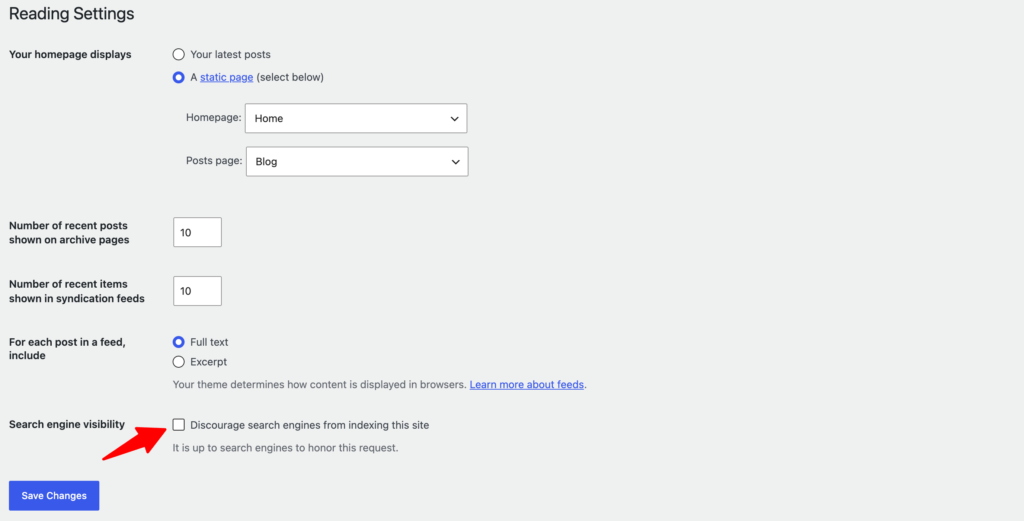
Then go to Settings > Permalinks and choose Post name.
This gives you clean URLs like /local-seo-checklist/ instead of /?p=123. If your site is already live with a different structure, don’t change it without planning redirects (Step 9).
Step 2: Create a site-specific plugin for your SEO code
Every snippet in this guide goes into one file.
Create /wp-content/plugins/site-seo/site-seo.php with this header, then activate it under Plugins:
<?php
/*
Plugin Name: Site SEO Essentials
Description: Titles, meta descriptions, schema and other SEO output for this site.
Version: 1.0
*/

if ( ! defined( 'ABSPATH' ) ) {
    exit;
}
Yes, technically this is a plugin.
But it’s yours: a few dozen lines, no settings screen, no upsells, and nothing runs that you didn’t write. Test every change on a staging copy first.
Step 3: Control your title tags
Modern themes print the title tag through WordPress core when they declare title-tag support. Check by viewing your page source and searching for <title>.
If your theme is old and hard-codes the title in header.php, add this to the theme’s setup and remove the hard-coded tag:
add_action( 'after_setup_theme', function () {
    add_theme_support( 'title-tag' );
} );
Core builds titles as “Post Title – Site Name”. To write a custom title for any post or page, store it in a custom field called seo_title and let this filter use it:
add_filter( 'pre_get_document_title', function ( $title ) {
    if ( is_singular() ) {
        $custom = get_post_meta( get_the_ID(), 'seo_title', true );
        if ( $custom ) {
            return $custom;
        }
    }
    return $title;
} );

add_filter( 'document_title_separator', function () {
    return '|';
} );
To see custom fields in the block editor, open the three-dot menu, then Preferences > General > Custom fields, and turn the panel on.
Keep titles under about 60 characters and put the main keyword near the start.
Step 4: Add meta descriptions
WordPress doesn’t output a meta description at all.
This snippet uses a custom field called meta_description when you’ve written one, falls back to the post excerpt when you haven’t, and uses your site tagline on the home page:
add_action( 'wp_head', function () {
    $desc = '';

    if ( is_singular() ) {
        $desc = get_post_meta( get_the_ID(), 'meta_description', true );
        if ( ! $desc && has_excerpt() ) {
            $desc = get_the_excerpt();
        }
    } elseif ( is_front_page() || is_home() ) {
        $desc = get_bloginfo( 'description' );
    }

    if ( $desc ) {
        $desc = wp_strip_all_tags( $desc );
        printf( "<meta name=\"description\" content=\"%s\">\n", esc_attr( $desc ) );
    }
}, 1 );
Write each description by hand for your most important pages, around 140 to 160 characters.
Google rewrites many descriptions, but a clear one that matches the search intent still lifts click-through rate.
Step 5: Noindex the pages that shouldn’t rank
Thin pages dilute your site: attachment pages, internal search results, thank-you pages. WordPress 5.7 added a wp_robots filter for exactly this:
add_filter( 'wp_robots', function ( $robots ) {
    $noindex = is_search() || is_attachment();

    if ( is_singular() && get_post_meta( get_the_ID(), 'noindex', true ) ) {
        $noindex = true;
    }

    if ( $noindex ) {
        $robots['noindex'] = true;
        $robots['follow']  = true;
    }
    return $robots;
} );
Add a custom field noindex with any value (for example, 1) to a page you want kept out of search.
Then, separately, go to Settings > Media and leave attachment pages switched off, which is the default on new installs since WordPress 6.4.
Step 6: Check your canonical tags
Core WordPress already prints a canonical tag on single posts and pages, pointing to the page’s own clean URL. View the source of any post and search for rel="canonical" to confirm.
What core doesn’t do is set canonicals on category, tag, or other archive pages. For most small sites that’s fine. Where it matters is duplicate content you create yourself, for example two near-identical service pages.
The real fix there is to merge or rewrite the pages, not to paper over them with tags.
Step 7: Tune the built-in XML sitemap
Open yourdomain.com/wp-sitemap.xml. Since WordPress 5.5, core generates an index linking to sitemaps for posts, pages, categories, tags, and author archives. Two common clean-ups:
// Remove author archives from the sitemap.
add_filter( 'wp_sitemaps_add_provider', function ( $provider, $name ) {
    return ( 'users' === $name ) ? false : $provider;
}, 10, 2 );

// Remove tag archives from the sitemap.
add_filter( 'wp_sitemaps_taxonomies', function ( $taxonomies ) {
    unset( $taxonomies['post_tag'] );
    return $taxonomies;
} );
Then submit /wp-sitemap.xml in Google Search Console under Sitemaps.
Step 8: Set up robots.txt
WordPress serves a virtual robots.txt at yourdomain.com/robots.txt, and since 5.5 it includes the sitemap line automatically.
To add your own rules without creating a physical file, use the robots_txt filter:
add_filter( 'robots_txt', function ( $output, $public ) {
    if ( $public ) {
        $output .= "Disallow: /?s=\n";
        $output .= "Disallow: /search/\n";
    }
    return $output;
}, 10, 2 );
If a physical robots.txt file exists in your site root, it overrides the virtual one and none of this runs. Don’t block /wp-content/ or your theme’s CSS and JavaScript: Google needs them to render the page.
Step 9: Handle redirects
WordPress already redirects visitors when you change a published post’s slug. It remembers the old slug and sends a 301 to the new URL. You need your own rules for deleted pages, merged content, and changed category structures.
On Apache or LiteSpeed hosting, add rules to .htaccess above the WordPress block:
Redirect 301 /old-service-page/ https://example.com/services/new-page/
Redirect 301 /2019/05/old-post/ https://example.com/new-post/
On Nginx, ask your host or add rewrite rules in your server configuration. Always redirect to the closest matching page, not the home page. Google treats mass redirects to the home page as soft 404s.
Step 10: Add schema markup with JSON-LD
Structured data helps search engines and AI assistants understand who you are. At minimum, output Organization and WebSite schema on the home page:
add_action( 'wp_head', function () {
    if ( ! is_front_page() ) {
        return;
    }

    $schema = array(
        '@context' => 'https://schema.org',
        '@graph'   => array(
            array(
                '@type' => 'Organization',
                '@id'   => home_url( '/#organization' ),
                'name'  => get_bloginfo( 'name' ),
                'url'   => home_url( '/' ),
                'logo'  => 'https://example.com/logo.png',
            ),
            array(
                '@type'     => 'WebSite',
                '@id'       => home_url( '/#website' ),
                'url'       => home_url( '/' ),
                'name'      => get_bloginfo( 'name' ),
                'publisher' => array( '@id' => home_url( '/#organization' ) ),
            ),
        ),
    );

    echo '<script type="application/ld+json">' . wp_json_encode( $schema ) . "</script>\n";
} );
If you serve customers in a specific area, use LocalBusiness (or a more specific type like Dentist or Plumber) instead of Organization, with your address, phone, hours and coordinates.
Our LocalBusiness schema guide for WordPress walks through every property. Validate the output with Google’s Rich Results Test before you move on.
Step 11: Add Open Graph tags for social sharing
Without Open Graph tags, Facebook, LinkedIn, and messaging apps guess which title and image to show when someone shares your page. Add the basics:
add_action( 'wp_head', function () {
    if ( ! is_singular() ) {
        return;
    }

    $id    = get_the_ID();
    $title = get_post_meta( $id, 'seo_title', true ) ?: get_the_title( $id );
    $image = get_the_post_thumbnail_url( $id, 'large' );

    printf( "<meta property=\"og:title\" content=\"%s\">\n", esc_attr( $title ) );
    printf( "<meta property=\"og:url\" content=\"%s\">\n", esc_url( get_permalink( $id ) ) );
    echo "<meta property=\"og:type\" content=\"article\">\n";

    if ( $image ) {
        printf( "<meta property=\"og:image\" content=\"%s\">\n", esc_url( $image ) );
    }
} );
Step 12: Handle images, speed, and measurement
Core WordPress already does more image SEO than most people realize: it generates responsive image sizes with srcset, lazy-loads images below the fold, and since 6.3 adds a high fetch priority to the likely main image. Your job is the rest:
- Write descriptive alt text when you upload, describing the image, not stuffing keywords.
- Compress images before upload and use WebP where your host supports it.
- Remove scripts you don’t use: old sliders, chat widgets, tracking pixels.
- Test key pages in PageSpeed Insights and fix the Core Web Vitals issues it flags.
- Verify your site in Google Search Console, submit the sitemap, and check the Pages report monthly for indexing problems.
Internal linking needs no plugin at all. Each time you publish, link to it from two or three older, related posts with descriptive anchor text, and link out from it to your key service pages.
How to Remove an SEO Plugin Without Losing Rankings?
The risky part of going plugin-free isn’t the code. It’s the switch. Your SEO plugin has been storing custom titles, descriptions, redirects and noindex settings in your database, and deactivating it makes all of that disappear from your pages at once. Follow this order:
- Crawl the site first. Run a crawler (Screaming Frog’s free version handles 500 URLs) and export every URL with its title, meta description, canonical and indexability. This is your baseline.
- Export redirects. If the plugin managed redirects, export them as CSV and convert them into .htaccess or server rules (Step 9).
- Move titles and descriptions to your custom fields. Yoast stores them in the
_yoast_wpseo_titleand_yoast_wpseo_metadescmeta keys; Rank Math usesrank_math_titleandrank_math_description. A developer can copy these intoseo_titleandmeta_descriptionwith a short WP-CLI script, or you can read them directly in your Step 3 and Step 4 code during the transition. - Record your noindex pages and schema. Note which pages were set to noindex and which had schema, so you can recreate them.
- Deploy your code on staging, then deactivate the plugin there. Crawl staging and compare it with your baseline. Every title, description, canonical and redirect should match.
- Go live, then crawl again within a day. Watch Search Console’s Pages report and your rankings for two to four weeks.
When You Should Still Use a Plugin
Going plugin-free makes sense if you have a developer on hand, a stable site structure, and a small number of page types.
It’s a bad trade if nobody on your team edits PHP, if several people publish content and need an easy title and description box, or if you run WooCommerce with thousands of product pages.
There’s also a difference between a general SEO plugin and a specialist one. Titles and sitemaps are easy to replace with code.
Local SEO is not.
If you’re a local business, the work that moves you in Google Maps sits outside your website’s head tags: a LocalBusiness schema per location, consistent name, address and phone (NAP) details everywhere, a Google Business Profile that matches your site, reviews, and location pages that don’t duplicate each other.
That’s the gap FoundHint fills.
It’s a focused local SEO plugin that works alongside a lean setup like the one above: it generates LocalBusiness schema for every location, builds location pages, runs NAP consistency checks, and tracks your rankings on a local SEO grid. Handle the basics in code, and let one specialist tool do the local work that would take weeks to build by hand.
For the local side of on-page work, see Local On-Page SEO: Where to Place City, Service, and Keywords.
Frequently Asked Questions
Can WordPress rank on Google without an SEO plugin?
Yes. Google ranks pages on content, relevance, links and page experience, not on which plugin generated the tags. A plugin only makes it easier to set titles, descriptions and other signals. You can produce the same output with core features and a little code.
Will removing Yoast or Rank Math make my site faster?
Slightly, at best. SEO plugins add some database queries and admin overhead, but they’re rarely the main cause of slow pages. Heavy themes, page builders, unoptimized images and third-party scripts usually matter far more. Measure in PageSpeed Insights before and after.
Does WordPress have a built-in sitemap?
Yes. Since WordPress 5.5, core generates an XML sitemap at /wp-sitemap.xml with posts, pages, taxonomies and author archives. You can remove sections with the wp_sitemaps_add_provider and wp_sitemaps_taxonomies filters.
How do I add a meta description in WordPress without a plugin?
Add a function hooked to wp_head that prints a meta description tag from a custom field or the post excerpt. Step 4 above has copy-paste code. Write a unique description of 140 to 160 characters for each important page.
Does WordPress add canonical tags automatically?
Yes, on single posts and pages. Core prints a canonical tag pointing to the page’s own URL. It doesn’t add canonicals to category, tag or other archive pages.
Is going plugin-free a good idea for local businesses?
For the general basics, it can be. For local rankings, you’ll need LocalBusiness schema, consistent NAP details, location pages and Google Business Profile alignment, which are slow to build and maintain by hand. A focused local SEO plugin such as FoundHint covers those without adding the bulk of an all-in-one SEO suite.
What breaks most often after removing an SEO plugin?
Custom titles and meta descriptions vanish, redirects stop working, noindex settings are lost, and schema disappears. Crawl the site before and after the switch and compare the two exports to catch every change.
FoundHint Local SEO WordPress
Optimize your Google Business Profile without leaving WordPress
Connect your GBP profile, compare it with your website and fix the gaps FoundHint finds.
- Business Profile audit and optimization
- Google Post scheduling
- Review management and replies
- Local rank tracking on a map grid