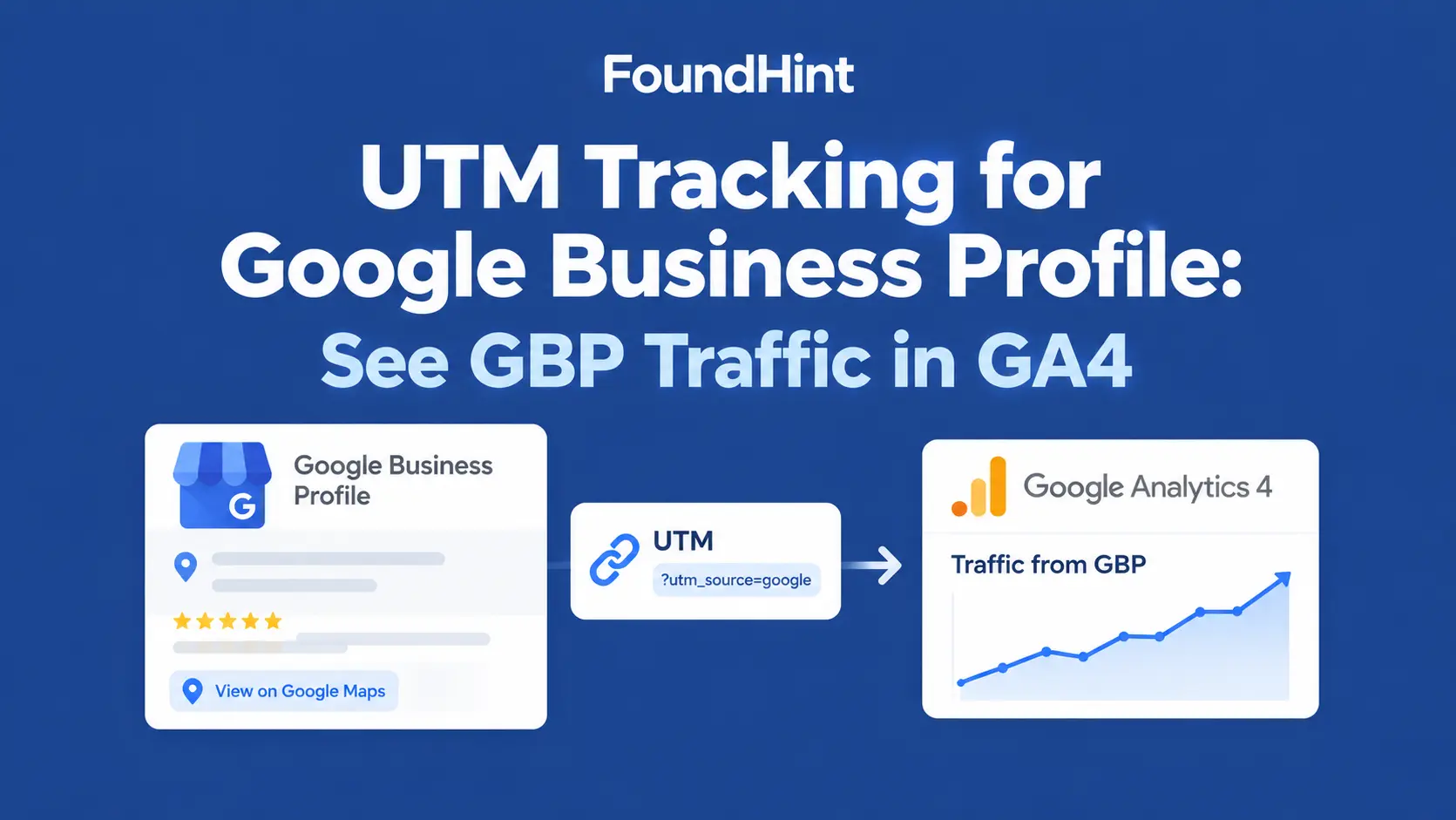
Your Google Business Profile sends people to your website every day. But open Google Analytics 4 and you’ll usually find that traffic hidden inside google / organic, mixed in with every other organic search visit.
You can’t tell how many visitors came from your Maps listing, which location sent them, or whether they converted.
UTM tracking for Google Business Profile fixes that.
By adding a few simple parameters to the website link on your profile, you can see GBP traffic as its own segment in GA4, with users, sessions, engagement, and conversions, for every location.
In this guide, you’ll learn what UTM parameters are, the recommended UTM structure for GBP, how to add tracking links to your profile step by step, where to find Google Business Profile traffic in GA4, and how to track multiple locations with a consistent naming convention.
What Is UTM Tracking for Google Business Profile?
UTM tracking for Google Business Profile means adding UTM parameters to the website URL on your profile, so analytics tools like GA4 can attribute incoming visits to your profile instead of lumping them into general organic search.
Instead of this:
https://example.com/Your profile links to this:
https://example.com/?utm_source=google&utm_medium=organic&utm_campaign=gbpThe page is exactly the same for visitors. The difference is that GA4 now knows these visits came from your Google Business Profile.
Why Track Google Business Profile Traffic?
GBP tracking links help you answer questions that matter for local SEO:
| What you can measure | Why it matters |
|---|---|
| Website visits from GBP | See how much traffic your profile actually sends |
| Traffic attribution | Separate GBP visits from other organic search visits |
| User acquisition | Count new users who found you through Maps or the Local Pack |
| Engagement | See whether GBP visitors read, scroll, and explore |
| Conversions | Track calls, form fills, bookings, or purchases from GBP visitors |
| Local SEO performance | Connect profile visibility to real website results |
| Comparing locations | See which branch’s profile drives the most traffic and leads |
| Measuring GBP optimization | Check whether profile improvements lead to more website activity |
What Are UTM Parameters?
UTM parameters are tags added to the end of a URL after a question mark. GA4 reads them and records where each visit came from.
| Parameter | Example | Purpose |
|---|---|---|
| utm_source | Traffic source | |
| utm_medium | organic | Marketing medium |
| utm_campaign | gbp | Campaign or group |
| utm_content | dallas | Optional differentiation, e.g. location |
| utm_term | service | Usually less useful for GBP |
Keep it simple.
For most businesses, source, medium, and campaign are enough, plus utm_content if you have multiple locations. Adding unnecessary parameters only makes reports harder to read.
Recommended UTM Structure for GBP
Use one simple standard for every profile:
utm_source=google
utm_medium=organic
utm_campaign=gbp
Result:
https://example.com/?utm_source=google&utm_medium=organic&utm_campaign=gbpWhy organic?
Visits from your Business Profile are unpaid. Keeping utm_medium=organic with utm_source=google means GA4 still groups these visits in its Organic Search channel, while the gbp campaign lets you separate them. Some businesses prefer utm_medium=local or utm_medium=gbp.
That works too, but GA4 may then place the traffic in an “Unassigned” or other channel. Whatever you choose, use it consistently.
For multiple locations, distinguish each location with an extra parameter:
https://example.com/locations/dallas/?utm_source=google&utm_medium=organic&utm_campaign=gbp&utm_content=dallasOr rely on a location-specific landing page (/locations/dallas/) while keeping campaign naming consistent. Using both is the clearest option.
How to Add UTM Tracking to Google Business Profile?
- Open the Business Profile. Search your business name on Google while signed in, or open your profile in Google Maps.
- Edit the website URL. Choose Edit profile, then find the Website field under contact details.
- Add the UTM-tagged URL. Paste your full tracking link, for example
https://example.com/locations/dallas/?utm_source=google&utm_medium=organic&utm_campaign=gbp&utm_content=dallas. - Save the change. Edits may take some time to appear publicly while Google reviews them.
- Verify the URL works. Click the website button on your live profile and confirm the page loads with the parameters in the address bar.
- Open GA4. Go to Reports → Realtime and click your profile’s website link to see your own visit appear.
- Check incoming traffic and acquisition data. After a few days, review the traffic acquisition reports described below.
Tip: You can also tag other profile links where available, such as appointment or menu links, using a different
utm_contentvalue, e.g.utm_content=dallas-booking.
How to See Google Business Profile Traffic in GA4?
Once your tagged link is live, GA4 identifies that traffic using the campaign, source, and medium values you chose.
Option 1: Traffic acquisition report
- In GA4, go to Reports → Acquisition → Traffic acquisition.
- Change the primary dimension to Session campaign.
- Find the row named gbp.
- To split by location, add a secondary dimension: Session manual ad content (this is where
utm_contentappears).
Option 2: Landing page report
Go to Reports → Engagement → Landing page, then add a filter or comparison for Session campaign = gbp to see which pages GBP visitors land on.
Option 3: Exploration
In Explore, create a free-form exploration with dimensions such as Session campaign, Session manual ad content, and Landing page, and metrics such as users and conversions.
What to look at
| Metric | What it tells you |
|---|---|
| Users | How many people visited from your profile |
| Sessions | How many visits they made |
| New users | How many were first-time visitors |
| Engagement rate / engaged sessions | Whether GBP visitors interact with your site |
| Landing pages | Which pages GBP links send people to |
| Key events (conversions) | Calls, forms, bookings, or purchases from GBP visitors |
| Traffic acquisition | How GBP compares with other channels |
For conversions to appear, make sure the actions you care about (form submissions, click-to-call, bookings) are set up as key events in GA4.
How to Track GBP Traffic for Multiple Locations?
When each location’s profile links to its own location page with its own UTM tag, you can compare location-level performance in one GA4 report:
Location A (Dallas)
GBP → /locations/dallas/?utm_...&utm_content=dallas
             ↓
            GA4

Location B (Chicago)
GBP → /locations/chicago/?utm_...&utm_content=chicago
             ↓
            GA4
In GA4’s Traffic acquisition report (Session campaign = gbp, secondary dimension Session manual ad content), each location appears as its own row, with its own users, engagement, and conversions.
UTM Tracking for Multiple Google Business Profiles
For businesses with multiple locations, the key is a consistent naming convention. For example:
| Location | Full GBP tracking link |
|---|---|
| Dallas | https://example.com/locations/dallas/?utm_source=google&utm_medium=organic&utm_campaign=gbp&utm_content=dallas |
| Chicago | https://example.com/locations/chicago/?utm_source=google&utm_medium=organic&utm_campaign=gbp&utm_content=chicago |
| New York | https://example.com/locations/new-york/?utm_source=google&utm_medium=organic&utm_campaign=gbp&utm_content=new-york |
Naming rules that scale:
- Always use lowercase. GA4 treats “Dallas” and “dallas” as different values.
- Use hyphens instead of spaces:
new-york, notnew yorkorNewYork. - Keep source, medium, and campaign identical across all locations.
- Use the same location slug in
utm_contentas in the landing page URL. - Document the convention in a shared sheet so new locations follow it.
This creates a scalable framework for location-level reporting across five or five hundred locations.
How UTM Tracking Helps Local SEO?
With GBP UTM data in GA4, you can understand:
- Which locations generate traffic from their profiles
- Which GBP profiles generate website visits, and which barely get clicks
- Which landing pages receive GBP traffic, and whether they keep visitors engaged
- Which locations generate conversions, not just visits
- Whether local SEO improvements are producing measurable website activity, such as after updating categories, adding photos, or earning reviews
Important: UTM tracking measures traffic attribution. It does not itself improve Google Maps rankings, and UTM parameters are not a ranking signal. Their value is in showing you what’s working so you can make better local SEO decisions.
GBP UTM Tracking vs Google Business Profile Insights
These two data sources answer different questions:
| Google Business Profile performance | GA4 + UTM tracking | |
|---|---|---|
| Where it lives | Inside your Business Profile | Your GA4 property |
| What it measures | Actions on the profile: views, searches, calls, direction requests, website clicks | What happens after someone reaches your website |
| Example question | “How many people asked for directions?” | “How many GBP visitors booked an appointment?” |
| Best for | Profile visibility and interactions | Engagement, landing pages, and conversions |
Used together, they show the full journey:
Google Business Profile
        ↓
Website Click
        ↓
UTM Parameters
        ↓
GA4
        ↓
Landing Page
        ↓
Engagement
        ↓
Conversion
Don’t expect the numbers to match exactly. GBP counts website clicks, while GA4 counts sessions from visitors who accept analytics tracking, so GA4 numbers are often a little lower.
Common UTM Tracking Mistakes
| Mistake | Problem | Fix |
|---|---|---|
| Inconsistent naming | “gbp,” “GBP,” and “google-business” split into separate rows | One documented naming convention |
| Changing UTM conventions frequently | Breaks month-to-month comparisons | Set a standard and keep it |
| Using too many parameters | Cluttered, confusing reports | Stick to source, medium, campaign, and content |
| Incorrect URL | Typos send visitors to error pages | Test every link after saving |
| Broken landing pages | GBP visitors bounce immediately | Check location pages regularly |
| Forgetting location differentiation | Can’t tell which profile sent traffic | Use utm_content per location |
| Using inconsistent capitalization | GA4 treats case differences as different values | Lowercase everything |
| Not documenting the naming convention | New locations use different tags | Keep a shared UTM sheet |
| Treating UTM traffic as a ranking signal | False expectations | UTMs measure; they don’t rank |
UTM Tracking for Franchise and Multi-Location SEO
For franchises and multi-location brands, consistent UTMs make location reporting possible:
Franchise
│
├── Location A
│   ├── GBP
│   └── GA4
│
├── Location B
│   ├── GBP
│   └── GA4
│
└── Location C
    ├── GBP
    └── GA4
The franchisor sets one UTM convention for all locations, so every location’s GBP traffic can be compared in the same GA4 report. Franchisees then see their own location’s results without needing separate analytics setups.
See Multi-Location Local SEO: The Complete Guide and Franchise Local SEO: The Complete Guide.
How FoundHint Can Manage GBP UTM Tracking?
Building UTM links by hand is easy for one profile. With five, twenty, or a hundred locations, typos, capitalization errors, and inconsistent naming creep in fast.
The FoundHint Local SEO Plugin for WordPress brings GBP UTM tracking into the same place you manage your locations.
Business Profile
       ↓
Website URL
       ↓
UTM Builder
       ↓
Location-Specific UTM
       ↓
Google Business Profile
       ↓
GA4
       ↓
Traffic & Conversion Reporting| UTM tracking task | How FoundHint helps |
|---|---|
| Building tracking links | UTM parameter generator for each GBP website link |
| Keeping naming consistent | Standard UTM templates (source, medium, campaign) applied everywhere |
| Multiple locations | Location-specific UTM values generated from each location’s slug |
| Avoiding broken links | URL validation for the landing page and parameters |
| Spotting errors | UTM consistency checks across all locations |
| Linking profiles to pages | GBP link tracking matched to each location page |
| Scaling to many branches | Multi-location UTM management in one dashboard |
| Reading the data | GA4 measurement guidance for finding GBP traffic |
| Seeing results | Reporting on GBP traffic by location |
Because FoundHint already stores each location’s business information and location page, your UTM links, location pages, LocalBusiness schema, and citation checks all work from the same data, so tracking stays consistent as you add locations.
UTM Tracking Checklist
- GBP website URL verified
- UTM naming convention defined
- utm_source standardized
- utm_medium standardized
- utm_campaign standardized
- Location differentiation defined
- Landing page verified
- GA4 installed
- Traffic acquisition checked
- Conversions configured
- Multiple locations documented
- UTM naming kept consistent
Frequently Asked Questions
What is UTM tracking for Google Business Profile?
It’s adding UTM parameters to the website link on your Business Profile so GA4 can identify visits from your profile separately from other organic traffic.
How do I track Google Business Profile traffic in GA4?
Add a UTM-tagged URL to your profile, then in GA4 go to Reports → Acquisition → Traffic acquisition and set the dimension to Session campaign to find your “gbp” campaign.
Can I add UTM parameters to my Google Business Profile?
Yes. Edit your profile’s website field and paste the full UTM-tagged URL. Visitors see the same page; only your analytics data changes.
How do I track Google Maps traffic?
Clicks to your website from Google Maps and the Local Pack come through your Business Profile’s website link, so a UTM-tagged profile link tracks that traffic in GA4.
What UTM parameters should I use for GBP?
A simple, common setup is utm_source=google, utm_medium=organic, and utm_campaign=gbp, plus utm_content for each location if you have more than one.
How do I track multiple Google Business Profiles?
Use identical source, medium, and campaign values for every profile, add a unique lowercase utm_content value per location, and link each profile to its location page.
Can UTM parameters improve Google Maps rankings?
No. UTM parameters only measure traffic. They don’t affect rankings.
How do I track GBP website clicks?
Your Business Profile performance data shows website clicks on the profile, and GA4 with UTM tracking shows what those visitors did on your site.
How do I measure local SEO traffic in GA4?
Tag your GBP links with UTMs, track key events such as calls and form submissions, and review landing page and traffic acquisition reports for your gbp campaign and location pages.
Final Thoughts
UTM tracking for Google Business Profile is one of the quickest wins in local SEO tracking with GA4. In a few minutes per profile, you go from guessing to knowing how much traffic and how many conversions your profile, and each location, really delivers.
Keep the setup simple, use consistent lowercase naming, link each profile to its location page, and review your GA4 data regularly. If you manage several locations in WordPress, the FoundHint Local SEO Plugin helps you build, standardize, and check GBP tracking links alongside the rest of your local SEO.
To keep learning, read Google Maps Local SEO, Google Business Profile Optimization, Multi-Location Local SEO, and Local SEO Audit.