
If you run a local business, you probably manage two things that describe the same company: your WordPress website and your Google Business Profile. One lives on your domain; the other powers your listing in Google Search and Google Maps.
Most business owners manage them separately, logging in to Google to update hours, post an offer, or reply to a review, then logging in to WordPress to change the same details on the website.
When you connect Google Business Profile to WordPress, that split goes away.
Your Business Profile becomes something you can manage from the same dashboard as your website, which saves time and helps keep your business information consistent everywhere.
What’s the easiest way to connect Google Business Profile to a website? For WordPress, it’s a plugin that handles Google’s authorization for you.
In this tutorial, we’ll use FoundHint, our Local SEO plugin for WordPress, to walk through the entire Google Business Profile WordPress integration: what you need before you start, how to connect step by step, what happens after you connect, how to use your business data on your website, and how to fix common connection problems.
 FoundHint Local SEO WordPress
Optimize your Google Business Profile without leaving WordPress
Connect your profile, compare it with your website and fix the gaps FoundHint finds.
- Business Profile audit and optimization
- Google Post scheduling
- Review management and replies
- Local rank tracking on a map grid
What Is Google Business Profile Integration With WordPress?
A Google Business Profile integration connects your WordPress website to your Business Profile through Google’s official authorization process, so a plugin can read your profile information and, where supported, send updates back to Google.
What Is Google Business Profile?
Google Business Profile (formerly Google My Business) is Google’s free business listing. It controls what customers see about your business in Google Search and Google Maps: your name, address, phone number, hours, photos, reviews, posts, products, and services.
Why Connect Google Business Profile to WordPress?
- Manage everything from one dashboard: no more switching between your WordPress dashboard and Google
- Save time: especially if you update hours, posts, or photos regularly
- Keep business information consistent: your website and your Business Profile show the same details
- Manage multiple business locations: handle several profiles without logging in and out
- Let your team work in one place: staff who manage the website can also handle Business Profile tasks
What Can a WordPress Integration Do?
Can you manage Google Business Profile from your WordPress dashboard? With FoundHint, yes. Once connected, FoundHint lets you:
- Optimize your business information: name, categories, description, address and location, social links, attributes, and services
- Update business hours and special hours for holidays and temporary closures
- Create and schedule Google Business Profile posts: updates, offers, and events
- Add and remove photos on your Business Profile
- Manage reviews: read, reply, and set up personalized auto-replies
- Add products and services, including WooCommerce products
- Manage multiple Google Business Profile locations from one dashboard
- Track rankings for target keywords across a map grid with the Ranking Grid
FoundHint also includes a local citation check to help keep your NAP consistent across directories.
Google Business Profile vs. Google Maps: What’s the Difference?
Google Maps is the map product; Google Business Profile is the business listing that appears inside Google Maps and Google Search. You don’t connect “Google Maps” to WordPress.
You connect your Business Profile, and the changes you make show up wherever Google displays your listing, including Maps. (Embedding a Google Map on your contact page is a separate, simpler task.)
What You Need Before Connecting Google Business Profile
What do you need before connecting Google Business Profile? Just three things, and no technical setup.
A WordPress Website With FoundHint Installed
You’ll need admin access to your WordPress site and the FoundHint plugin installed and activated. Make sure WordPress and your plugins are up to date before connecting.
A Google Account With Access to the Business Profile
Use the Google account that is an Owner or Manager on your Business Profile. If you sign in with a personal Gmail that isn’t added to the profile, your business won’t appear.
To check, open your Business Profile on Google, go to Menu → Business Profile settings → People and access, and confirm your account is listed.
A Google Business Profile That You Manage
If you already have a Google Business Profile (GMB), you’re ready to connect. If you don’t, create a new Google Business Profile account and list your business on Google first, then connect it to FoundHint.
A verified profile gives you access to all editing features. If you manage several locations, organizing them in a business group in Google Business Profile Manager makes them easier to select.
No Google API Setup Required
Many Google integrations ask you to create a Google Cloud project, enable the Business Profile API, request API access, and paste in keys or client IDs. With FoundHint, you don’t need any of that.
There’s no Google Cloud project, no API key, and no developer setup. FoundHint handles the Google Business Profile API connection for you: you simply sign in with your Google account through Google’s secure sign-in screen and approve access. You never share your Google password with the plugin.
How to Connect GBP to WordPress Using FoundHint Local SEO Plugin?
How do you connect Google Business Profile to WordPress? With FoundHint, it takes six steps and a few minutes. No Google Cloud project, no API key.
Step 1: Install the FoundHint Plugin in Your WordPress Dashboard
What to do: In your WordPress dashboard, go to Plugins → Add New, search for FoundHint, then click Install Now and Activate. (If you downloaded FoundHint as a .zip file, use Plugins → Add New → Upload Plugin instead.)
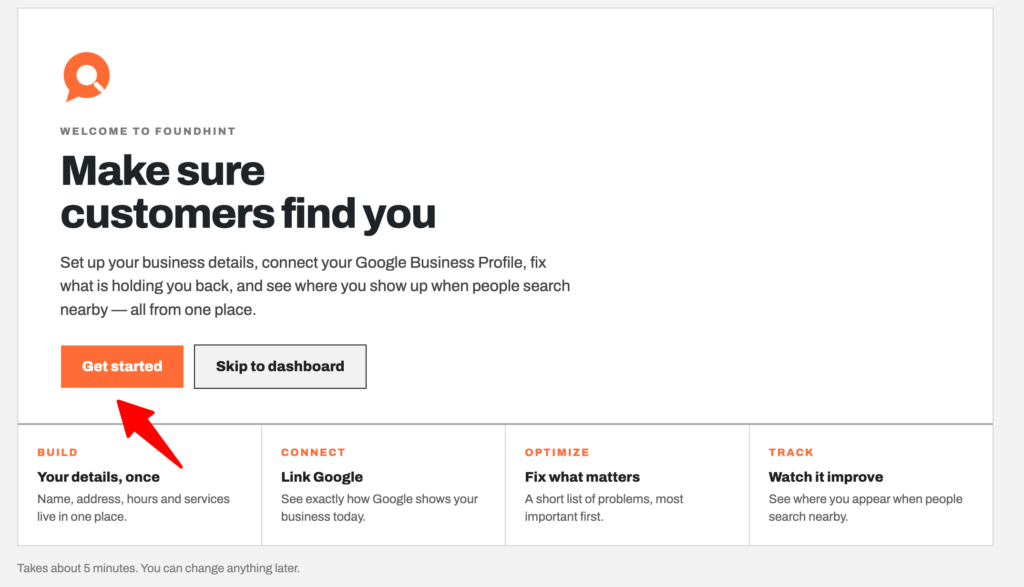
What happens next: FoundHint appears in your WordPress admin menu, ready to connect.
FoundHint Local SEO WordPress
Optimize your Google Business Profile without leaving WordPress
Connect your profile, compare it with your website and fix the gaps FoundHint finds.
- Business Profile audit and optimization
- Google Post scheduling
- Review management and replies
- Local rank tracking on a map grid
Step 2: Connect to Google
What to do: Open FoundHint and click Connect to Google.
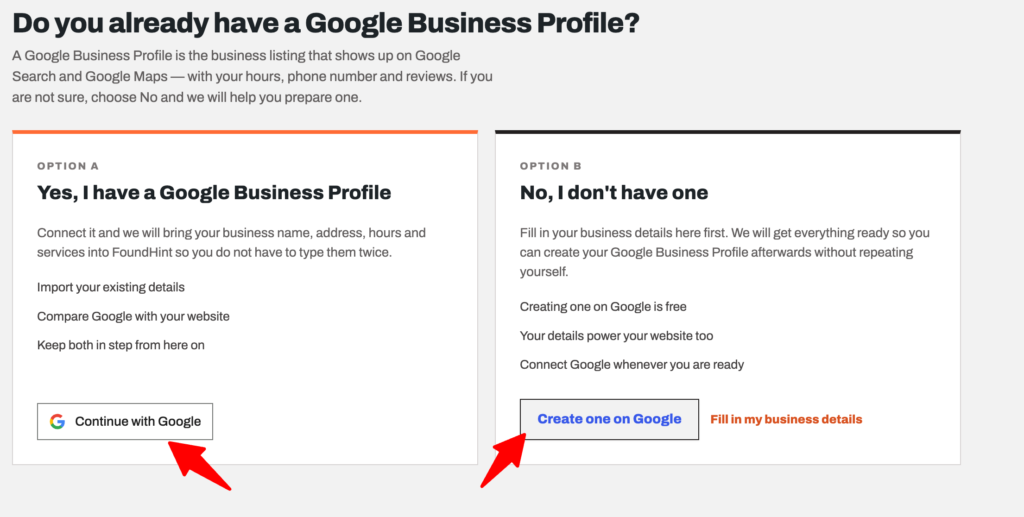
Important note: You need a Google Business Profile to connect.
- Already have a Google Business Profile (GMB)? Simply connect it in the next step.
- Don’t have one yet? Create a new Google Business Profile account and list your business on Google first (at business.google.com), then come back and connect it. Google may ask you to verify your business before all features are available.
Step 3: Choose an Account and Continue
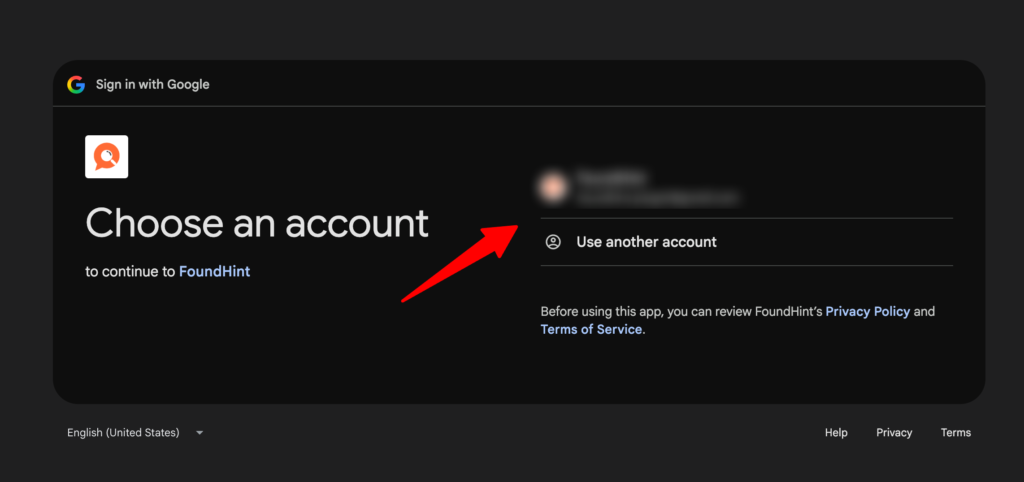
What to do: Google’s secure sign-in screen opens. Choose the Google account that owns or manages your Business Profile, review the access request, and click Continue.
Important note: Pick the account that manages your business, which may not be your personal Gmail. If you choose the wrong account, your business won’t appear in the next step. You never share your Google password with FoundHint.
Step 4: Choose the Business Location You Want to Optimize
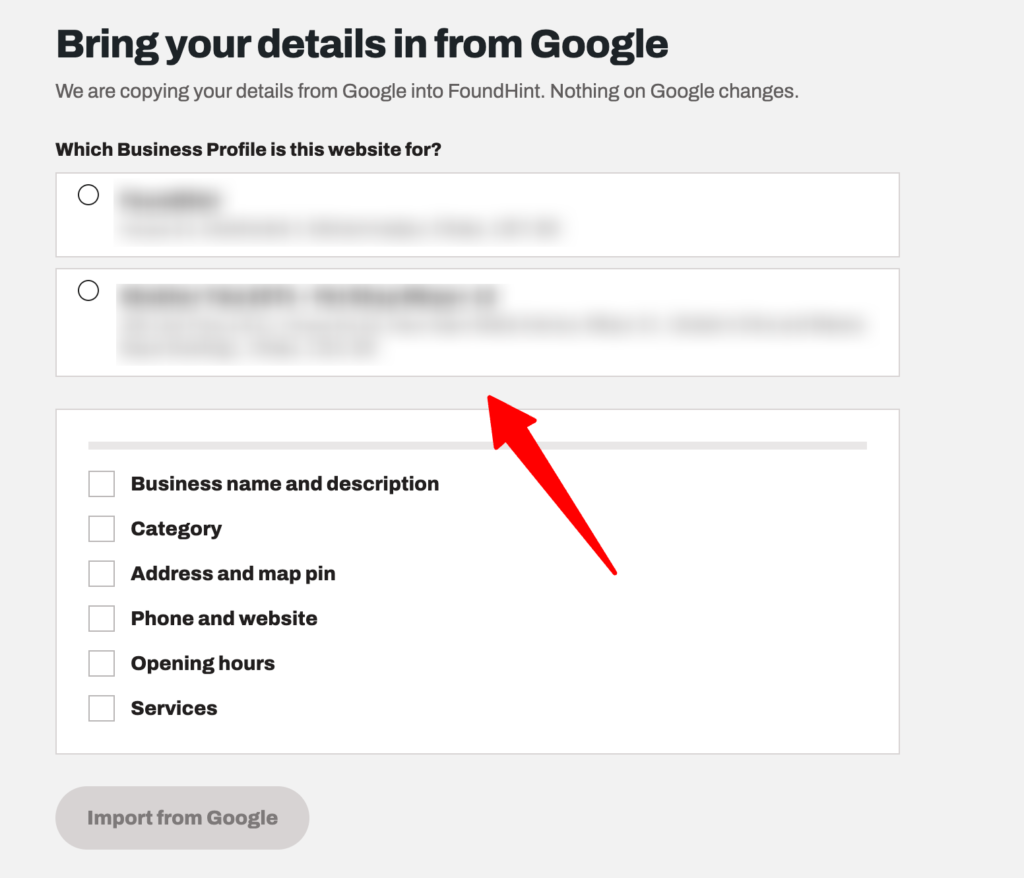
What to do: FoundHint shows the business locations linked to your Google account. Select the location you want to optimize.
Important note: If you manage multiple locations, you can connect and manage each one from FoundHint. If a location is missing, see the troubleshooting section below.
Step 5: Land on Your Business Profile and Optimize It

What to do: After choosing your location, you land on the Business Profile screen in FoundHint.
Here you can review, add, and optimize every key part of your Google Business Profile, right inside WordPress:
| Section | What you can add and optimize |
|---|---|
| Business Information | Business name, primary and additional categories, business description, phone number, and website |
| Address and Location | Street address, suite or unit number, city, ZIP code, map location, and service areas |
| Business Hours | Regular weekly hours, split hours, and special hours for holidays and temporary closures |
| Social Links and Listings | Links to your Facebook, Instagram, LinkedIn, YouTube, and other profiles and listings |
| Attributes | Details customers filter by, such as wheelchair accessible, women-owned, free Wi-Fi, outdoor seating, or online appointments (available attributes depend on your category) |
| Services | The services you offer, named the way customers search for them, with descriptions |
| Photos | Add new photos and remove outdated ones, including your logo and cover photo |
Important note: Keep everything accurate and consistent with your website. Use your real business name (no extra keywords), your exact address, and the same phone number shown on your contact page (What Is NAP in Local SEO?).
Step 6: Send All Updated Information to Google
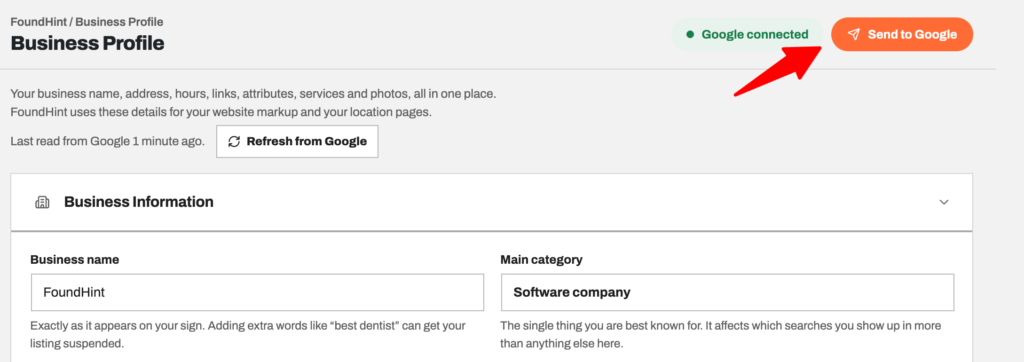
What to do: When you’ve finished your updates, click Send to Google to push all your changes to your Google Business Profile in one go.
What happens next: Your updates are submitted to Google. Many changes appear within minutes, but some, especially business name, address, and category changes, may be reviewed by Google before they go live. Check your Business Profile in Google Search or Google Maps to confirm your updates are live.
That’s it: your Google Business Profile is now connected to WordPress, optimized, and up to date.
What Happens After Connecting Google Business Profile?
Review Your Connected Business Information
Start by checking the details FoundHint shows for each connected location: name, address, phone number, hours, and categories. If something is wrong on Google, fix it before building anything else on top of it.
Understand Which Business Details Are Available
Once connected, FoundHint gives you access to the Business Profile features you can manage from WordPress:
| Feature | What you can do in FoundHint |
|---|---|
| Business Information | Edit business name, categories, description, phone, and website |
| Address and Location | Update address, map location, and service areas |
| Business Hours | Update regular hours and special hours |
| Social Links and Listings | Add and update your social profile links |
| Attributes | Add the attributes that apply to your business |
| Services | Add and optimize your services |
| Photos | Add and remove photos |
| Posts | Create, schedule, and manage Google Business Profile posts |
| Reviews | Read reviews, reply, and set personalized auto-replies |
| Products | Add products, including WooCommerce products |
| Locations | Manage multiple Business Profile locations |
| Rankings | Track target keywords across a map grid with the Ranking Grid |
How FoundHint Uses Business Information for Local SEO?
Having your Business Profile and website in one place makes it easier to keep NAP consistency, line up your posts and products with the service pages on your site, and check your local citations against the same official business information.
Understand Which Changes Can Be Sent Back to Google
Can a WordPress plugin sync business details with Google? Yes. After you update your business information, address, hours, social links, attributes, services, or photos in FoundHint, click Send to Google to push all your changes to your Google Business Profile at once.
Posts, photos, and review replies are sent through Google’s API as you publish them. Some changes, especially business name, address, and category edits, may be reviewed by Google before they go live.
How to Check Whether Updates Have Been Applied
Google can take anywhere from minutes to a few days to show changes, and it may review or reject some edits. After making an update, check your profile in Google Search or Google Maps, or in your Business Profile dashboard, to confirm it’s live. Don’t assume an update is public just because you clicked save.
How to Use Google Business Profile Data on Your WordPress Website?
How do you display Google Business Profile information on a website, and keep it aligned? Use your Business Profile as the reference point for the business details on your site.
Keep Business Name, Address, and Phone Information Accurate
Your website’s contact page, footer, and location pages should show exactly the same name, address, and phone number as your Business Profile.
Use Business Details for LocalBusiness Schema
Does Google Business Profile integration add LocalBusiness schema? Not automatically. Connecting your profile doesn’t by itself add structured data to your site.
Your LocalBusiness schema should still be set up on your website, using the same verified name, address, phone, and hours as your Business Profile (LocalBusiness Schema for WordPress).
Support Location Pages With Consistent Business Information
Each connected location should have a matching location page on your WordPress site, with that location’s NAP, hours, and map, linked from its Business Profile (Multi-Location Local SEO).
Review Business Hours, Services, Links, and Attributes
When you change hours or special hours in FoundHint, update the hours shown on your website too. Make sure the services you list on Google match the service pages on your site, and that your Business Profile’s website link points to the right page (often the location page for multi-location businesses).
Keep Website Data Aligned With Your Actual Business Details
Your real business is the source of truth: the signage, the phone that rings, the hours you’re open. Both your Business Profile and your website should reflect it. Review both whenever something changes.
How to Troubleshoot Google Business Profile Connection Issues?
Why is my Google Business Profile not connecting? Here are the most common problems and fixes.
Google Account Authorization Fails
A WordPress Google Business Profile authorization error usually means the sign-in was interrupted. Try again in a private/incognito browser window, allow pop-ups for your site, temporarily disable browser extensions that block scripts, and make sure your site uses HTTPS.
The Wrong Google Account Is Connected
If your business doesn’t appear, you may have signed in with the wrong account. Disconnect, sign out of other Google accounts in your browser, and reconnect with the account that manages the Business Profile.
Your Business Profile or Location Does Not Appear
Why can’t your WordPress plugin find your business location? Common causes:
- The account isn’t an Owner or Manager of that profile
- The profile isn’t verified, or is suspended
- The location belongs to a different business group or account
- You were added as a manager very recently (wait a few minutes and reconnect)
Required Permissions Are Missing
If you unchecked a permission on Google’s consent screen, some features won’t work. Disconnect and reconnect, and approve all requested permissions.
Google API Access or Configuration Problems
With FoundHint, you don’t configure the Google API yourself, so there are no keys or project settings to get wrong. If you see an API error message, it’s usually temporary or related to your Google account’s access. Make sure FoundHint is up to date, disconnect and reconnect your account, and if the error continues, contact FoundHint support with the exact error message.
Business Information Is Not Updating
Why is your Google Business Profile not syncing? Updates may be pending Google review, rejected for violating guidelines, or overridden by a Google-suggested edit. Check the Business Profile dashboard for notices, and allow time for changes to appear.
How to Reconnect or Disconnect Your Account
How do you disconnect a Google account from a WordPress plugin? In FoundHint, disconnect the account from the Business Profile connection screen. You can also revoke access from Google: go to your Google Account → Security → Third-party apps and services, find the app, and remove access. To reconnect, simply run the connection steps again.
Troubleshooting table
| Problem | Likely cause | Fix |
|---|---|---|
| Sign-in window closes or errors | Pop-up blocker, extension, interrupted sign-in | Retry in a private window; allow pop-ups |
| No locations listed | Wrong Google account | Reconnect with the Owner/Manager account |
| One location missing | Not verified, suspended, or different account | Verify the profile or check access in GBP |
| Features not working | Permissions not granted | Reconnect and approve all permissions |
| API error message | API access or configuration issue | Update FoundHint; contact support |
| Changes not showing on Google | Pending review, rejected edit, or delay | Check GBP dashboard; wait and recheck |
Google Business Profile Integration Best Practices
Use an Account With Appropriate Business Permissions
Connect with an account that has Owner or Manager access, ideally a business Google account rather than an employee’s personal Gmail. If that person leaves, you don’t want your integration to break.
Keep Your Website Business Information Accurate
Connecting Google Business Profile doesn’t fix inaccurate website content. Review your contact page, footer, location pages, and schema regularly (WordPress Local SEO Checklist).
Review Google Authorization Permissions
Periodically check which apps have access to your Google account under Security → Third-party apps and services, and remove any you no longer use.
Verify Updates Before Assuming They Are Live
After changing hours, posting, or editing details, confirm the change on Google. Google may delay, review, or reject some edits.
Monitor Your Website and Google Business Profile Separately
The integration connects them, but they’re still two places customers see you. Check your Business Profile for Google-suggested edits and new reviews, and check your website for outdated details, especially after a move, rebrand, or new location.
Frequently Asked Questions
Can I connect Google Business Profile to WordPress for free?
Google Business Profile itself is free. Whether the connection is free depends on the plugin you use. Try FoundHint Local SEO Plugin, its completely free.
Do I need a Google Business Profile API key?
Not with FoundHint. You don’t need a Google Cloud project, an API key, or any developer setup. FoundHint handles the Google Business Profile API connection; you just sign in with Google and approve access.
Can I connect multiple business locations?
Yes. FoundHint lets you manage multiple Google Business Profile locations from one WordPress dashboard. Select each location during setup, or add more later.
Can I edit my Google Business Profile from WordPress?
Yes. With FoundHint, you can edit your business information, address and location, business hours, social links, attributes, services, and photos in WordPress, then click Send to Google to update your profile. You can also create and schedule posts, reply to reviews, and add products from WordPress.
Does connecting Google Business Profile improve local SEO?
Not by itself. Connecting doesn’t change your rankings directly. What it does is make it much easier to keep your profile active and accurate (fresh posts, current hours, review replies, consistent business information), which supports your local SEO (Local SEO Ranking Factors).
Does connecting my profile automatically add schema to WordPress?
No. LocalBusiness schema needs to be set up on your website separately, using the same business details as your Business Profile.
Can I disconnect Google Business Profile from FoundHint?
Yes. Disconnect from the FoundHint connection screen, and optionally remove FoundHint’s access in your Google Account’s third-party access settings.
Why is my Google Business Profile not syncing?
The change may be pending Google review, rejected, or overridden by a Google-suggested edit, or the connection may need re-authorizing. Check your Business Profile dashboard, then reconnect if needed.
Conclusion: Connect Google Business Profile to WordPress With FoundHint
When you connect Google Business Profile to WordPress, you stop managing your business in two disconnected places. With FoundHint, it’s six steps: install the plugin, connect to Google, choose your account, choose the business location you want to optimize, update your Business Profile (business information, address and location, hours, social links, attributes, services, and photos), and send everything to Google. No API key or developer setup required.
From there, you can update hours and special hours, schedule posts, manage photos, reply to reviews, add products and services, manage multiple locations, and track your rankings with the Ranking Grid, all from your WordPress dashboard. Just remember that connecting is a tool, not a ranking boost: keep your website details accurate, keep your LocalBusiness schema aligned, and confirm your updates are live on Google.
Ready to manage your Google Business Profile from WordPress? Connect your Google Business Profile with FoundHint and handle your local SEO tasks from one dashboard.