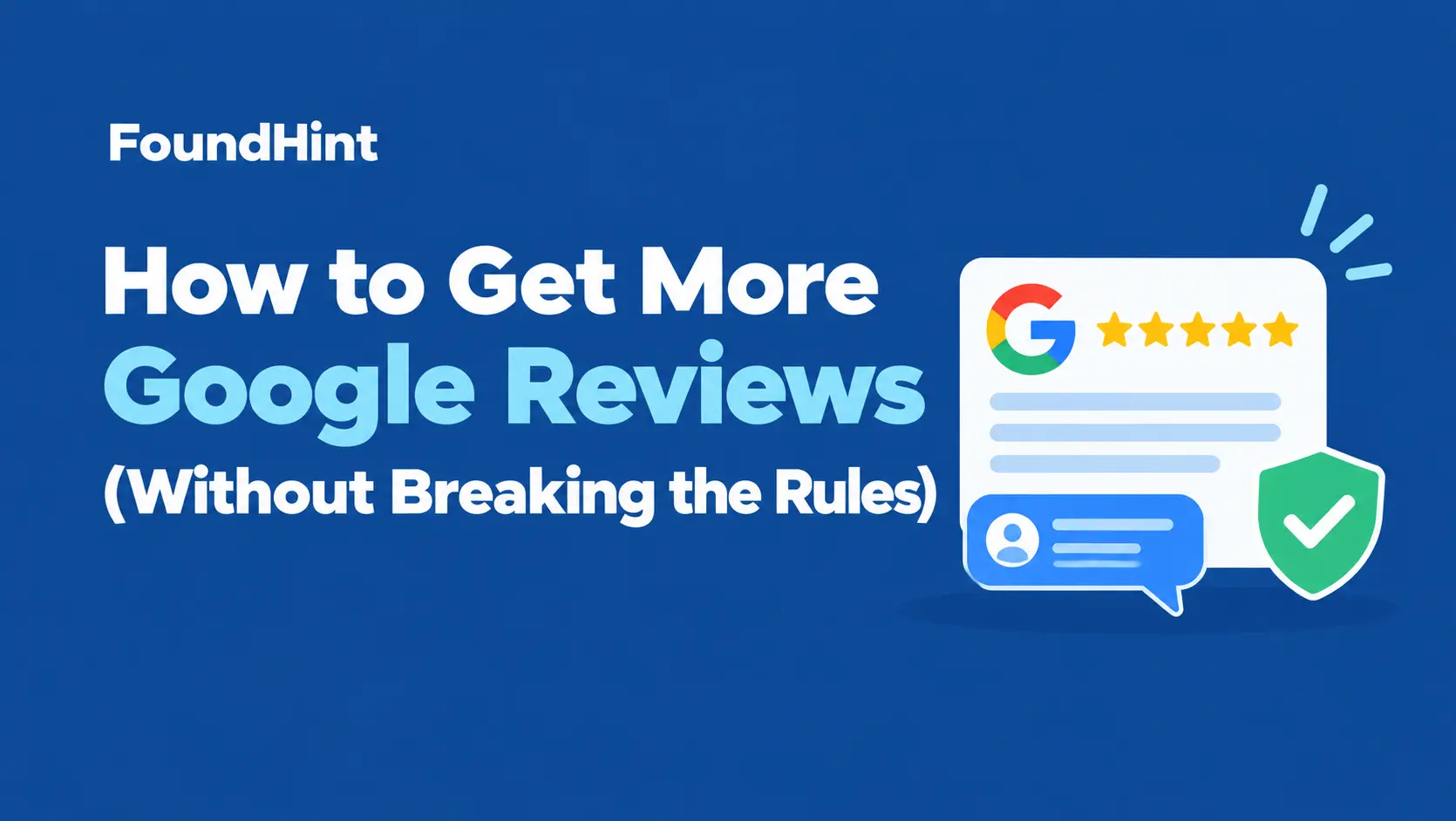
The way to get more Google reviews is to ask every customer, right after a good experience, with a direct review link that takes one tap to open, and to send one polite reminder if they don’t respond.
Do it consistently, reply to every review you get, and never offer rewards or ask only happy customers, because both break Google’s rules.
Your customers may love you, but if your Google Business Profile shows 23 reviews and the competitor down the street has 300, you lose many of the comparisons people make on Google Maps.
This guide covers what Google and the FTC allow, how to get your review link and QR code, 12 ways to ask, copy-and-paste templates, how to handle negative reviews, why reviews sometimes disappear, and how to track progress.
 FoundHint Local SEO WordPress
Optimize your Google Business Profile without leaving WordPress
Connect your GBP profile, compare it with your website and fix the gaps FoundHint finds.
- Business Profile audit and optimization
- Google Post scheduling
- Review management and replies
- Local rank tracking on a map grid
Why Google Reviews Matter?
- They affect local rankings. Google lists review count and score as part of prominence, one of its three local ranking factors alongside relevance and distance. Our breakdown of local SEO ranking factors explains how they fit together.
- They decide who gets the click. Your star rating and review count appear right in the map results, so they’re often the first thing people compare.
- They answer questions for you. Reviews describe your services, staff, and location in customers’ own words. Google’s AI-powered Ask feature in Maps also draws on review text to answer questions about businesses.
- Freshness matters to customers. A steady flow of recent reviews looks like an active, trusted business. A pile of reviews from three years ago doesn’t carry the same weight.
The goal isn’t a one-off spike. It’s a steady stream of genuine reviews, with thoughtful replies, over time.
For how reviews fit into the rest of your profile, see how Google Business Profile reviews work and our Google Business Profile optimization guide.
The Rules: What’s Allowed and What Isn’t
Two sets of rules apply: Google’s review policies everywhere, and in the US, the FTC’s Rule on the Use of Consumer Reviews and Testimonials, which took effect in October 2024 and allows civil penalties for violations.
| Allowed | Not allowed |
|---|---|
| Asking every customer for an honest review | Asking only happy customers while steering unhappy ones away (review gating) |
| Sharing your review link by text, email, QR code, NFC card, or in person | Offering discounts, gifts, or contest entries in exchange for reviews |
| Sending one polite reminder | Repeated messages or pressure to leave a rating |
| Replying to every review, positive or negative | Reviews from employees, owners, or family |
| Thanking customers who leave reviews | Reviewing competitors, or asking others to post negative reviews about them |
| Reporting reviews that break Google’s policies | Threatening or pressuring customers to remove negative reviews |
| Showing a QR code so customers review on their own phone | Buying reviews from review services or marketplaces |
| Using AI to help draft your replies | Using AI to generate fake reviews |
A practical tip: don’t have customers leave reviews on a tablet or computer at your business. Many reviews posted from the same device or network can look suspicious and may be filtered, so let customers use their own phones and mobile data.
The Big Three to Avoid
- Incentives. Google prohibits offering money, discounts, or freebies for reviews. The FTC rule specifically targets incentives tied to a particular sentiment, like “get 10% off for a 5-star review.” The safest approach is never to reward reviews at all.
- Review gating. Sending a “Were you happy?” survey first, then only sending happy customers to Google, is against Google’s policies. Ask everyone the same way.
- Fake and insider reviews. Reviews from yourself, staff, friends, or paid services can be removed, and they can put your profile and business at legal risk.
Breaking these rules can lead to reviews being removed, a warning on your profile, or a suspension. If that has already happened, see what to do when your Google Business Profile is suspended.
Rules for Texting and Emailing Customers
Review requests sent by text or email are also covered by messaging and privacy laws, which vary by country.
In the US, the TCPA applies to many automated texts and CAN-SPAM to commercial email; in the EU and UK, GDPR and e-privacy rules apply.
In practice: message only customers who gave you their contact details, identify your business, include a way to opt out of further messages, and stop after someone opts out.
This section is general information, not legal advice. Check the current Google, FTC, and local rules for your situation.
Step 1: Get Your Google Review Link and QR Code
The easier it is to leave a review, the more you’ll get. Your review link takes customers straight to the review box.
How to Find Your Review Link?
- Sign in to the Google account that manages your Business Profile.
- Search for your business name on Google, or open your profile from Google Maps.
- Look for the option to ask for reviews or get more reviews in your profile tools.
- Copy the short link Google gives you. Many versions of the dashboard also offer a QR code you can download.
Google updates the dashboard regularly, so button names may change, but the review link option is always in your profile management tools.
Where to Use It
- Text messages and emails after a job or visit
- Your email signature, so every email doubles as a gentle reminder
- Receipts, invoices, and order confirmations
- A QR code on the counter, table tents, business cards, or packaging
- An NFC review card or stand that customers tap with their phone
- Your website’s contact page or a “Leave us a review” page
- Follow-up messages from your booking system
Use the link Google gives you rather than a disguised redirect, so customers can see they’re going to Google.
Step 2: 12 Proven Ways to Ask for Google Reviews
1. Just Ask, Every Time
The biggest reason businesses don’t get reviews is that they don’t ask. Make asking a standard part of finishing every job or visit.
2. Ask at the Moment of Delight
The best time is right after a good moment: the leak is fixed, the haircut looks great, the meal was a hit, the case went well. Customers are most willing when the experience is fresh.
3. Follow Up by Text Within 24 Hours
A short, personal text with your review link is often the easiest request to act on, because it opens straight on the phone. Use the customer’s name and mention what you did for them.
4. Send a Follow-Up Email
Email works well for professional services and online orders. Keep it short, personal, and focused on one clear button or link.
5. Put a QR Code or NFC Card Where Customers Wait or Pay
Counters, waiting rooms, tables, receipts, and packaging are all good spots. Add a short line like “Enjoyed your visit? Tell others on Google.” An NFC card or stand lets customers tap their phone instead of scanning.
6. Train Your Team to Ask
A personal ask from the person who served the customer tends to work best. Give staff a simple script and make it part of the routine, without pressure, and without rewards tied to review ratings.
7. Add It to Your Booking or Invoicing System
Many booking, CRM, and invoicing tools can send a review request automatically after an appointment or payment. Automation makes sure nobody is forgotten. Trigger the request on a completed job or paid invoice, not on how happy the customer seemed, so you don’t drift into review gating.
8. Ask for Useful Detail, Not a Specific Rating
Reviews that mention the service, the staff member, or the result are more helpful to future customers. You can invite detail with a neutral prompt such as “If you have a moment, mention what we helped with.” Don’t write the review for them, suggest a star rating, or ask them to include particular keywords.
9. Invite Photos Where They Fit
For restaurants, salons, home improvements, and retail, a photo makes a review more convincing. A line such as “Photos of the finished work are always welcome” is enough.
10. Create a “Review Us” Page on Your Website
A simple page with your Google review link gives you a short, memorable address to share, such as yourdomain.com/review.
11. Send One Polite Reminder
People get busy. One friendly reminder a few days later is fine. More than that starts to feel like pressure, and you should stop as soon as someone asks you to.
12. Reply to the Reviews You Get
When customers see you reply thoughtfully, they’re more likely to leave their own. Our guide on how to respond to Google reviews covers what to say.
Sending the same request to every customer, not only the ones you expect to be happy, keeps you inside Google’s rules, and a few honest, mixed reviews make your profile more believable.
Step 3: Google Review Request Templates
Copy these and personalize them. Replace the bracketed text with your details.
Text Message Template
Hi [Name], thanks for choosing [Business Name] for your [service] today! If you have a minute, we’d really appreciate an honest review on Google. It helps neighbours find us: [review link]. Reply STOP to opt out.
Email Template
Subject: How did we do, [Name]?
Hi [Name],
Thank you for trusting [Business Name] with your [service]. We hope everything went smoothly.
Would you take a moment to share your experience on Google? Your honest feedback helps us improve and helps other people in [City] find a business they can trust.
[Leave a review button or link]
Thanks again, [Your Name]
In-Person Script
“I’m really glad we could help today. If you have a minute, it would mean a lot if you left us an honest review on Google. Here’s a card with a QR code that takes you straight there.”
Reminder Template
Hi [Name], just a quick reminder in case you missed it. If you have a moment, we’d love your honest feedback on Google: [review link]. Thanks again for choosing us!
What Makes These Templates Work
- They’re short and personal.
- They use the customer’s name and mention the service.
- They ask for an honest review, not a five-star one.
- They include one clear link.
- They explain why it matters, without pressure or rewards.
Step 4: Handle Negative Reviews the Right Way
Asking everyone means you’ll occasionally get a negative review. That’s normal, and a calm, helpful reply can build trust with the people reading it.
- Stay calm. Wait until you can reply professionally.
- Thank them and acknowledge the issue. Show you’ve read what they said.
- Apologize where it’s fair, without arguing about details in public.
- Offer to make it right offline. Give a name and a phone number or email.
- Keep private details private. Never share information about the customer or their job.
“Thanks for letting us know, [Name]. I’m sorry the appointment ran late and your afternoon was disrupted. That’s not the experience we want for anyone. Please call me directly at [phone] so I can make this right. [Your Name], Owner”
Don’t argue, offer refunds or gifts in exchange for changing the review, threaten legal action over an honest opinion, or post fake positive reviews to bury it. You can report reviews that break Google’s policies (spam, fake reviews, off-topic content, hate speech, or reviews from someone who was never a customer), but Google won’t remove a review just because it’s negative. For more examples, see our 25+ reply templates.
Why Google Reviews Disappear?
Owners often find that a customer says they left a review, but it never appears, or it vanishes later. Google’s automated systems filter reviews they consider suspicious. Common causes:
| Cause | What to do |
|---|---|
| Many reviews from the same device or Wi-Fi network (for example, an in-store tablet) | Let customers review on their own phones and mobile data |
| A sudden burst of reviews after months of none | Ask steadily as part of your routine instead of running one-off campaigns |
| Review contains links, phone numbers, or off-topic content | Nothing to fix on your side; the review may break Google’s content rules |
| Reviewer’s account is new or flagged | Nothing you can control; keep asking genuine customers |
| A review violates policy and is removed after a report | Expected behaviour |
A filtered review can sometimes take a few days to appear. If genuine reviews keep disappearing, check that you’re not using a shared device or offering anything in return.
Tips for Specific Industries
| Industry | What to keep in mind |
|---|---|
| Healthcare and dental | Ask patients in a general way, and never confirm someone is a patient or mention treatment details in replies. Privacy rules apply to how you respond |
| Law firms | Check your bar’s rules on testimonials and client communications before asking |
| Home services | Ask on-site right after the job, then text the link the same day |
| Restaurants | Use QR codes on tables or receipts, and ask regulars directly |
| Retail and ecommerce | Add a review request to receipts and order confirmations for local pickup orders |
| B2B and professional services | Ask at project milestones or renewals, ideally from the account manager |
| Multi-location businesses | Give each location its own review link so reviews go to the right profile. See multi-location local SEO |
Step 5: Track Your Review Progress
Set a simple monthly routine:
| Metric | How to track it | Why it matters |
|---|---|---|
| New reviews per month (review velocity) | Your Business Profile | Shows whether your asking process is working |
| Average rating | Your Business Profile | Tracks customer satisfaction |
| Reply rate | Count reviews with replies | Shows customers you care |
| Requests sent vs reviews received | Your CRM, booking tool, or a spreadsheet | Shows your conversion rate from asks to reviews |
| Review gap vs top competitors | Sort the top three map results’ reviews by newest | Sets a realistic target |
If requests go out but few reviews come in, test a shorter message, an earlier send time, or a more personal ask from the person who did the work. Our guide to local SEO metrics shows how reviews fit with your other KPIs.
Manage and Reply to Reviews From WordPress
Getting reviews is half the job; replying to each one quickly is the other half.
If your site runs on WordPress, the FoundHint Local SEO plugin connects your profile to WordPress without API keys or Google Cloud setup, so you can:
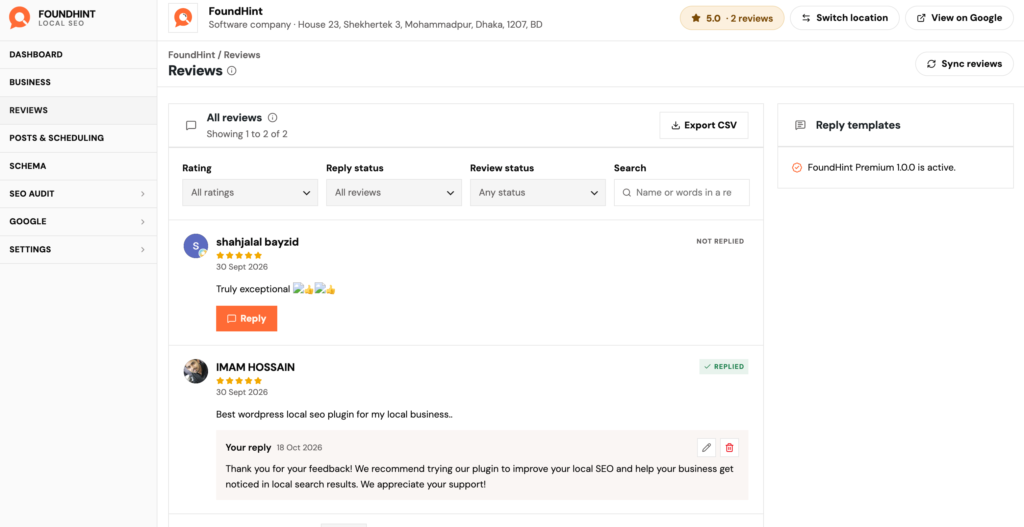
- See and reply to all your Google reviews from your dashboard
- Share your review link and QR code
- Use reply templates for positive reviews, edited to match your voice
- Manage reviews for several locations in one place
Reply to negative reviews personally, even if you use templates for positive ones.
FoundHint Local SEO WordPress
Optimize your Google Business Profile without leaving WordPress
Connect your GBP profile, compare it with your website and fix the gaps FoundHint finds.
- Business Profile audit and optimization
- Google Post scheduling
- Review management and replies
- Local rank tracking on a map grid
Frequently Asked Questions
What’s the fastest way to get more Google reviews?
Ask every customer right after a good experience, and send your Google review link by text within 24 hours. A personal ask from the person who served them, plus a one-tap link, tends to work best.
Can I offer a discount or gift for a Google review?
No. Google prohibits incentives for reviews, and the FTC’s rule targets incentives tied to positive sentiment. The safest approach is never to reward reviews at all.
What is review gating, and why is it a problem?
Review gating means screening customers first and only asking happy ones to review you on Google. It’s against Google’s policies. Ask every customer the same way.
How do I find my Google review link?
Sign in to the account that manages your Business Profile, open your profile, and choose the option to ask for or get more reviews. Google gives you a short link and, in many cases, a QR code.
How many times can I ask a customer for a review?
One request and one polite reminder. Stop if the customer asks you to.
Can I ask customers to mention a specific service?
You can invite detail with a neutral prompt, such as “mention what we helped with.” Don’t write the review, suggest a rating, or ask for specific keywords.
Why did my customer’s Google review disappear?
Google filters reviews it considers suspicious, such as many reviews from one device or network, or a sudden burst. Let customers review on their own phones and ask steadily over time.
Can my employees or family leave Google reviews?
They shouldn’t review your business. Reviews from insiders are against Google’s policies, and undisclosed insider reviews are a problem under the FTC rule.
Can I get negative reviews removed?
Only if they break Google’s policies, such as spam, fake reviews, or hate speech. Otherwise, reply professionally and try to resolve the issue offline.
How many Google reviews do I need?
There’s no fixed number. Aim to close the gap with the top three competitors in your map results, and focus on a steady flow of new reviews rather than a one-time push.