Google Business Profile optimization means setting up and maintaining your free Google listing so it appears in more local searches and turns more of those views into calls, visits, and bookings.
The changes with the biggest effect are choosing the right primary category, keeping your name, address, and hours accurate, earning a steady flow of genuine reviews, and linking the profile to a website page that confirms the same details.
This guide covers each part of the profile in order.
For every field, it explains whether the field mainly affects ranking (which searches you appear in) or conversion (whether people choose you), so you can spend time where it counts.
 FoundHint Local SEO WordPress
Optimize your Google Business Profile without leaving WordPress
Connect your GBP profile, compare it with your website and fix the gaps FoundHint finds.
- Business Profile audit and optimization
- Google Post scheduling
- Review management and replies
- Local rank tracking on a map grid
What Is Google Business Profile Optimization?
A Google Business Profile is the free listing that controls how a business appears in Google Search, the Local Pack (the map block of usually three businesses), and Google Maps.
It shows your name, category, address or service area, hours, phone number, website, photos, reviews, and more.
Google Business Profile was previously called Google My Business, and before that Google Places. All three names refer to the same listing.
Optimizing the profile means making every field accurate and complete, following Google’s guidelines, and keeping the listing active.
Optimization is not a one-time task. Hours change, customers leave reviews, and anyone can suggest edits to your listing, so a profile needs regular checks to stay correct.
How Google Ranks Business Profiles?
Google states that local results are based on three factors: relevance, distance, and prominence (Google Business Profile Help).
| Factor | What it means | Profile fields that influence it | How much you control it |
|---|---|---|---|
| Relevance | How well your profile matches the search | Primary and additional categories, services, products, description | High |
| Distance | How far you are from the searcher or the place named in the search | Address or service area | Low |
| Prominence | How well known and trusted your business is | Reviews (count and score), links, citations, your website’s position in search results | Medium to high |
Two facts shape how you should approach optimization:
- Rankings change by location. A searcher downtown and a searcher in the suburbs see different results for the same query, so your ranking is not one number.
- You can’t pay for organic local rankings. Google says so directly. Ads can appear in map results, but they are labelled and separate.
For the full set of signals, see our guide to local SEO ranking factors.
To see how these factors play out in Maps specifically, read Google Maps local SEO.
Before You Optimize: Claim, Verify, and Benchmark
Claim and Verify Your Profile
Only a verified owner or manager can fully edit a profile, and verified profiles are more likely to show in search.
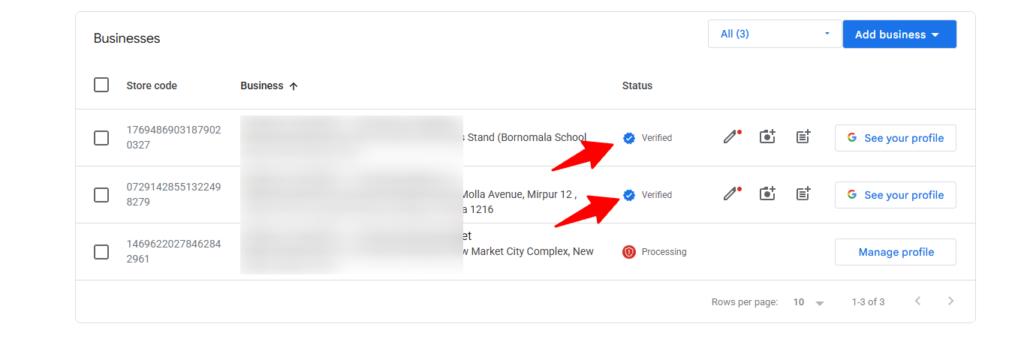
Search for your business on Google or go to business.google.com, claim the listing, and complete verification.
Google chooses the verification method (video, phone, text, email, or postcard) based on your business (Google verification help).
Choose the profile type that matches how you serve customers:
| Business type | Example | Address setting |
|---|---|---|
| Storefront | Café, dentist, shop | Show the address |
| Service-area business | Plumber, cleaner, mobile mechanic | Hide the address, list service areas |
| Hybrid | Locksmith with a shop and call-outs | Show the address and list service areas |
After verification, add other people as managers instead of sharing your Google login. If a previous agency or employee owns the profile, request ownership through Business Profile rather than creating a new listing. Duplicate listings split reviews and confuse Google.
Benchmark Your Rankings and Competitors
Record where you stand before changing anything. Without a baseline you can’t tell which changes worked.
- Pick 5–10 target searches that bring paying customers, such as “water heater repair” or “emergency plumber”.
- Check rankings across your area, not from your office. A geo-grid tool checks your position from many points around your business and shows where you rank in the top three and where you drop out. FoundHint’s Ranking Grid does this from inside WordPress; tools such as Local Falcon and BrightLocal also offer it.
- Study the top three businesses for your main search. Note their primary and additional categories, review count, rating, and how recent their reviews are, how many photos they have, and which page their website link points to.
The gaps between your profile and theirs become your to-do list.
Optimize Your Core Business Information
Business Name
Affects: ranking (indirectly) and trust.
Use your real-world business name exactly as it appears on your signage, website, and paperwork. Google’s guidelines prohibit adding keywords, locations, or taglines that aren’t part of the legal or branded name (Google’s guidelines).
- “Smith Plumbing” is correct.
- “Smith Plumbing – Emergency Plumber Phoenix” breaks the rules and can lead to suspension.
Categories
Affects: ranking (one of the strongest relevance signals you control).
The primary category tells Google what your business is.
Choose the most specific category that describes your core service: “Family law attorney” rather than “Lawyer”, “Bakery” rather than “Restaurant”.
Add additional categories only for real secondary services. To check your choice, look at the primary categories of the businesses in the Local Pack for your main search.
Our guide to choosing Google Business Profile categories covers this in detail.
Changing your primary category can trigger reverification, so change it deliberately rather than testing back and forth.
Address or Service Area
Affects: ranking (distance).
Storefront businesses should show an address where customers are served in person during stated hours. Service-area businesses should hide the address and list the cities or postal codes they actually serve.
Don’t use virtual offices, PO boxes, or coworking addresses where you don’t have staff; Google treats them as guideline violations.
A long list of service areas does not make the profile rank everywhere in that list. Rankings are usually strongest near the verified location.
To compete in nearby areas, strengthen relevance and prominence, and see how to rank for “near me” searches.
Hours and Special Hours
Affects: conversion, and whether you appear for searches when you’re open.
Keep regular hours accurate and add special hours for holidays in advance. Wrong hours lead to wasted trips, frustrated customers, and negative reviews.
Phone Number and Website
Affects: conversion; the website link also supports prominence.
Use a phone number that a person answers during business hours.
Link the website field to the most relevant page: the homepage for a single-location business, or the matching location page for a multi-location business.
Add booking, menu, or order links if they apply.
Business Description
Affects: conversion; minor relevance at most.
You have up to 750 characters.
Put the most useful information in the first 250, because the rest is often hidden behind “More”.
Say what you do, who you serve, where, and what makes you different. Write for customers, not for keyword matching: Google’s guidelines prohibit links, promotional offers, and misleading content in the description.
Add Services, Products, and Attributes
Affects: relevance and conversion.
- Services: list each service you want to be found for, using the words customers search (“drain cleaning”, not “hydro-jetting solutions”). Add a short description and price range where useful.
- Products: add key products or packages with a photo, price, and link. WooCommerce stores can keep products in sync; see WooCommerce local SEO.
- Attributes: select only attributes that are true, such as wheelchair accessible, online appointments, or identity-based attributes the owner chooses to show. Attributes help searchers filter and help Google answer specific questions about your business.
Upload Photos and Videos That Earn Clicks
Affects: conversion.
Photos help people decide whether to call or visit. Start with a logo, cover photo, exterior (so people recognize the building), interior, team, and examples of real work. Add short videos of the space or a job in progress.
Use real photos rather than stock images, and add new ones as you complete work instead of uploading everything at once.
Customers can also add photos. Check them regularly and report any that are offensive or unrelated to your business.
Publish Google Posts
Affects: conversion. Google has not confirmed posts as a ranking factor.
Posts appear on your profile and can include a photo, text, and a call-to-action button.
| Post type | Use it for | Example |
|---|---|---|
| Update | News, new services, seasonal tips | “Now offering same-day boiler servicing” |
| Offer | Time-limited deals | “10% off drain cleaning until 30 Nov” |
| Event | Workshops, open days | “Free home-energy check day, 14 Dec” |
Post when you have something real to say. A weekly or fortnightly rhythm is enough for most businesses. Posting daily won’t improve rankings and tends to produce thin content.
Get and Respond to Google Reviews
Affects: prominence (review count and score) and conversion.
Google lists review count and score as part of prominence. Recency also matters to customers: a business with steady recent reviews looks more active than one whose last review was a year ago.
How to Get More Reviews?
- Copy your review link from the Business Profile, or create a QR code from it.
- Ask every customer at the moment they’re happiest, such as when a job is finished or a table is paying.
- Send the link by text or email so leaving a review takes one tap.
- Make asking part of your process, not an occasional campaign.
Google’s policy prohibits paying for reviews, offering discounts or gifts in exchange, writing reviews for yourself, and review gating (asking only customers you expect to be happy).
Violations can lead to removed reviews or restrictions on your profile.
How to Respond to Reviews?
Reply to every review. Thank positive reviewers by name and mention the specific service. For negative reviews, reply calmly, acknowledge the problem, and offer to resolve it offline. Future customers read your replies as much as the reviews.
If a review is fake or breaks Google’s policies, report it from the profile; don’t argue in the reply.
Answer Customer Questions and the Ask Feature
Google is replacing the public Questions & Answers section in Maps with an AI-powered Ask button.
Searchers type a question and get an answer generated from the business’s information and reviews. The rollout varies by region, and in some regions Q&A has already been turned off.
What this means for optimization: the answers customers see now depend more on the quality of your profile data and reviews. Complete services, attributes, hours, and a clear description give the Ask feature accurate material to work with.
Where Q&A is still available in your profile, answer common questions there.
Connect Your Profile to Your Website
Affects: prominence and relevance.
Google counts your website’s position in search results toward prominence, and the page your profile links to should confirm what the profile says. A strong connection includes:
- A matching landing page. Single-location businesses can use the homepage; multi-location businesses need one page per location. See location pages that match your profile and where to place city and service keywords.
- Identical NAP. Name, address, and phone number must match exactly on the profile, the website, and directories. Read more about NAP consistency and local citations.
- LocalBusiness schema on the landing page, so search engines read your business details reliably.
- A tracked link. Add UTM parameters to your website link so Google Analytics separates Business Profile visits from other traffic.
Keep Your Profile Accurate: A Simple Management Routine
Optimization sets the profile up correctly. Management keeps it that way.
| How often | Task |
|---|---|
| Every few days | Reply to new reviews |
| Weekly | Check for edits suggested by Google or other users; publish a post if you have news |
| Monthly | Add new photos; review Performance data and rankings |
| Before holidays | Set special hours |
| Quarterly | Review categories, services, attributes, and description against competitors |
If you manage your website in WordPress, you can connect Google Business Profile to WordPress and run most of this routine from one dashboard.
Avoid Edits That Trigger Reverification or Suspension
Changing your business name, primary category, or address can cause Google to re-check the profile, and sometimes to ask for reverification.
Make these changes only when the business really changed, make them one at a time, and keep proof (signage photos, business registration, utility bills) ready.
If the profile is suspended, follow the steps in what to do if your profile is suspended instead of creating a new listing.
Manage Multiple Locations
Each real location needs its own verified profile, its own landing page, and the same naming format (for example, “Smith Plumbing – Mesa” only if that is how the branch is signed).
Group locations in one Business Profile account so managers and data stay aligned; Google offers bulk verification for businesses with 10 or more locations.
Remove duplicate or closed listings rather than leaving them live. For more, read multi-location local SEO and franchise local SEO.
Measure Your Profile’s Performance
The Performance report in your Business Profile shows how people find and act on your listing:
- Profile views and searches: how often the profile was seen, and the search terms people used.
- Calls: taps on your phone number.
- Direction requests: people planning a visit.
- Website clicks: visits from the profile to your site.
- Bookings (if enabled).
Pair the report with two other measures: UTM-tagged traffic in Google Analytics, and a monthly geo-grid ranking check against your baseline. Compare months, not single days.
For which numbers matter most, see local SEO metrics.
What Does Not Improve Your Ranking?
Some common tactics take time without helping, or put the profile at risk:
| Tactic | Why it doesn’t work |
|---|---|
| Adding keywords or cities to the business name | Breaks Google’s guidelines; competitors can report it and the profile can be suspended |
| Stuffing keywords into the description | The description has little ranking weight; stuffing makes it worse for customers |
| Posting every day | Posts are not a confirmed ranking factor; volume adds nothing on its own |
| Listing dozens of service areas | You still rank mainly near your verified location |
| Buying or incentivizing reviews | Policy violation; reviews can be removed and the profile restricted |
| Creating extra listings for virtual offices | Treated as spam; listings can be removed |
| Paying Google for better organic placement | Not possible; only labelled ads can be bought |
Common Google Business Profile Mistakes
| Mistake | Why it hurts | Fix |
|---|---|---|
| Wrong or too broad primary category | Lowers relevance for your main searches | Pick the most specific category for your core service |
| Outdated hours, especially holidays | Wasted trips and negative reviews | Set special hours in advance |
| Ignoring reviews | Weak trust signal for customers | Reply to every review |
| Duplicate listings | Splits reviews and confuses Google | Merge or remove duplicates |
| Website link to an unrelated page | Weak confirmation of your details | Link the matching location page |
| NAP that differs from your website | Conflicting data | Make all details identical |
| Accepting suggested edits without checking | Wrong information goes live | Review edits weekly |
| Stock photos only | Lower trust | Use real photos of your business |
If your profile has disappeared from search, work through business not showing up on Google Maps.
Manage Your Google Business Profile From WordPress With FoundHint
If your website runs on WordPress, the FoundHint Local SEO plugin connects to your Business Profile so you can handle the routine above without switching tools:
| Task | In FoundHint |
|---|---|
| Edit business info, hours, special hours, attributes, services | Business info editor |
| Add or remove photos | Photo management |
| Write and schedule posts | Google Post scheduling |
| Reply to reviews, share a review link or QR code | Review management |
| Track map rankings across your area | Ranking Grid |
| Find citation gaps | Citations view |
| Sync WooCommerce products | Product sync |
| Manage several locations | Multi-location dashboard |
The plugin connects without an API key or Google Cloud setup.
FoundHint Local SEO WordPress
Optimize your Google Business Profile without leaving WordPress
Connect your GBP profile, compare it with your website and fix the gaps FoundHint finds.
- Business Profile audit and optimization
- Google Post scheduling
- Review management and replies
- Local rank tracking on a map grid
Google Business Profile Optimization Checklist
- Claim and verify the profile; remove duplicates.
- Benchmark 5–10 target searches with a geo-grid check.
- Use your real business name.
- Choose the most specific primary category; add only relevant additional categories.
- Set the address or service area correctly.
- Add regular and special hours, a direct phone number, and the matching website page.
- Write a customer-focused description (first 250 characters matter most).
- Add services, products, and true attributes.
- Upload real photos and short videos.
- Set up a review request process and reply to every review.
- Match NAP on your website and directories; add LocalBusiness schema and a UTM-tagged link.
- Check suggested edits weekly and Performance data monthly.
Frequently Asked Questions
How do I optimize my Google Business Profile?
Claim and verify the profile, choose the most specific primary category, complete every relevant field accurately, add real photos, earn and reply to reviews, and link the profile to a website page with matching details. Then check the profile regularly to keep it accurate.
Is Google Business Profile free?
Yes. Creating, verifying, and managing a Business Profile costs nothing. Only Google Ads placements cost money.
What is the most important Google Business Profile ranking factor?
Google ranks local results by relevance, distance, and prominence together. Among the fields you control, the primary category has the strongest effect on relevance, and reviews have the strongest effect on prominence.
Should I put keywords in my business name?
No. Google’s guidelines allow only your real-world business name. Adding keywords or cities can get the profile suspended.
Do Google posts help rankings?
Google has not confirmed posts as a ranking factor. Posts are useful for sharing offers and updates that may persuade people viewing your profile to contact you.
Can editing my profile get it suspended?
Changes to the name, primary category, or address can trigger a review or reverification. Make those changes only when the business really changed, and keep proof ready.
What happened to Questions & Answers on Google Business Profile?
Google is replacing the public Q&A display with an AI “Ask” button that answers questions from your business information and reviews. Rollout varies by region. Accurate, complete profile data matters more as a result.
How long does Google Business Profile optimization take to work?
Fixing wrong categories, hours, or duplicates can show results within weeks. Building prominence through reviews and links usually takes months, depending on local competition.
Can I manage Google Business Profile from WordPress?
Yes. A plugin such as FoundHint connects your profile to WordPress so you can edit info, publish posts, and reply to reviews from your dashboard.