Picture a customer standing in a parking lot, phone in hand, searching for a locksmith or a lunch spot.
They tap your result, wait, pinch to zoom, hunt for your phone number, and give up. Ten seconds later they’re calling your competitor.
Your website might look great on a desktop, but for local customers, the phone is where the decision happens.
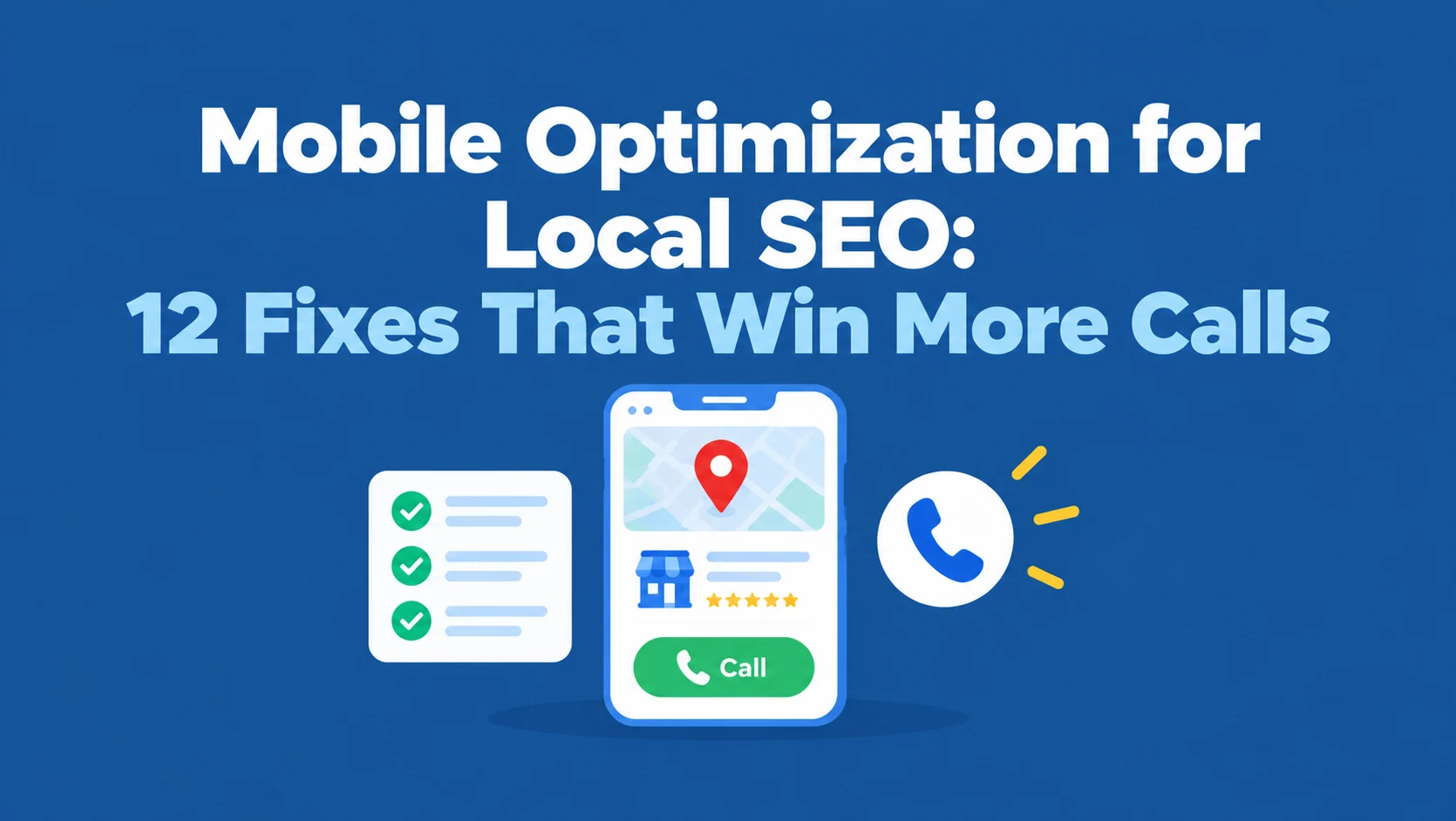
This guide shows you how to handle mobile optimization for local SEO from start to finish.
You’ll learn why mobile matters so much for local rankings and conversions, what Core Web Vitals mean in plain English, how to test your site, 12 practical fixes that turn mobile visitors into calls and visits, how to make your Google Business Profile work harder on phones, WordPress-specific tips, the mistakes to avoid, and a checklist you can work through today.
[fooundhint_cta]
Why Mobile Optimization Is Non-Negotiable for Local SEO?
How Mobile-First Indexing Affects Local Rankings?
- Google indexes the mobile version of your site. With mobile-first indexing, Google primarily uses the mobile version of your pages for ranking. If content, links, or structured data are missing on mobile, Google may not see them.
- Local searches happen on the go. People search for directions, opening hours, and services nearby while they’re out and ready to act.
- Mobile visitors want to act fast. Calls, directions, bookings, and quick quotes all happen on phones, often within minutes of searching.
- Speed and usability affect results. Page experience, including Core Web Vitals, is part of how Google evaluates pages, and slow, frustrating pages lose visitors no matter where they rank.
- Your map listing and website work together. Many people tap from your Business Profile to your site on their phone. If the site is slow or clunky, you lose the customer you already won on Google Maps.
The Mobile-to-Store Journey: What Local Searchers Expect
A typical local journey on a phone is short: search, scan the map pack, tap a profile or result, check hours, reviews, and photos, then call, get directions, or book.
Each step needs to work with one thumb and almost no waiting. Searchers expect accurate “open now” information, a phone number they can tap, directions that open their maps app, and a page that answers “can you help me, and how soon?” on the first screen.
Lose them at any step and they go back to the results.
For how these searches work, see What Is Local Search? and How to Rank for Near Me Searches.
Our breakdown of local SEO ranking factors explains how your website supports local visibility.
Core Web Vitals for Local Businesses: What Actually Matters
LCP, INP, and CLS in Plain English
Core Web Vitals are Google’s measurements of real-world page experience. Here’s what each one means and the thresholds Google considers “good.”
| Metric | What it measures | Good score | What usually hurts it |
|---|---|---|---|
| Largest Contentful Paint (LCP) | How quickly the main content loads | 2.5 seconds or less | Large hero images, slow hosting, render-blocking scripts |
| Interaction to Next Paint (INP) | How quickly the page responds when someone taps | 200 milliseconds or less | Heavy JavaScript, too many plugins or third-party scripts |
| Cumulative Layout Shift (CLS) | How much the page jumps around while loading | 0.1 or less | Images without set sizes, late-loading ads, banners, or fonts |
Good vs. Poor Scores: Benchmarks for Local Sites
| Metric | Good | Needs improvement | Poor |
|---|---|---|---|
| LCP | 2.5 s or less | 2.5–4 s | Over 4 s |
| INP | 200 ms or less | 200–500 ms | Over 500 ms |
| CLS | 0.1 or less | 0.1–0.25 | Over 0.25 |
Google assesses these at the 75th percentile of real visits, so a page needs to be fast for most visitors, not just on your office Wi-Fi. For a local site, focus first on the homepage, top service pages, and contact page, since those carry most mobile visits from your Business Profile.
Core Web Vitals aren’t the only thing that matters for rankings, and great content still wins over a perfect score. But for local businesses competing on mobile, a fast, stable page makes it much easier to turn visitors into customers.
How to Test Your Mobile Performance and Local Visibility?
What to Test First: A Prioritized Audit
Start with the pages local customers use most:
- Your homepage
- Your top service pages
- Your location or contact page
- Your booking or quote page
Then test on a real phone, ideally over mobile data, not just office Wi-Fi. Try to find your phone number, tap it, get directions, and submit a form. If any step is frustrating, fix it before anything else.
Tools for Mobile-Friendly, Speed, and Local Ranking Checks
| Tool | What it shows | Cost |
|---|---|---|
| PageSpeed Insights | Core Web Vitals from real users (when available) plus a lab test with specific fixes | Free |
| Google Search Console, Core Web Vitals report | Which groups of pages pass or fail on mobile | Free |
| Lighthouse in Chrome DevTools | Detailed performance, accessibility, and SEO checks | Free |
| Your own phone | How the site actually feels to use | Free |
Google retired its standalone Mobile-Friendly Test tool, so use PageSpeed Insights and Lighthouse for mobile checks instead.
Speed tools don’t show whether mobile searchers can find you on the map. Because map results change with the searcher’s location, a check from your desk is misleading.
FoundHint’s Ranking Grid shows your map rankings for target keywords across your whole service area inside WordPress, so you can see which neighborhoods see you on their phones and which don’t.
12 Mobile Optimization for Local SEO That Drive Calls and Visits
1. Use a Responsive Design That Adapts to Every Screen
Your site should automatically fit any screen size, with the same content and structured data on mobile as on desktop. Hiding important content on mobile can hurt you, since Google uses the mobile version for indexing.
2. Make Phone Numbers Tap-to-Call
Your phone number should be a clickable link on every page, especially in the header. For many local businesses, a phone call is the most valuable action a mobile visitor can take.
3. Add a Sticky Call or Book Button
A small bar at the bottom or top of the screen with “Call,” “Book,” or “Get directions” keeps your main action one tap away, no matter how far someone scrolls.
4. Make Directions and Map Links One-Tap Easy
On your contact or location page, add an embedded map and a “Get directions” link that opens the visitor’s maps app. Include parking tips or landmarks if your location is hard to find.
5. Speed Up Mobile Pages Without Breaking Features
- Compress and resize images, and use modern formats like WebP
- Lazy load images below the fold
- Use caching and a fast host
- Limit heavy sliders, videos, and third-party scripts
- Remove plugins you don’t use
After each change, re-test your booking form, click-to-call links, map embed, and chat widget. Aggressive script deferral or caching can quietly break the very features that turn mobile visitors into calls.
6. Prevent Layout Shifts That Cause Mis-Taps
Set width and height for images and embeds, and avoid banners that push content down as the page loads. Nothing frustrates mobile users more than tapping the wrong button because the page jumped.
7. Simplify Forms for Thumb-Friendly Completion
Ask only for what you need, like name, phone, and a short message. Use large fields, the right mobile keyboard for each field (for example, a number pad for phone numbers), and a big, clear submit button.
8. Use Readable Text and Large Tap Targets
Use a comfortable font size, good contrast, and buttons large enough for a thumb, with space between links so people don’t tap the wrong one.
9. Avoid Intrusive Pop-Ups and Interstitials
Full-screen pop-ups that cover content on mobile frustrate visitors and can hurt how Google evaluates your page experience. If you use pop-ups, keep them small and easy to close.
10. Put Key Local Information Above the Fold
On the first screen, mobile visitors should see what you do, where you do it, and how to contact you. Show hours, your rating, and a call button early.
For location pages that get this right, see Local Landing Page SEO Examples.
11. Keep Navigation Simple and Scannable
A clear menu with your main services, locations, and contact page is enough. Long dropdown menus are hard to use on a phone.
Our guide to WordPress site structure for service businesses shows a simple layout.
12. Keep NAP and Local Schema Visible on Mobile
Make sure your business name, address, phone number, and LocalBusiness schema appear on the mobile version of your pages, not just desktop.
The FoundHint Local SEO Plugin generates LocalBusiness schema from one central business record and runs NAP checks, so a theme’s mobile layout can’t quietly drop your details or show an old phone number.
Our guides to NAP consistency and LocalBusiness schema for WordPress explain both.
Optimize Your Google Business Profile for Mobile Searchers
On phones, many customers never reach your website. They decide right from your Business Profile on Google Maps or in search results. Here’s how to make it work on a small screen.
Keep Hours and Special Hours Accurate
Mobile searchers often want a business that’s open right now. “Closed” or wrong hours lose the customer instantly.
FoundHint lets you update regular and special hours from WordPress and send them to Google, so a holiday change takes seconds and your profile stays right. See how to connect Google Business Profile to WordPress.
Make Contact Actions Easy
Check that your phone number is correct, your website link points to a mobile-friendly page, and your booking link works.
With FoundHint, you can edit your business info, social links, and attributes and push updates to Google without logging in separately.
Use Strong Photos That Load Fast
Photos take up much of the screen on a mobile profile. Add clear, well-lit photos of your storefront, team, and work, and keep file sizes sensible so they load quickly on mobile data.
FoundHint lets you add and remove profile photos from WordPress, so outdated images don’t linger on your profile.
Keep Reviews Fresh and Answered
Ratings and recent reviews are among the first things mobile users see. FoundHint helps here too:
- Share the Get More Google Reviews link and QR code with customers, who usually review on their phones
- Reply to all reviews from WordPress
- Set up auto-replies for 5, 4, 3, 2, 1, and 0 star reviews
- Use AI review replies for personal responses at scale
The result: replies go out quickly, so the reviews mobile users scan first always show an owner who responds.
Post Updates Regularly
Posts about offers and events appear on your profile and give mobile searchers a reason to act now. FoundHint lets you create and schedule posts in advance.
List Services and Products Clearly
Compact service and product lists help mobile users see what you offer at a glance. FoundHint lets you add services and sync WooCommerce products to your profile.
Check Visibility Where Customers Actually Search
Mobile results depend on where the searcher is standing. FoundHint’s Ranking Grid shows your map rankings for target keywords across your target location, so you can see where mobile searchers will find you and where they won’t.
Mobile Optimization Tips for WordPress Local Sites
Plugins and Settings That Help (and Hurt) Mobile Local SEO
- Audit your plugins. Deactivate and delete anything you don’t use. Each plugin can add scripts that slow mobile pages.
- Avoid overlapping plugins. Two SEO or schema plugins can output duplicate markup; two caching plugins can conflict.
- Load scripts only where needed. Booking widgets, maps, and review sliders should load only on pages that use them.
- Keep WordPress, your theme, and plugins updated for performance and security.
- Test after every change in PageSpeed Insights, especially after adding a new plugin.
Caching, Image Compression, and Mobile Theme Choices
- Choose a lightweight, responsive theme. Heavy multipurpose themes and page builders can slow mobile pages down.
- Use one caching plugin, or your host’s built-in caching, not several at once.
- Optimize images automatically with an image compression plugin or your host’s image tools, and serve WebP where possible.
- Check your mobile header after any theme change: logo, tap-to-call number, and menu should all fit on one screen.
For a comparison of local SEO plugins, see Best WordPress Local SEO Plugins. Our WordPress local SEO checklist and WordPress site structure guide cover the full setup.
 FoundHint Local SEO WordPress
Optimize your Google Business Profile without leaving WordPress
Connect your GBP profile, compare it with your website and fix the gaps FoundHint finds.
- Business Profile audit and optimization
- Google Post scheduling
- Review management and replies
- Local rank tracking on a map grid
Common Mobile Local SEO Mistakes to Avoid
- A phone number that isn’t clickable, or that’s hidden at the bottom of the page
- Huge, uncompressed images that make pages crawl on mobile data
- Full-screen pop-ups that cover the page as soon as it loads
- Hidden content on mobile, like service details or reviews that only show on desktop
- Long, complicated forms that are painful to fill out on a phone
- Tiny text and buttons that are hard to read and tap
- Too many plugins and scripts slowing everything down
- Wrong hours on your Business Profile, sending mobile searchers to a closed door
- Only testing on desktop or office Wi-Fi, missing what real mobile users experience
For more pitfalls, see our guide to common local SEO mistakes.
Mobile Local SEO Checklist
Website
- Responsive design with the same content on mobile and desktop
- Tap-to-call phone number in the header
- Sticky call, book, or directions button
- Embedded map and “Get directions” link
- LCP 2.5 seconds or less, INP 200 ms or less, CLS 0.1 or less on key pages
- Compressed images and caching in place
- Short, mobile-friendly forms
- Readable text and large tap targets
- No intrusive pop-ups
- Key info above the fold
- NAP and LocalBusiness schema on the mobile version
Google Business Profile
- Accurate regular and special hours
- Correct phone, website, and booking links
- Strong, current photos
- Fresh reviews with replies to every one
- Regular posts
- Services and products listed
- Rankings checked across your area with a ranking grid
Testing
- Key pages tested in PageSpeed Insights
- Core Web Vitals report checked in Search Console
- Real-phone test: find the number, call, get directions, submit a form
Frequently Asked Questions
Why is mobile optimization important for local SEO?
Most local searches happen on phones, often when people are ready to call, visit, or book. Google also primarily uses the mobile version of your site for indexing, so mobile performance affects both rankings and conversions.
What is mobile-first indexing?
It means Google mainly uses the mobile version of your pages to understand and rank your site. If something is missing on mobile, Google may not take it into account.
How do I check if my website is mobile-friendly?
Use PageSpeed Insights and Lighthouse for performance and usability checks, review the Core Web Vitals report in Google Search Console, and test the site yourself on a real phone.
What are good Core Web Vitals scores?
Google considers LCP of 2.5 seconds or less, INP of 200 milliseconds or less, and CLS of 0.1 or less to be good.
Does page speed affect local rankings?
Page experience is one of many signals Google uses, and it matters most when competing pages are otherwise similar. More importantly, slow pages lose mobile visitors who would otherwise call or book.
How can I improve mobile conversions for my local business?
Add tap-to-call buttons, a sticky call or book bar, easy directions, short forms, and key information above the fold. Keep your Business Profile hours, photos, and reviews up to date, since many mobile customers decide there.
Do pop-ups hurt mobile SEO?
Intrusive pop-ups that cover content can hurt the user experience and how Google evaluates your page. Small, easy-to-close banners are a safer choice.
Conclusion: Turn Mobile Searchers into Local Customers
Mobile optimization for local SEO is about making it effortless for someone on a phone to choose you.
A fast, responsive website with tap-to-call, easy directions, simple forms, and clear information above the fold turns mobile searches into real customers.
Pair it with a Google Business Profile that has accurate hours, strong photos, fresh reviews, and regular posts, and you’ll win on both your site and the map.
Start with your most important pages, test them on a real phone, fix the biggest frustrations first, and keep checking your Core Web Vitals over time.
Every second you save and every tap you remove makes it easier for local customers to call you instead of your competitor.
If your site runs on WordPress, the FoundHint Local SEO Plugin keeps the mobile-facing pieces in one dashboard: accurate hours, photos, posts, review replies, LocalBusiness schema, and the Ranking Grid.
To keep learning, read Google Maps Local SEO, Local SEO Ranking Factors, and Voice Search